


Windows sometimes feels like it’s lacking advanced features when compared to other operating systems, but the truth is that Windows has a lot of fancy power tools at its disposal.
The problem, however, is that they’re often buried in menus or just not immediately obvious—you have to know they’re there, or you’ll never use them. So, here are a few such features that you’ll probably want to start using immediately and wish you’d known about years ago.
Stop losing things you copied with Clipboard History
Keep your copied items handy
Credit: Ismar Hrnjicevic / How-To Geek
A virtual clipboard is a place that stores all the stuff you’ve recently copied. It’s something you’ve likely seen and used before within your phone’s keyboard, but what many don’t realize is that Windows has this feature as well, and it’s easier to access than you might think.
To access Clipboard History, simply press Windows+V. It’s disabled by default, but Windows will ask you if you’d like to enable the feature, which you definitely should.
Alternatively, enable it in Settings > System > Clipboard. There’s an option in there to sync Clipboard History across your devices if you wish.
Once it’s active, the clipboard will save the 25 most recently copied items. If you have certain templates that you copy and paste from a document all the time, you can pin your most-used ones in the clipboard so they always stay there, even after restarting your PC.
I have several such items, and this trick has saved me hours of needless copy-pasting over the past couple of years.
Turn one monitor into several with Virtual Desktops
Make one desktop feel like several
Credit: Ismar Hrnjicevic / How-To Geek
Have you always wished you had more than one monitor but just didn’t have the space for it?
With Virtual Desktops, you can create multiple workspaces on the same monitor, allowing you to seamlessly switch between different layouts on a single machine. In fact, it can be useful for multi-monitor users as well because all connected screens switch to a fresh workspace with Virtual Desktops.
To create a new virtual desktop, press Windows+Ctrl+D, which immediately takes you to the new desktop. You can close it by pressing Windows+Ctrl+F4. And to switch between virtual desktops, simply press Windows+Ctrl+Left Arrow/Right Arrow or, alternatively, hit Windows+Tab and pick between the desktops at the bottom.
This feature is a must-have for multitasking if you’ve got a lot of different apps open at the same time and want something that feels faster and more organized than just Alt-tabbing between them.
To get the most out of Virtual Desktops, I recommend binding easy-to-use macros to your keyboard or a separate macro pad instead of relying on Windows’ native hotkeys. Also, note that, just like the regular desktop, all apps will shut down when you turn off the PC. To keep your layout intact, consider leaving your PC in hibernation instead.
Windows has a built-in Pomodoro timer called Focus Sessions
Windows can help you focus
Credit: Ismar Hrnjicevic / How-To Geek
Lots of people who work in Windows find relying on Pomodoro timers helpful for staying focused while also taking care of their mental and physical health. In case you haven’t heard of it, it essentially involves working for 25 minutes, followed by taking a short 5-minute break to take a breather, walk, stretch, and get some water.
People who use the Pomodoro Technique often rely on third-party Pomodoro apps on their phone or PC or browser extensions to keep track of time, but you don’t actually have to look past Windows’ own built-in Clock app.
The Clock app has a Focus session timer set to 25 minutes by default. It also keeps track of your progress, and you can even add tasks to complete for the day.
One shortcut, several useful tools
Windows has had a screenshot tool called Snipping Tool (originally Snip & Sketch) since Windows Vista. If you’ve ever taken and cropped a screenshot in Windows 11 with it, you know how convenient it can be.
In case you’ve never used it, you can bring it up by pressing Windows+Shift+S. From there, you simply use your mouse to select the part of the screen you wish to snap, and it automatically gets copied to your clipboard.
But with Windows 11, Microsoft has heavily upgraded the Snipping Tool with several powerful new features. When you open the Snipping Tool, if you look closely at the top, there’s an entire toolbar equipped with extra tools.
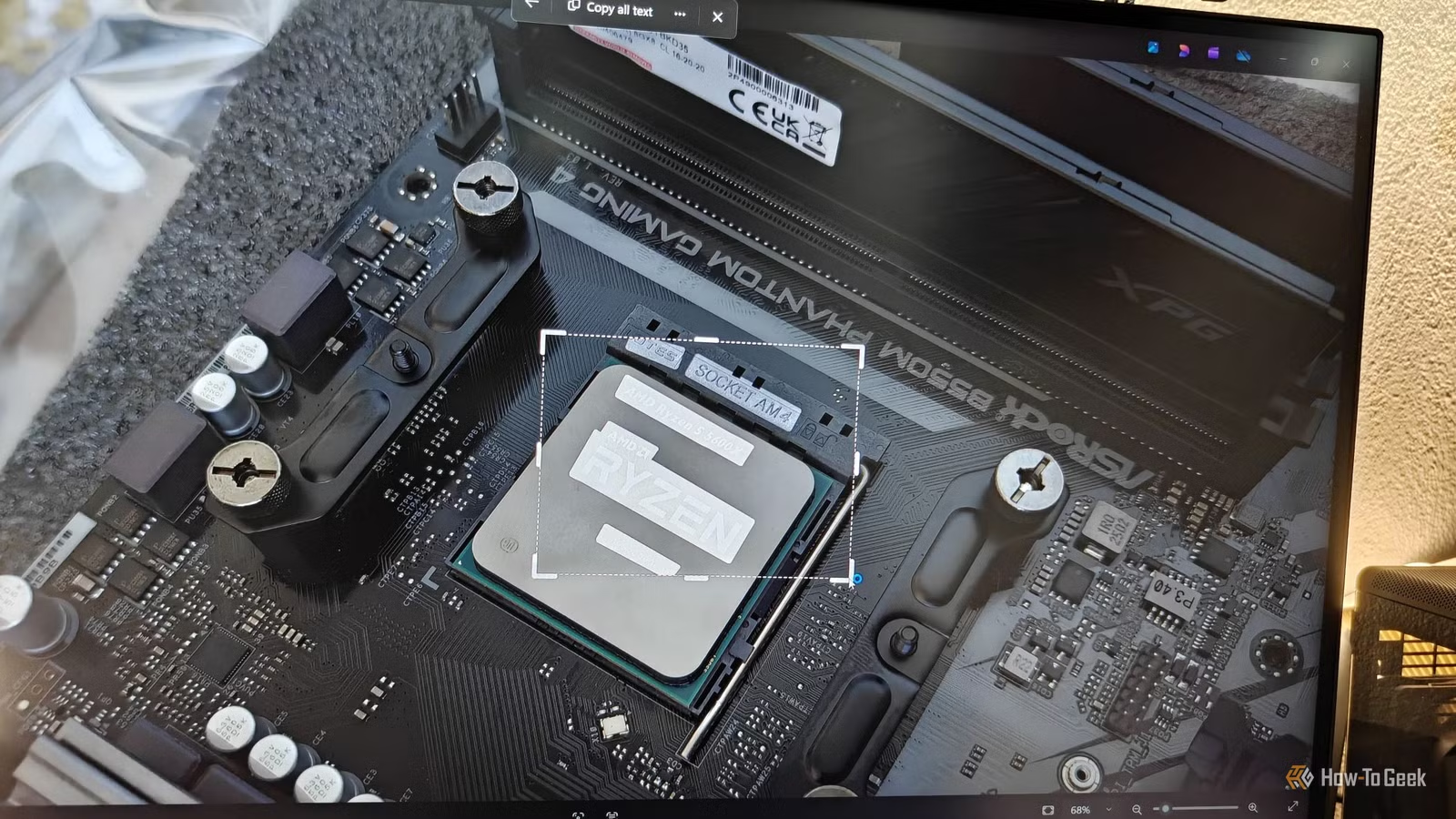
You can record your entire screen, use the color picker to instantly get a HEX color code, and, most impressive of all, use the Text Extractor, an Optical Character Recognition (OCR) tool that converts the text in any image into text you can select, copy, and paste.
It’s a massive asset for those times when you need to quickly copy and paste text from an image and don’t want to waste time finding the right online or third-party tool.
Microsoft has a whole toolbox for making Windows more powerful
While Windows 11 is more capable than ever, there are still a few advanced features that I wish it had out of the box. Luckily, I don’t have to look much further than Microsoft’s PowerToys, a set of free and open-source tools that add to or enhance the functionality of many existing features, including the aforementioned Text Extractor, additional mouse utilities, personalized templates in File Explorer, and more.
Related
This Is the Free Open-Source Answer to Windows’ Snipping Tool
Don’t settle for Windows’ built in tool.