


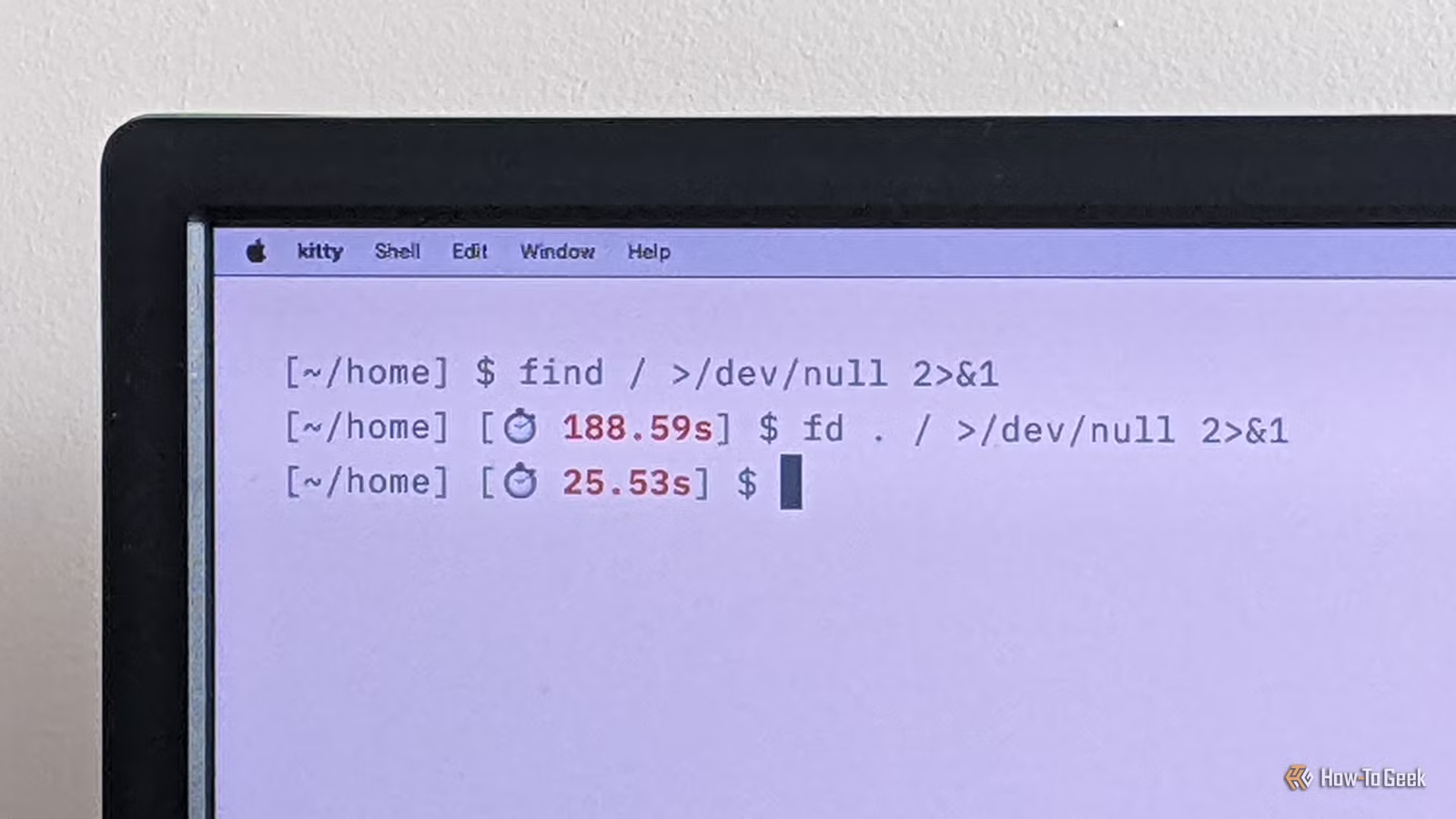
I’ve been using Linux for many, many years now, but I still keep learning new things all the time. It seems like, no matter what task you’re running, there’s a faster way to do it. So I decided to start focusing on these speed gains to see just how fast my terminal life can be.
Now that I’m measuring command times and identifying performance gains, my day-to-day Linux use is getting more and more efficient. Here’s how.
Start timing your commands
Identifying the time sinks is the first step to fixing them
Of course, the easiest way to time a command is with the existing time command. You can use it to time a program, so it’s great if you’re trying to optimize a specific command or a script you’ve written.
But using time as a simple, general-purpose reporting tool is awkward, and I wanted a quick way of discovering what I actually spend time using the terminal for. Using zsh, you can hook into two events: preexec, which runs just before the shell executes a command, and precmd, which runs just before it returns to the prompt.
timer_preexec()
timer_precmd()
add-zsh-hook preexec timer_preexec
add-zsh-hook precmd timer_precmd
In the full version of this script, I set the PROMPT variable inside time_precmd if it exceeds a threshold, so I get notified whenever a command takes more than a certain time. This is just the beginning of this approach; you could go much further and keep a proper record if you choose.
Another approach uses the REPORTTIME zsh environment variable to automatically run time with every command:
export REPORTTIME=0
You can set REPORTTIME to a number of seconds to only report on commands that take longer.
Speeding up your day-to-day terminal use
There’s often a quicker way to do something
The second part of speed running is using shortcuts to work faster. These may seem like small gains at first, but over time they will combine to form large savings and reduce everyday frustration.
Stop using the Up arrow
I waste a lot of time on the command line rerunning or rewriting previous commands. The history features of your shell make this very easy: press Up a number of times to find a previous command, then hit Enter to rerun it. Or use Left, Right, and Backspace to edit it, then run it. Maybe you’ve even progressed to Ctrl + A to jump to the beginning of the line.
It turns out that most of this long-winded typing is unnecessary. For a start, there’s !$ which expands to the last argument of the previous command, letting you do things like this:
mkdir -p my/new/directory
cd !$
I find this comes in handy when running a command I’ve just made executable (although be sure to supply the ./ prefix if it’s not already in your PATH):
chmod +x foo.sh
./!$
There’s a vast number of history expansion shortcuts, like !! which expands to the previous command:
apt install something
# oops, need to be root…
sudo !!
But these techniques are far from the only way you can rewrite past commands. Another approach—and probably my top recommendation—is caret substitution:
$ cd my/new/directry
cd: no such file or directory
$ ^tr^tor
cd my/new/directory
Using this syntax, your shell will take the previous command, replace the first instance of the first string with the second, and rerun the result. I’m now forcing myself to adopt this technique instead of the manual up-arrow approach, and I’m pleasantly surprised by just how much faster it is, now that I’m used to thinking about the fix and how to make it.
Finally, the fc command is probably the most useful one you’re not already using. By default, it opens the last command in your terminal editor, then runs it when you exit. If you want to make more significant changes to a command, it’s typically faster than caret substitution, history shortcuts, or manually moving the cursor.
Use aliases and functions
There are probably commands — and sets of commands — you run all the time without even thinking about it. You’re on autopilot, so the process is quick and easy, but it could be so much quicker. If you’re running a command in the same way, again and again, consider an alias.
Aliases provide basic text replacement, so instead of typing ls -lh every time you want a long file listing, you can do this instead:
ll
To set that up, you’ll need to define an alias, probably in a file like .bashrc. Simply use the alias command, pick a short series of letters that aren’t already in use, and define the expanded command in full:
alias ll=’ls -lh’
The gains might seem insignificant, but they’ll grow the longer your commands get. For example, I like to use eza instead of ls, so my alias looks like this:
alias ll=’eza –long –sort=size –reverse’
That’s a lot of typing saved, especially since I use this alias many times over, every single day.
If your aliases start getting more complicated, consider defining a simple function instead. Functions let you use parameters and control flow, and you can also call them from your own shell scripts.
One of the most useful functions I always make sure to define is this one:
mkd()
mkdir -p — “$1” && cd -P — “$1”
For a start, notice how the name of this function is shorter than the standard mkdir; that’s already a saving every time you create a directory! But, more importantly, it does the thing I usually do once I’ve created a directory anyway: entering that directory with cd.
I also send the -p option to mkdir by default, since this creates any intermediate directories, like the docs in “mkd docs/finance.”
It’s important to note that there are some minor drawbacks to using -p all the time: there are some types of errors that might pass you by, for example. But a true speed runner doesn’t concern themselves with these kinds of risks; they get everything right, as quickly as possible.
Use faster tools
Although the core Linux toolset is stable, mature, and reliable, alternatives are available. Many of these are written in more modern languages, like Rust, which is fast and safe.
Better command-line tools include tmux, for session management, fzf and fd, fast alternatives to find/grep, and zoxide, which makes navigation much more efficient than cd.
Know your limitations — and get rid of them!
Your shell has many powerful features that not only let you measure your productivity, but also allow you to improve it. Tab completion, background processes, and command chaining are just a few of those I haven’t mentioned here.