


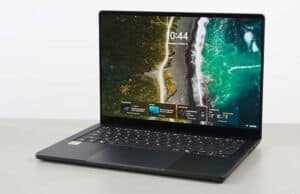
In this review, we’re discussing the Asus ProArt P14 ultraportable laptop, one of the most compact devices built on Nvidia RTX Spark N1X hardware.
We’ve also tested the ProArt P16 16-inch variant, and the review is available here if you’re interested in the same hardware in a larger chassis with a larger display.
The P14 is the more compact and lightweight of the two, weighing under 1.5 kilos and taking up about the same footprint as an Apple MacBook Pro 14 or an Asus ROG Zephyrus G14. In fact, the ProArt P14 and the Zephyrus G14 are a similar overall chassis, but with some design and ergonomics changes for the ProArt variant. While the Zephyrus is primarily a gaming notebook, the ProArt is a series targeted at creators and professionals, but both offer serious performance in their compact formats.
Down below we discuss the particularities of this ProArt P14 chassis, arguably one of the better available out there today, but the elephant in the room for this lineup is the Nvidia RTX Spark hardware, nonetheless.
Our ProArt P14 review unit implements the higher-tier Spark N1X specs, with the 20-core Grace CPU and the 6144-CUDA-core Blackwell GPU, along with 128 GB of fast LPDDR5x-9400 RAM on this configuration. This sells for $6499 in the US. Variants with 32 GB of RAM start at $3099 in the US and 3299 EUR over here in Europe, while variants with 64 GB of RAM are also available (for around 4500 EUR here).
The RAM is what makes this platform particularly interesting, as the memory is shared between the CPU and GPU, and you can allocate the included amount for either system memory or graphics memory. Our review unit is set at 64 GB RAM and 64 GB vRAM, but you can also opt for as little as 32 GB RAM and up to 96 GB vRAM, depending on your needs.
The higher amount of video memory makes sense for LLMs and Local AI implementations, which I believe is the main reason to look into an RTX Spark notebook. But RAM is darn expensive today, so the higher-specced variants of this laptop cost an arm and a leg. For reference, a top-specced Apple MacBook Pro 14 with the M5 Max hardware and 128 GB of RAM sells for $6699, so about on par with the top ProArt P14, while a 128 GB variant of the HP OmniBook X 14 starts at $5199, the Surface Laptop Ultra goes for $5899, and a Lenovo Pro 9n goes for a little over $6000.
Specs Sheet – Asus ProArt P14
Asus ProArt P14 H7407BA, 2026
Screen
14-inch, OLED, 16:10 aspect ratio, touch, glossy (Gorilla Glass),
3K 2880 x 1800 px, 30-120Hz VRR refresh,
600-nits SDR brightness, 1600-nits HDR peak,
100% DCI-P3 colors
Processor
Nvidia RTX Spark N1X,
20 CPU Nvidia Grace Cores
Video
Nvidia Blackwell GPU, 6144 CUDA Cores
Memory
128 GB LPDDR5x-9400 (soldered), up to 128 GB
Storage
1 TB SSD (Samsung PM9C1b), single M.2 2280 gen5/gen4 slot
Connectivity
WiFi 7 (Mediatek MT7925), Bluetooth 5.4
Ports
left: 2x USB-C 4.0, 1x HDMI 2.1 FRL, mic/headphone
right: 1x USB-A 3.2 gen2, 1x USB-C 4.0, UHS-II SD card reader
Battery
90 Wh, 140W USB-C charger
Size
311 mm or 12.23” (w) x 219 mm or 8.62” (d) x 13.9 – 15.9 mm or 0.55”-0.63″ (h)
Weight
3.3 lbs (1.49 kg) + .41 (.9 lbs) for the USB-C charger, cables
Extras
clamshell format with a 150-degree hinge,
dual-fan dual-radiator triple-heatpipe cooling,
white backlit keyboard, 1.7 mm travel, .2 mm dish, glass haptic touchpad,
2MPx FHD webcam with IR, no fingerprint sensor,
2x speakers, mic array,
Nano Black or Neo White colors
Design and ergonomics
As mentioned earlier, this ProArt P14 is a refined iteration of the ROG Zephyrus G14 chassis discussed a few months ago in this review.
It comes in either black (Nano Black) or light silver (Neo White), with a cleaner lid and more minimalistic branding than on the Zephyrus. The aesthetics are exquisite, and I personally consider this black one of the nicest-looking and well-made notebooks ever touched.
Sure, being a dark anodized aluminum finish, it does show smudges and finger oils quite easily. Furthermore, the finish is rather fragile alongside the sharper edges, particularly on the lid part, where the coating gets thinner and can dent and chip away, just like on other anodized products. The interior edges are beveled, at least, so that part should be fine. Overall, this aspect isn’t a concern at all on the lighter color variant, but it can be visible over time on this black finish. My unit already shows some scuffs on that lid edge.
Otherwise, this is a rock-solid and premium-feeling computer. The matte aluminum feels excellent to the touch, and the chassis doesn’t bend or flex or squeak in any way, not even along the underbelly.
Size-wise, this is one of the more compact higher-performance 14-inch laptops out there, about on par with the Zephyrus G14 or a MacBook Pro 14 in footprint, but slightly slimmer than both. At the same time, at 1.5 kilos or so, it’s nowhere near as lightweight as a 14-inch ultrabook, but those aren’t as powerful or equipped with a 90Wh battery like this one is. Nonetheless, we’ll discuss how this ProArt P14 compares to the ProArt PX13 later in the article, which is an even more compact x86 AMD Ryzen AI Max configuration that can also be specced with up to 128 GB of RAM.
Functionally, I appreciate the grippy rubber feet and the friendly edges around the main chassis, although I did notice two rather pointy corners around the indent on the laptop’s front lip. This indent was added to the ProArt series and was missing on the Zephyrus, and it allows you to easily pick up and open the display, something I struggled with and complained about on the G14. At the same time, the screen still doesn’t open all the way back flat, which can be annoying when using this device on the lap or in cramped spaces – I much preffer a 180-degree display on this sort of ultraportable device.
That aside, however, there’s nothing to complain about. There are no annoying lights in the line of sight, and the power button is a separate subtle button, not part of the keyboard. There is this status LED on the front lip, but it’s out of sight and only active when the laptop is plugged in.
The IO includes pretty much everything you’d need, with USB-C 4.0 ports on both sides, full-size USB-A and HDMI, an audio jack, and a proper SD card reader.
Before we wrap up this section, here’s how this ProArt P14 compares to the larger ProArt P16 with the 16-inch display.
And here is the Asus ProArt P14 next to the Asus ROG Zephyrus G14 (2025 variant; there’s a slightly different refreshed 2026 model available in the meantime).
Keyboard, haptic touchpad
The inputs on this ProArt P14 are borrowed from the Zephyrus G14 series as well.
The keyboard is a standard Asus Zephyrus layout, with full-size keys, a slight dish in the keycaps, and 1.7 mm of travel. It lacks the extra custom keys implemented on ROG devices, though.
This keyboard provides proper feedback and response, and overall is one of my favorites in this class of portable notebooks.
As a side note, the plastic keycaps show finger oil over time on this black variant, and you’ll need to clean them off once every couple of days. That’s not an issue with the Neo White color variant with the light-silver keycaps; instead, contrast from the white LED backlighting is way worse on that option.
Speaking of, the keyboard is backlit with white LEDs and three brightness levels to choose from. The bottom setting is dim enough for night use, while the other two get very bright. Still, a fair bit of light creeps away from underneath the keycaps, which is annoying in this class and price segment.
The touchpad is haptic and is a huge matte glass surface. It works fine with gestures and taps and everything, although I still struggled with certain actions such as clicking and dragging, where I preffer regular physical clickpads instead.
That aside, Asus made this surface so large and left little to no separation at the top and bottom, and that means ghost touches from your clothes are happening quite often when using this on the lap.
Finally, when it comes to biometrics, there’s an IR camera on this laptop, but not fingerprint sensor.
Display – touch Tandem OLED
The display on this ProArt P14 is a modern 14-inch 3K Tandem OLED, a step-up over the standard OLED implemented in the Zephryus G14. For comparison, the ExpertBook Ultra is the only other implementation of this Tandem OLED that we’ve tested so far.
That, however, is a matte touch variant, while this one is a glossy touch one with an anti-reflection coating and Gorilla Glass on top – it still shows some reflections in strong light, but the high brightness allows it to be perfectly usable even in these conditions. Furthermore, having a clearer non-matte finish makes sense on this sort of device potentially targeted at creators and graphic artists, where the matte diffuser would have interfered with color/contrast accuracy in certain use cases.
In fact, one of the main advantages of Tandem OLEDs over regular OLEDs is the higher brightness: 600 nits sustained, up to 1600 nits peak HDR. The other advantages are the potential improvements in longevity, as well as better efficiency on battery power, as explained in this article that discusses the laptop OLED panels available today.
That aside, this is a sharp panel at 3K (2800 x 1800 px) resolution, offers 100% DCI-P3 color coverage, supports 30-120Hz refresh rate with VRR and .2ms response times. And while still a touch OLED, it’s not as grainy as regular touch-OLED implementations of the past.
However, one particularity of OLEDs is the PWM flickering when lowering the brightness. Asus handles this better than other OEMs, as it allows for a flicker-free brightness adjustment option in the MyAsus app. You might find it frustrating at first on this laptop, though, as the regular F5/F6 shortcuts for adjusting brightness won’t always work, and a pop-up will point you towards using the MyAsus brightness setting.
Hardware and performance – Nvidia RTX Spark
Our test model is a top-specced configuration of the 2026 Asus ProArt P14, code name H7407BA, with an Nvidia RTX Spark N1X 20-core processor and Blackwell integrated graphics with 6144 CUDA Cores, 128 GB of LPDDR5x-9400 memory, and a 1TB gen4 SSD.
Disclaimer: This is a review unit offered by Asus. The latest tests included are based on the software available as of mid-October 2026 (BIOS 304, MyAsus 4.4.10.0 app, RTX Spark Nvidia Studio Driver 617.42). This is launch-day software; thus, some aspects can change with future updates.
This laptop runs on Nvidia RTX Spark hardware, which is a new ARM-based SOC (system on a chip) design.
The hardware is available in two variants at launch: a top version with a 20-core CPU and a 6144-CUDA-core GPU, and a slightly lower-tier option with an 18-core CPU and a 5120-CUDA-core GPU. The CPU cores are based on Nvidia’s Grace platform, and the GPU cores are Nvidia Blackwell. The platform supports unified LPDDR5x memory, PCIe gen5 lanes, and the Full Nvidia stack of technologies: CUDA, TensorRT, NVFP4, DLSS, Ray Tracing, Reflex, and GSync. They’re connected via an Nvidia NVLink interface.
These allow for serious capabilities in creator software and AI apps, as well as decent gaming abilities with the help of DLSS. The 6144-core GPU comes close to a dedicated GeForce RTX 5070 Mobile, as long as we’re discussing games made to run natively on ARM. More on that further down, as it’s an important aspect to understand here.
The unified memory that goes up to 128 GB is perhaps the most interesting aspect of this platform, as it allows splitting the implemented memory between active memory and video memory. This way, up to 96 GB of vRAM can be allocated to the GPU, thus allowing the ability to run the most advanced LLMs (local language models) and AI agents. For comparison, AMD’s Strix/Gorgon Halo platform offers a similar memory implementation, but without the CUDA and other tech offered here by the Nvidia chip, while a dedicated mobile Nvidia chip only gets up to 24 GB of dedicated vRAM in the RTX 5090 configurations.
Storage and the WiFi module are the only upgradable components inside this laptop. There’s a single M.2 2280 SSD slot inside, with support for dual-sided SSDs and PCIe gen5 speeds. However, Asus ships the laptop with gen4 storage – there’s a Samsung PM9C1b drive on our unit, which performed rather erratically in our tests.
You need to remove the back panel to get to the components. It’s held in place by a few Torx srcrews, of different sizes. There’s a pop-up screw in the bottom right corner, which facilitates the process of removing this back panel.
Hardware aside, it’s very important to acknowledge that this RTX Spark is an ARM-based platform; thus, it runs the ARM version of Windows and software that’s either natively designed for ARM or emulated x86 software.
That’s the same as on Qualcomm Snapdragon laptops, where these days most of the standard apps are available in native variants made for ARM, but older or specific software runs through emulation and might struggle, or might not work at all. This is especially a concern here, as this Spark hardware is targeted at professionals and isn’t meant for casual use in the same way as some of the Snapdragon chips are. So it needs to properly run the pro-level applications these potential buyers would need for their activities.
Asus offers three power profiles for this ProArt P14, pegged at different noise levels. They’re available in the ProArt Creator Hub control app, alongside other settings.
Silent
Standard
Performance
Manual
CPU only, PL1/PL2 TDP
35/45W
45/55W
70/95W
80/95W
Crossload TDP
Max CPU + GPU
35W
45W
70W
80W
Noise at head level, tested
~40 dBA
~48 dBA
~50 dBA
Manual mode allows for custom power levels and a noise-curve fan profile. The options are more limited than on other devices.
The laptop performs fine on Standard with regular use and runs quietly and coolly. Both Standard and Whisper modes allow for idle fans. The overall thermals are excellent on this laptop, and the fans keep quiet and barely audible with daily use and multitasking.
Here are some logs for video streaming, light use, and heavier browsing.
Benchmarks results and performance summary
With that out of the way, let’s get into more serious loads.
I cannot run the standard Cinebench R15 loop test on this hardware, since I cannot log the hardware’s power in the same way as on x86 platforms. Furthermore, there’s no ARM native version of Cinebench R15, thus the scores on this platform cannot be compared with the results on x86 Intel and AMD models.
Instead, Cinebench R24 and 26 are ARM native and can be used for comparisons, as you’ll see in a bit.
What’s important here is that the hardware performs consistently and doesn’t run very hot with sustained CPU loads in this compact chassis. Furthermore, the platform passes the 3DMark Stress test, which runs the same test for 20 loops and looks for variations in scores between runs, as the heat builds up in the system. This laptop passes the test both flat on the desk and when placed on a stand, which means thermals do not impact the sustained mixed-use and GPU performance in any significant way.
Let’s get into benchmarks.
We ran our standard set of tests with the laptop on Performance mode (70W sustained TDP, up to 95W PL2) and the screen set at its default 3K resolution. We also used Nvidia Studio drivers for these tests.
Here’s what we got.
- 3DMark 13 –CPU profile (x64): max – 7087, 16 – 6547, 8 – 4800, 4 – 2490, 2 – 1248, 1 – 634;
- 3DMark 13 – Fire Strike (x64): 21821 (Graphics – 26714, Physics – 24944, Combined – 8520);
- 3DMark 13 – Port Royal (arm): 8752, 40.52 fps;
- 3DMark 13 – Solar Bay (arm): 52534, 199.75 fps;
- 3DMark 13 – Speed Way (arm): 2892;
- 3DMark 13 – Steel Nomad Light (arm): 12896, 95.53 fps;
- 3DMark 13 – Time Spy (x64): 12330 (Graphics – 11999, CPU – 14621).
- Uniengine Superposition – 1080p Extreme: 7071;
- Uniengine Superposition – 1080p Medium: 17481;
- Aida64 Extreme, memory test: 134134 MB/s read, 224799 MB/s write, 14.2 ns latency;
- GeekBench 6.6.0: Multi-core: 20087, Single-Core: 3091;
- GeekBench 7.1.0: Multi-core: 23192, Single-Core: 2677;
- GeekBench AI 1.7.0 (ONNX, CPU): Single: 1671, Multi: 3347, Quantized: 6327;
- CineBench R15 (x86, best run): CPU 3497 cb, CPU Single Core 246 cb;
- CineBench 2024 ARM: CPU 1697 (10 min run), CPU Single Core 131 pts;
- CineBench 2026 ARM: CPU multiple threads: 6592 (10 min run), CPU single thread: 543 pts.
And here are some work-related benchmarks, on the same Performance profile:
- Blender 5.2.2 ARM: Classroom – CPU compute: 3m 34s;
- Blender 5.3.0 ARM: Classroom – CPU compute: 3m 32s;
- Blender 5.3.0 ARM: Classroom – GPU compute: 29.8s – CUDA, 15.1s – Optix;
- Blender 5.3.0 ARM: Barbershop – CPU compute: 15m 39s;
- Blender 5.3.0 ARM: Barbershop – GPU compute: 1m 32s – CUDA, 2m 38s – Optix;
- Blender Benchmark 3.3.0: Classroom – 85.57, Monster – 175.55, Junkshop – 129.41 samples per minute;
- ComfyUI – Flux.2 text-to-image in FP8, Turbo mode – 22.67s;
- ComfyUI – Flux.2 text-to-image in NVFP4, Turbo mode – 17.29s;
- ComfyUI – LTX-2.3 22B text-to-video in FP8, Egyptian Queen – 52.79s;
- ComfyUI – LTX-2.3 22B text-to-video in NVFP4, Egiptian Queen – 52.33s.
- MLPerf Client – Flux 2 Klein 4B (Nvidia Diffusers CUDA GPU, NVFP4): 36.28 images/min;
- MLPerf Client – Flux 2 Klein 4B (Nvidia Diffusers CUDA GPU, FP8): 26.63 images/min;
- MLPerf Client – Qwen 3 8B (Nvidia llama.cpp CUDA GPU): 46.29 E2E (s);
- MLPerf Client – Llama 3.1 8B (Nvidia llama.cpp CUDA GPU): 46.26 E2E (s);
- SPECviewperf 15 – 3DSMax 08: 6.50;
- SPECviewperf 15 – Blender 01: 54.50;
- SPECviewperf 15 – Catia 07: 4.08;
- SPECviewperf 15 – Creo 04: 3.12;
- SPECviewperf 15 – Energy 04: 43.20;
- SPECviewperf 15 – Enscape 01: 43.00;
- SPECviewperf 15 – Maya 07: 17.62;
- SPECviewperf 15 – Medical 04: 42.76;
- SPECviewperf 15 – SNX 05: 0.38;
- SPECviewperf 15 – Solidworks 08: 12.71;
- SPECviewperf 15 – Unreal Engine 01: 62.43;
- V-Ray Benchmark: CPU – 18716, CUDA – 2414;
- Puget Benchmark (1.0.7) – Adobe Photoshop (27.11) – 11111 points;
- Puget Benchmark – Adobe Premiere – tbu;
- Puget Benchmark – DaVinci Resolve (20.3) – tbu;
So where are we with these results (which, remember, are tested on launch-day software, thus certain aspects could change over time)?
For sustained CPU loads, let’s take Cinebench 26 on a couple of similar-powered platforms:
- Nvidia Spark RTX N1X, 20-Core, ARM, 70W: CPU multiple threads: 6592, CPU single thread: 543 pts;
- AMD Ryzen AI 9 Max+ 395, x86, 70W: CPU Multiple Threads: 6816, CPU Single Thread: 464 pts;
- AMD Ryzen AI 9 HX 470, x86, 85W: CPU Multiple Threads: 5031 pts, CPU Single Thread: 482 pts;
- Intel Core Ultra 9 386H, x86, 70W: CPU Multiple Threads: 5084, CPU Single Thread: 521 pts;
- Qualcomm Snapdragon X2 Elite Extreme, ARM, 45W: CPU multiple threads: 6935, CPU single thread: 620 pts
Competitive performer overall, trading blows with the competition. The X2 Elite Extreme comes out as the fastest option in both multi-thread and single-thread loads, despite running at much lower power, but that’s only available in a single product and isn’t as competitive on the GPU side.
Speaking of which, this platform is an SOC with an integrated iGPU. The only real alternative is AMD’s Ryzen AI Max+ hardware, with the Radeon 8060S iGPU, and even that is nearly a two-year-old platform – but AMD is coming with updated hardware soon.
So, when pitching the RTX Spark iGPU against the Ryzen AI Max iGPU, here’s where we are:
- 3DMark Speed Way: 2892 Spark, 1916 AMD (native on both)
- 3DMark Port Royal, RT: 8752 Spark, 5464 AMD (native on both)
- 3DMark Time Spy Graphics, RT: 11999 Spark, 10273 AMD (x86 versions on both, thus emulated on Spark)
- Uniengine Extreme: 7071 Spark, 6005 AMD (x86 versions on both, thus emulated on Spark)
For the native ARM tests available on Spark, the GPU on the Nvidia platform is about 50% faster than the iGPU on the AMD platform. For the emulated x86 tests running on Spark, the difference is only about 20% or so in favor of the Nvidia chip.
At the same time, this Spark GPU scores about on par with an RTX 5070 Mobile 115W dGPU in Speed Way and Port Royal. But when looking at emulated x86 benchmarks, it scores lower than an RTX 5060. Thus, the overall performance of this hardware is highly dependent on whether the software runs emulated in an x86 variant or is available in a native ARM version.
That’s even more obvious when looking at the SpecViewPerf test results scored here, which are all over the board and cannot be compared with the scores recorded on x86 platforms.
With that out of the way, though, I want to touch on two other aspects concerning the AI capabilities of this platform: MLPerf Client (evaluates LLM inference and image-generation performance) and ComfyUI (runs various tasks based on LLMs).
For these, I’m looking at two references for comparison (that I had around at this time): the same AMD Ryzen AI 9 Max+ 395 platform, and a full desktop PC running a Ryzen 9 9955HX3D and an RTX 5080 dGPU. Of course, it would make sense to compare the findings with other notebook platforms as well, such as Panther Lake + dGPU or Apple MacBook M5 Pro/Max, but I did not have these at my disposal for this review.
So, here are the results for LLM inference in the MLPerf Client Qwen 3 8B test (lower is better):
- Nvidia RTX Spark N1X 20C (Nvidia llama.cpp CUDA GPU): 46.29 E2E (s);
- AMD Ryzen AI Max+ 395 (AMD ORT GenAi Ryzen AI NPU-GPU): 187.79 E2E (s);
- AMD 9955HX3D + RTX 5080 (Nvidia llama.cpp CUDA GPU): 19.80 E2E (s);
Then, here are the results for text-to-image generation in the MLPerf Client – Flux 2 Klein 4B test (higher is better):
- Nvidia RTX Spark N1X 20C (Nvidia Diffusers CUDA GPU, NVFP4): 36.28 images/min;
- Nvidia RTX Spark N1X 20C (Nvidia Diffusers CUDA GPU, FP8): 26.63 images/min;
- AMD Ryzen AI Max+ 395 (AMD Diffusers RyzenAI NPU): 6.25 images/min;
- AMD 9955HX3D + RTX 5080 (Nvidia Diffusers CUDA GPU, NVFP4): 81.01 images/min;
- AMD 9955HX3D + RTX 5080 (Nvidia Diffusers CUDA GPU, FP8): 75.58 images/min.
And here are the results for text-to-image generation in ComfyUI using Flux.2-dev 32B (time to generate a specific image based on text input, faster is better):
- Nvidia RTX Spark N1X 20C (NVFP4): 17.29 s;
- Nvidia RTX Spark N1X 20C (FP8): 22.67 s;
- AMD Ryzen AI Max+ 395 (FP8): 188.84 s;
- AMD 9955HX3D + RTX 5080 (NVFP4): 16.78 s;
- AMD 9955HX3D + RTX 5080 (FP8): 19.79 s.
And here are the results for text-to-video generation in ComfyUI using LTX-2.3 22B (time to generate a specific video based on seed image and text input, faster is better):
- Nvidia RTX Spark N1X 20C (NVFP4): 52.79 s;
- Nvidia RTX Spark N1X 20C (FP8): 52.33 s;
- AMD Ryzen AI Max+ 395 (FP8): 359.55 s;
- AMD 9955HX3D + RTX 5080 (NVFP4): 48.11 s;
- AMD 9955HX3D + RTX 5080 (FP8): 39.79 s.
For inference, the desktop PC comes out much faster, but for content generation, the Spark notebook is nearly on par with the PC. The AMD Ryzen platform is way slower in all these tests.
Using NVFP4 for image/vidoe generation is recommended for Spark as the better balance of speed and quality. It’s not always faster than using FP8, but I find the results better quality and more accurate. For example, here are the two images generated with Flux, on FP8 orNVFP4. I’ve also included details on the text input and used models for this task.
I didn’t get to run other models and tests, but the sky is the limit. What’s important here is the ability to load and use complex models alongside the capabilities of the CUDA cores and Optix/DLSS technologies. This mix is not offered by other Windows-running mobile platforms at the moment, as far as I can tell. However, I cannot discuss Mac platforms, since I have no experience with LLMs on those and don’t have a modern M5 MacBook Pro around to test out.
Standard and Whisper modes
These profiles set lower fan noise levels and TDP levels: 45W with 40 dBA fans on Standard mode and 35W with sub-35 dBA fan noise on Silent.
I only ran a few tests for each mode. Here’s Standard.
- 3DMark 13 – Speed Way (arm): 2258;
- CineBench 2026 ARM: CPU multiple threads: 5973 (10 min run), CPU single thread: 542 pts.
- Blender 5.2.2 ARM: Classroom – CPU compute: 4m 00s;
And here’s Whisper:
- DMark 13 – Fire Strike (x64): 17345 (Graphics – 20561, Physics – 22771, Combined – 6855);
- 3DMark 13 – Speed Way (arm): 2067;
- 3DMark 13 – Time Spy (x64): 8436 (Graphics – 8027, CPU – 11864).
- CineBench 2026 ARM: CPU multiple threads: 5464 (10 min run), CPU single thread: 542pts.
- Blender 5.2.2 ARM: Classroom – CPU compute: 4m 19s;
Both are competitive profiles, and the dip in scores is acceptable given the much lower fan noise. Whisper mode ends up performing at about 75-80% of the platform’s capacity in Performance mode, at sub-35 dBA noise levels.
Gaming Performance
I only got to test two games on this laptop, both emulated x86 titles and tested with the in-game benchmarking tools. We’ll update this section later, hopefully with some native ARM games if possible:
Here’s what we got:
Asus ProArt P14,
Nvidia RTX Spark N1X, 6144 CUDAs
3K Performance,
70W, 48 dBA
2.5K Performance,
70W, 48 dBA
2.5K Standard,
45W, 42 dBA
2.5K Whisper,
35W, 35 dBA
Black Myth: Wukong
(DX 12, Cinematic Preset, RT Off)
TSR 55, FG Off
23 fps (15 fps – 1% low)
25 fps (16 fps – 1% low)
–
–
Black Myth: Wukong
(DX 12, Cinematic Preset, RT ON Very High)
DLSS 3.5 – DLSS 55 Balanced,
MFG On 2x
39 fps (33 fps – 1% low)
45 fps (38 fps – 1% low)
40 fps (33 fps – 1% low)
33 fps (26 fps – 1% low)
Black Myth: Wukong
(DX 12, Cinematic Preset, RT ON Very High)
DLSS 4.0 – DLSS 55 Balanced,
MFG On 4x
70 fps (65 fps – 1% low)
79 fps (68 fps – 1% low)
68 fps (59 fps – 1% low)
58 fps (52 fps – 1% low)
Cyberpunk 2077
(DX 12, Ultra Preset, RT Off)
36 fps (30 fps – 1% low)
40 fps (32 fps – 1% low)
–
–
Cyberpunk 2077
(DX 12, Ultra Preset, RT On Overdrive)
DLSS 4.0 – DLSS Balanced,
MFG On 2x, Ray Reconstruction On,
Path Tracing On
43 fps (38 fps – 1% low)
51 fps (44 fps – 1% low)
42 fps (34 fps – 1% low)
35 fps (29 fps – 1% low)
Cyberpunk 2077
(DX 12, Ultra Preset, RT On Overdrive)
DLSS 4.0 – DLSS Balanced,
MFG On 4x, Ray Reconstruction On,
Path Tracing On
75 fps (67 fps – 1% low)
90 fps (73 fps – 1% low)
74 fps (67 fps – 1% low)
62 fps (55 fps – 1% low)
These results are generally 10-15% slower than what we measured on an RTX 5060 notebook, so about on par with our findings in the synthetic tests. However, for games that run natively on ARM, I’d expect the frame rates closer to a dedicated RTX 5070 mobile chip.
As far as internal thermals go, there’s very little we can get with HWinfo from this platform, aside from GPU speeds and temperatures. Here’s a summary of the existing power modes, in Cyberpunk:
- Performance with the laptop flat on the desk: 4.0 GHz CPU Clock, ~2.0 GHz GPU Clock, 75 °C on the GPU, 48 dBA;
- Performance with the laptop raised off the desk: 4.0 GHz CPU Clock, ~2.05 GHz GPU Clock, 69 °C on the GPU, 48 dBA;
- Manual mode with max fans, laptop raised off the desk: 4.0 GHz CPU Clock, ~2.15 GHz GPU Clock, 74 °C on the GPU, 50+ dBA;
- Standard modes, laptop raised off the desk: 4.0 GHz CPU Clock, ~1.6 GHz GPU Clock, 64 °C on the GPU, 40 dBA;
- Whisper mode, laptop raised off the desk: 4.0 GHz CPU Clock, ~1.3 GHz GPU Clock, 60 °C on the GPU, 35 dBA;
A few thoughts:
- thermals are impacted when placing the laptop on a stand, allowing for better airflow underneath the chassis and into the fans;
- Manual mode allows for a minimal performance increase, as it runs the hardware at 80W TDP, compared to only 70W on Performance;
- fan noise is quite high on Performance mode at 48 dBA, and I can see why you’d preffer the other profiles instead;
- both Standard and Whisper modes are competitive, despite the lower TDP that impacts the GPU Clocks. In real-world use, framerates in Whisper mode are about 65-70% of Performance mode.
All in all, this Spark platform is not meant for gaming; it’s neither as capable as dedicated Nvidia hardware, and it is crippled by being an ARM architecture where software support becomes an extra issue. At the same time, it can run games well enough when enabling DLSS. And keep in mind we’re only looking at DLSS 3.5 here in emulated x86 titles. For native AMR games and upcoming DLSS 5.0 over the next few months, the gaming performance is going to improve significantly (in those supported games, of course).
Noise, Heat, Connectivity, speakers, and others
The cooling module inside this ProArt notebook includes dual fans, dual radiators, and two mid-sized heatpipes.
All in all, the cooling does a solid job here. It supports 70W TDP on Performance mode with louder fans and acceptable thermals in the 70s to 75s °C, or around 45W TDP on Standard with quieter fans and lower thermals. However, I’d still keep this laptop raised off the desk when running sustained loads on it – the laptop doesn’t overheat by any means, but this allows it to run cooler.
As far as the noise levels go, expect 48 dBA on Performance, 40 dBA on Standard, and sub-35 dBA on Whisper mode.
With daily use, the fans keep idle for the most part on the Whisper and Standard modes, but they remain active on Performance and are audible in a silent room. Hence, you’ll want to take the laptop off Performance mode for general use, as much as possible. The other profiles won’t impact the laptop’s overall feel and run quieter. I haven’t noticed any coil whining or electronic noises either.
As for the external temperatures, the chassis stays cool with light use, with the warmest spot at around 32-34 °C. That’s despite running on pretty much passive cooling.
*Daily use – Whisper mode – video streaming, fans idle at 0 dB
With demanding loads, a warm spot of around 41-45 degrees °C develops in the middle of the chassis around the C, V keys, and at the top. The touchpad and keyboard, and generally the areas that you’re mostly coming in contact with, stay in the mid-30s to high-30s °C.
These are fair temperatures for a powerful ultraportable chassis, although that bottom hotspot around the Space key can be somewhat uncomfortable at times on the metal chassis, especially in warmer environments. We’re testing at around 23-24 °C ambient, but things would be different in a hotter place.
*Gaming – Whisper mode – playing Cyberpunk for 30 minutes, fans at
*Gaming – Performance mode – playing Witcher for 30 minutes, fans at ~48 dB
For connectivity, there’s the latest-gen Wi-Fi 7 and Bluetooth 5.4 through a Mediatek chip on this Nvidia RTX Sparl configuration. Everything performed fine during my time with the laptop. At the same time, this is an M.2 module and can be easily upgraded if needed.
Audio is handled by a set of 6x speakers that fire upwards and downwards, with two main dual-sided woofers and an extra pair of tweeters. At first glance, this is similar to the audio system on the Zephyrus G14, but the speakers are actually physically smaller, since this lineup implements a larger battery than the Zephyrus. Nonetheless, these get loud and sound good.
The camera, on the other hand, is merely decent. It’s 2MP and placed at the top of the display, gets a wide camera angle, and the image quality is meh, not great (still feels better somehow than on the ROG Zephyrus notebooks, even if that’s a similar 2 MPx shooter). It lacks a cover, but at least there’s IR functionality with Windows Hello support.
Battery life – not great, not terrible
There’s a 90 Wh battery inside this 2026 ProArt P14, larger than on other 14-inch notebooks.
Here’s what we got in our battery life tests, with the screen’s brightness set at around 120 nits (~50 brightness). I’ve also set the Windows 11 power mode to Best Power Efficiency.
- h of use) – idle, Whisper Mode, screen at 0%, Wi-Fi ON;
- ~5.5 W (15+ h of use) – idle, Whisper Mode, screen at 50%, Wi-Fi ON;
- 12-15 W (~ 6-7 h of use) – text editing in Google Drive, Whisper Mode, screen at 50%, Wi-Fi ON;
- 8 W (~11 h of use) – 1080p fullscreen video on Youtube in Edge, Whisper Mode, screen at 50%, Wi-Fi ON;
- 7.5 W (~12 h of use) – Netflix fullscreen in Edge, Whisper Mode, screen at 50%, Wi-Fi ON;
- 15-18 W (~5-6 h of use) – browsing in Edge, Standard Mode, screen at 50%, Wi-Fi ON.
Idle and video streaming runtimes are fairly competitive. But actually using the laptop inside the browser sips energy quickly, and thus runtimes with actual mixed use aren’t impressive, at about 5-7 hours of real-life use. Not great compared to other mobile platforms out there, which run more efficiently with light use as well. Nonetheless, the efficiency is at least somewhat compensated by the big battery.
This configuration ships with a 140W USB-C charger, a dual-piece design with long cables. The USB-C cable is braided and detachable, but overall I find the charger rather bulky and would have preferred Asus’s single-cable 140W GaN design on this premium lineup.
Price and availability- Asus ProArt P14
At the time of this article, the Asus ProArt P14 is listed in stores around the world.
Follow this link for updated prices and configurations in your area.
In the US, the base-level version starts at $2599 for an N1X 18C configuration with the lower-tier 5120-CUDA-Core GPU, 24 GB of RAM, and 512 GB SSD storage, while the N1X 20C model with 32 GB RAM / 1 TB SSD variant jumps to $3099. The same goes for 3399 EUR over here, and 2999 GBP in the UK.
Regardless, this notebook makes sense primarily in its configurations with 64/128 GB of RAM. And those are expensive: closer to 6500 USD and 6000 EUR for the 128 GB variant with 2 TB SSDs.
Overall, these prices are more or less on par with other RTX Spark configurations in the entry-mid level configurations, but the prices go bonkers for the 64GB and 128 GB variants, while rivals offer their similar-tier Spark variants for less.
Follow this link for updated prices and configurations in your area.
Final thoughts- Asus ProArt P14 review
Hardware-wise, this ProArt P14 is a spectacular notebook in its segment. On the outside, this is a refinement of the popular Asus ROG Zephyrus G14 chassis, with cleaner and more professional aesthetics, especially in this black version discussed here. It also bundles a Tandem OLED touch display, punchy speakers, good IO and usable inputs.
Inside, this is powered by an Nvidia RTX Spark platform, with up to 128 GB of unified memory, upgradable SSD storage, and a 90 WH battery.
However, this is a higher-performance ARM platform. On the CPU side, it’s competitive against most alternatives in the mobile space, and its iGPU capabilities are mid-level, in the range of a 5060-5070 GeForce dedicated GPU. However, the system’s actual real performance is highly dependent on whether the app that you’re running is made natively for the ARM environment or is an emulated x86 variant. The performance gap between the two is significant.
Now, we’ve discussed this before in our coverage of Qualcomm Snapdragon X2 laptops; this whole software compatibility thing is tricky. Daily apps such as browsers, office, Teams, and the like work fine, but when it comes to specific and professional software, things get more nuanced, and you’ll need to research whether the apps that you’re interested in are available in ARM variants or not. Right now, this support is rather a promise for the future than a reality.
But there is one aspect where this Spark hardware does well: Local AI use. My experience is limited in this field, but the few creator models tested in ComfyUI, Blender, and Unreal Engine worked smoothly on this ProArt P14. Plus, the unified memory allows you to juggle allocation between system RAM and video RAM, allowing the ability to load and use the most advanced LLMs locally without additional token costs. Whether that’s important is going to make or break this laptop for you, and, in fact, all the other Nvidia Spark devices of this first generation. Because otherwise, standard x86 platforms are less of a hassle and even more powerful and more efficient on battery power within a similar price range. Hence, the Zephyrus G14 remains a serious alternative to this ProArt P14, and we’ll discuss the two more indepth in a separate article.
This wraps up my time with this ProArt P14 series. Looking for your thoughts and feedback down below.
Disclaimer: Our content is reader-supported. If you buy through some of the links on our site, we may earn a commission. Terms.
Navigation: Ultrabookreview.com » Asus
Review by: Andrei Girbea
Andrei Girbea is a Writer and Editor-in-Chief here at Ultrabookreview.com. I write about mobile technology, laptops and computers in general. I’ve been doing it for more than 15 years now. I’m a techie with a Bachelor’s in Computer Engineering. I mostly write reviews and thorough guides here on the site, with some occasional columns and first-impression articles.