


I wear a smartwatch so that I almost never have to hear my phone. My watch tells me when someone’s calling, when someone’s texting, and other important things. Just as importantly, my watch can know when not to tell me as well.
With just a little pre-configuration, a smartwatch can do this job even better and make the experience of wearing one all the more pleasant. If you happen to own a Galaxy Watch, you need to check out Samsung Modes.
Tailor your watch to your current activity
I want my watch to work differently in a theater than while driving
Samsung Galaxy phones come with a feature known as Modes and Routines. The latter is a type of automation akin to IFTT. Modes put your phone in a certain state typically depending on the time of day, your location, or your activity. Modes aren’t limited to phones—you can activate them on your Galaxy Watch as well!
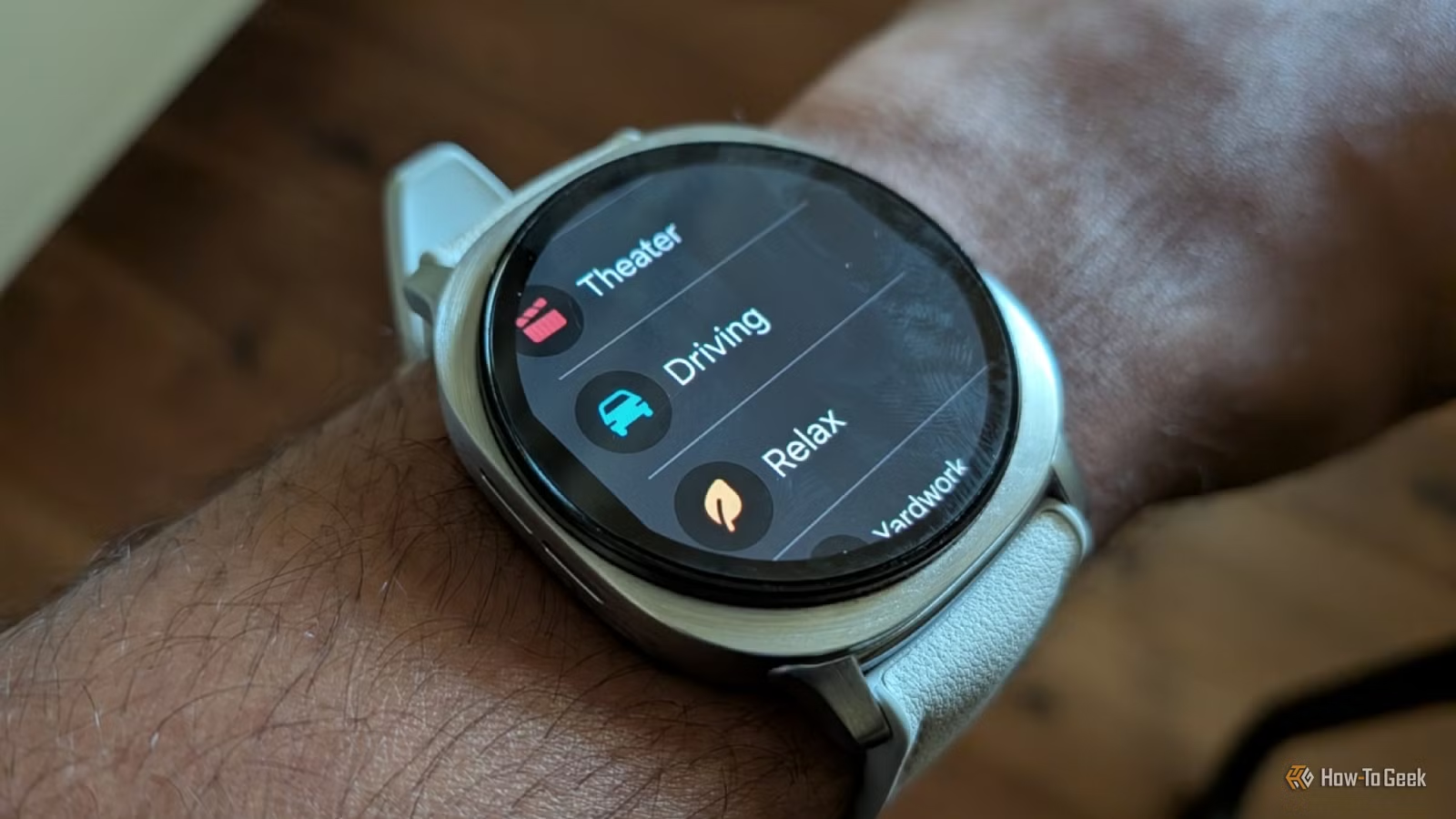
You can do this by swiping down from the top of your watch and tapping the “Modes” icon. It’s the one that looks like the outline of a pizza with one slice being removed. The modes you see will match the modes you have enabled on your phone.
Most of the available modes are not enabled by default, but Samsung does provide many recommendations. Theater Mode can disable an always-on display and raise-to-wake gestures. It can also reduce my screen brightness and set my watch to do-not-disturb. Conveniently, this mode can automatically turn itself off after a couple of hours.
While driving, I want my watch to behave in the exact opposite way. While I personally prefer to have the always-on display disabled, driving is a time when that feature is convenient to have it on. Driving is also when the screen needs to be as bright as possible (unless I’m driving at night, when I want the exact opposite). That is what Driving Mode is for.
There’s also a Relax Mode that can be handy when reading a book. During a time like this, I don’t need do-not-disturb activated, but it is a nice time to turn down the volume for notifications so that they’re much less intrusive.
There’s one mode that ships on every watch
Sleep Mode is already configured to help you get a good night’s sleep
Credit: Bertel King / How-To Geek
I am a light sleeper, and the slightest disturbance can result in my being awake for hours and having a disruptively lethargic day afterward. At nighttime, I only want notifications from a select few loved ones able to come through, whether on my phone or on my watch.
On a Galaxy Watch, activating Sleep Mode is the easiest way to block out unwanted digital disruptions at night. When this mode is enabled, all notifications are silenced (with the exception of those you permit to pass). If you have always-on display enabled, this mode will turn that off. If your screen instead wakes up when you raise your wrist, this mode will disable that as well. It will also enable the power saving mode to save battery and switch the display to Eye Comfort Mode.
I have my Galaxy Watch paired to a Samsung Galaxy S24 FE. I can customize sleep mode via the phone and configure precisely which things I want turned on or off. I can also have Sleep Mode activated on a schedule. For me, the default time of 10pm to 7am is quite ideal. Having a fixed bedtime also helps improve my sleep in general.
Importantly, my morning alarm still goes off so I can wake up in the morning and get an early start to my day while Sleep Mode remains active.
I’ve created my own mode for tasks that Samsung didn’t think of
Modes are entirely what you make them
Credit: Bertel King / How-To Geek
I’ve created a Yardwork Mode that addresses some of the frustrations of using my phone while I’m working outdoors. The screen brightness gets cranked all the way up, and so does the volume.
You can create a mode on a Galaxy phone by opening the Settings app and navigating to “Routines and Modes.” You can then tap the “Add New” button at the bottom. I’ve given my Yardwork Mode the sun icon and made it green. Samsung provides everything you need to really make Modes and Routines your own.
The Galaxy Watch works best with a Galaxy phone
As I mentioned, I have the Samsung Galaxy Watch 8 paired to a Galaxy S24 FE. The modes I create on my phone sync to my watch, which means that when I activate a mode on one device, it also triggers on the other. This allows me to activate modes without having to fiddle with two devices separately each time.
Unfortunately, the feature is more limited if you’re attempting to use a Galaxy Watch with a different brand. This is one area where, while the Galaxy Watch is not locked to a single brand in the same way as an Apple Watch, you do experience some chinks in the experience if you opt to switch away from Samsung.