


Windows File Explorer has been a source of widespread discontentment amongst the users of Windows 11, and despite Microsoft’s continued efforts to fix the rather annoying aspects of its UX, browsing files feels rife with friction. Going through folders and menus feels sluggish and adds to cognitive load through an unnecessarily cluttered UI. In my experience, the right-click context menu has been the singular biggest offender.
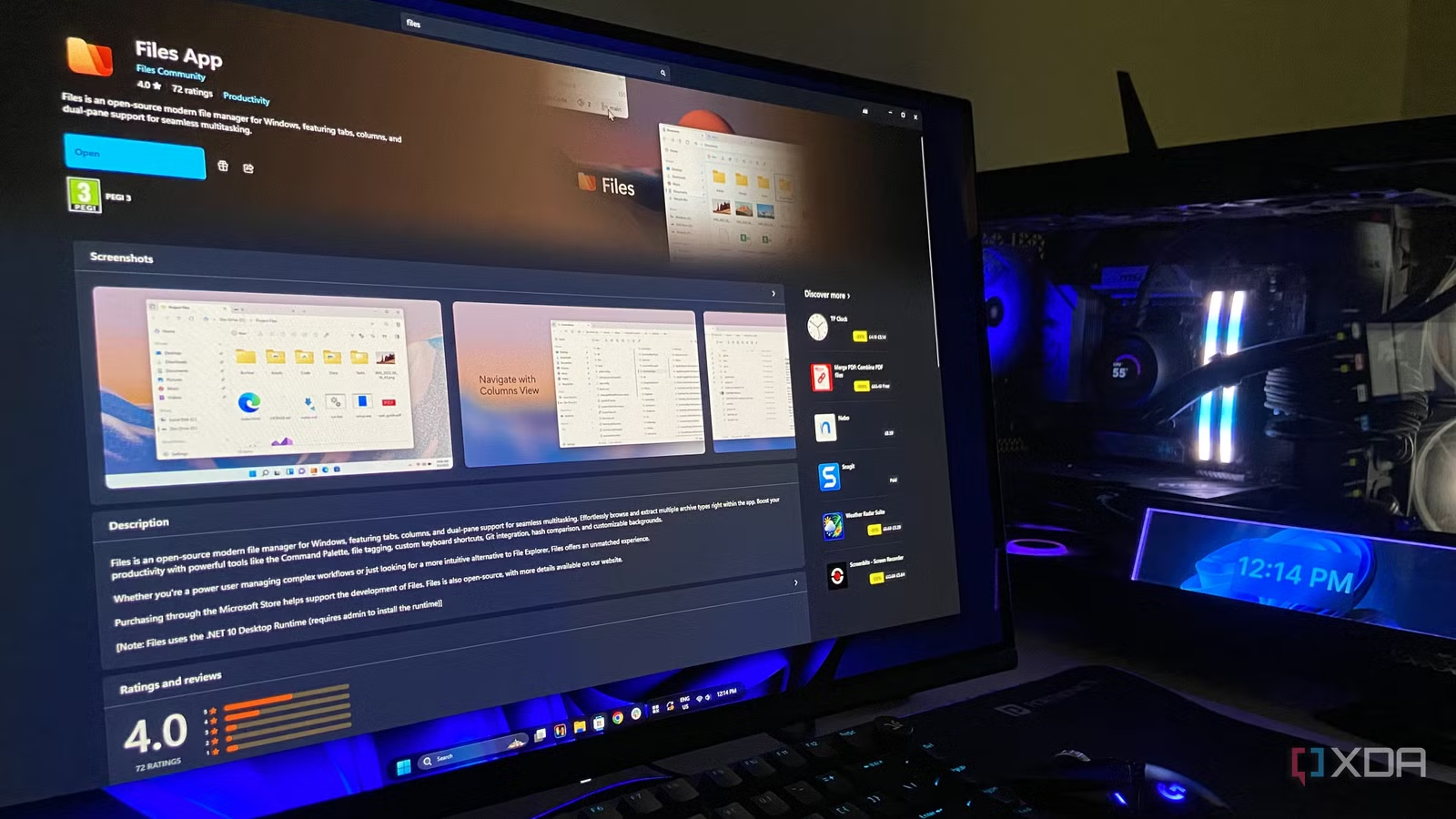
After years of putting up with it, I decided to give Files a go, which is a free and open-source utility by yair100 that addresses some of my most persistent gripes with the explorer environment. Only after a few hours of using it, I was quite convinced that I wouldn’t be going back, and as a matter of fact, decided to support the developers through the paid version available on Microsoft Store. Here’s every reason why.
What’s better with Files?
It must be humbling for Microsoft to see an open-source program address the needs of its user base better when it comes to utilities, because apparently it has been a pattern for a while. This very same pattern persists with Files, which I consider to be the superior product than Windows File Explorer in almost every sense.
Perhaps the most noteworthy aspect of it is that it lets me configure what appears in the context menu, which cuts down on options that I’d never use and highlights the ones that I rely on every day of the week.
I can add some toggles for tasks such as opening folders in a new tab, opening them in a new window, opening them in a new pane, creating a shortcut, and even opening a folder in Windows Terminal, which comes in handy more often than not considering I routinely dabble in local AI inference and use llama.cpp. It essentially feels like the developers took the versatility of a web browser and integrated some of those accessibility aspects in a file explorer.
Related
I fixed Windows 11 File Explorer lag by disabling this legacy service
A quarter-century old service we no longer need.
It makes the file manager feel like it belongs to me
All the aspects that matter can be tailored to my needs
By now you might have probably noticed that customizability is the main reason why I have warmed up to Files. While similar Windows utilities add further functionality, they do so by throwing another dozen buttons at you. Files does not do that, and this is something that echoes throughout the way it is designed.
What made this utility so intelligently designed is the fact that it was already familiar with the other utilities I used and it made them a part of its own ecosystem. For example, right-clicking a drive gives me access to additional actions. In my case, that included launching WizTree directly from the context menu.
If I want to investigate what’s eating up the space on my SSD, I can get to the tool I use and am familiar with without having to go hunting for it separately. The very same applies to copying paths, creating shortcuts, popping open a Terminal window, or opening folders in different panes and windows.
There’s also a small aspect that relates to system visibility, primarily that, Files gives me more of it. Say I’m moving a large number of files. In the default Windows File Explorer, it pops open a file transfer window that you either have to accommodate on your desktop or minimize where it occupies a section of the taskbar.
With Files, the operation appears on the top-right, showing me what is being moved and how much of the progress has already taken place. It sounds trivial, but it’s a nice value addition for when I’m wondering whether the transfer is complete, if it has stalled, or just how far long it is.
Related
I tested 8 File Explorer alternatives, but this is the one that stuck
File Pilot is the king
A few things to know before you ditch File Explorer
Windows 11 can get in the way, and Files isn’t as light
Naturally, replacing one of Windows’ most deeply integrated components with a third-party application comes with a few hiccups, but none of them were serious enough to keep me from using the utility all the time.
The first thing one would want to know is that Files does not get the same level of access that Explorer does by default. I ran into this issue myself when Windows Security’s Controlled Folder Access tried to block Files.exe from accessing certain folders. Of course, that isn’t a problem with the app itself, and Windows Security here is working as intended by triggering Controlled Folder Access which is purpose built to stop applications from making unauthorized changes to protected folders.
The other thing that I noticed was the fact that Files isn’t exactly a featherweight application, and has a bigger memory footprint than File Explorer. In my testing, the Files process was using about 446MB of memory, with a second process running beside it.
While this does not bother me on a system with 32GB of RAM, it may be a point of consideration for those on memory-constrained systems like laptops. Besides, the app does a lot more than explorer does, so in part, the bigger footprint is fully justifiable. If that’s not an issue for you, there’s no reason not to be using it.
7/10
Files in an open-source file explorer for Windows that offers a customizable interface.
It’s a gift to anyone on Windows 11, and I couldn’t recommend it more
There’s simply no user I wouldn’t recommend trying Files to, and the improved user experience is precisely the reason why. Because the app itself is free, there’s no reason for you to not give it a go and form an opinion yourself. I’m betting that any user who has put up with File Explorer will love it, and will simply refuse to go back.