


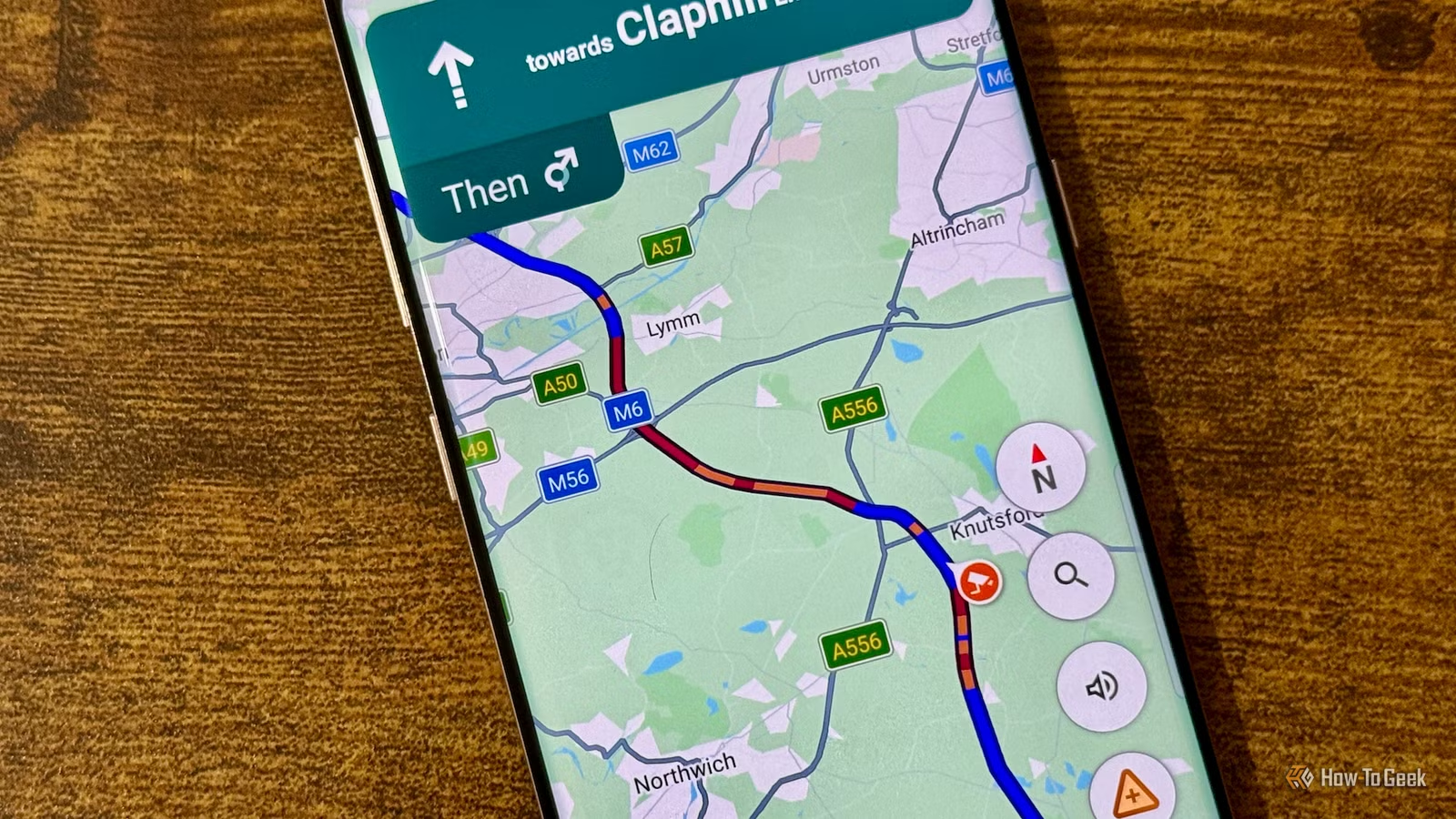
I’ve lost count of how many times I’ve opened Google Maps, typed in my destination, and blindly followed the blue arrow as if it knows my life inside out. Whether I’m rushing to pick my daughter up from her drawing class or trying to find a new restaurant, I usually let Maps take over. But recently, I realized I’ve been using Google Maps the same way I did when I first installed it. It turns out I was leaving several underused features untouched. If you want more from Google Maps, go through the settings below. They might make you realize how much more Maps can do beyond basic navigation.
I stopped Maps from following my trail
Turn off Timeline tracking and erase your data
Are you also concerned about privacy, as I am? Then it’s time to turn off those settings you probably never thought twice about.
I started with Google Maps Timeline. I don’t need Maps to remember all the places I visit, especially when most of my trips are routine—taking my daughter to drawing class, stopping for groceries, or heading out for a movie every Friday. Timeline basically keeps a record of all the places you visit and the routes you take. Sounds a little scary, right? So, I decided to clean up that digital trail and erase my data.
To turn it off, I opened Google Maps -> tapped my profile picture -> Your Timeline -> the three-dot menu, and then selected Location & privacy settings to turn off Timeline. If you also want to remove your existing Timeline data, select Delete all Timeline data from the settings page and follow the prompts.
You can erase your Timeline data for a specific day or select a date range instead of clearing everything. This is useful when you want to delete your secret trip without wiping your entire history.
Maps talks way too much
Keep only the alerts that matter
Credit: Sanya Shah/How-To-Geek
After cleaning up my Timeline, I moved on to the next thing that was annoying me: Google Maps constantly buzzing. I don’t need my phone buzzing while I’m cooking or while I’m trying to concentrate on writing an article because a restaurant nearby is popular or because Maps is telling me about places worth exploring. And while I’m driving, the last thing I want is another unnecessary alert fighting for my attention.
So I went through Google Maps’ notification settings and explored the different options. I found that by tapping my profile picture, and going to Settings -> Notifications, I can turn off different categories and switch off anything I don’t need. I kept the alerts that are genuinely useful to me and silenced the rest.
PS: I always keep location-based recommendations for when I’m on vacation. When I’m exploring new cities, I like letting Maps surprise me.
Related
Google Maps’ new 3D Immersive View is so good I’m ditching Waze
The biggest update in a decade is a good one.
I’d rather save time than fuel
Turn off fuel-efficient routes
Credit: Sanya Shah/How-To-Geek
I learned about this setting the hard way. One afternoon, I was already running late to a party, so I opened Google Maps and expected it to show me the fastest route. Instead, it picked a route that was better for fuel efficiency but wasn’t exactly helping my race against the clock. I wasn’t worried about saving a few drops of fuel that day — I just wanted to get there on time.
That’s when I realized Google Maps can prioritize a more fuel-efficient route instead of the fastest one. If you’d rather decide when saving fuel is worth the extra few minutes, you can turn this off. Open Google Maps -> profile picture -> Settings -> Navigation settings, look for Prefer fuel-efficient routes, and turn it off.
My brother, on the other hand, always keeps fuel-efficient routes turned on. He drives an EV, so he pays much more attention to how efficiently he uses his battery, especially on longer drives. He saves battery; I save time. Fair trade.
I made Maps louder, not my music
Now I can hear every turn while I’m grooving
Credit: Sanya Shah/How-To-Geek
My co-pilot is always screaming when it’s time to take a turn. Well, technically, it’s Google Maps — but since I’m busy enjoying my drive, I rely on its voice navigation instead of constantly checking the screen. Maps’ perfectly timed “turn right” often gets completely lost in the background of my playlist. By the time I realized it spoke, I’d already missed the turn, and my ETA has got longer.
After tweaking the settings above, I decided to fix this little annoyance too. Now I don’t need to lower my music every time I need directions; I just increase Maps’ voice guidance volume. The navigation can cut through the music without ruining my groove.
To change it, head to Settings -> Navigation settings -> Guidance volume, then choose Softer, Normal, or Louder. I went with Louder because I’d rather skip a beat than miss a turn.
Related
4 Android Auto automations that help me keep my eyes on the road
Smarter drives, fewer distractions
A few tweaks, and I’m sold
Until now, I was basically using Google Maps on autopilot. Now that I’ve actually explored the settings, I realize I was leaving a lot of control on the table.
Sometimes you don’t need a new alternative to Google Maps — you just need to stop leaving the one you already have in its default settings.