


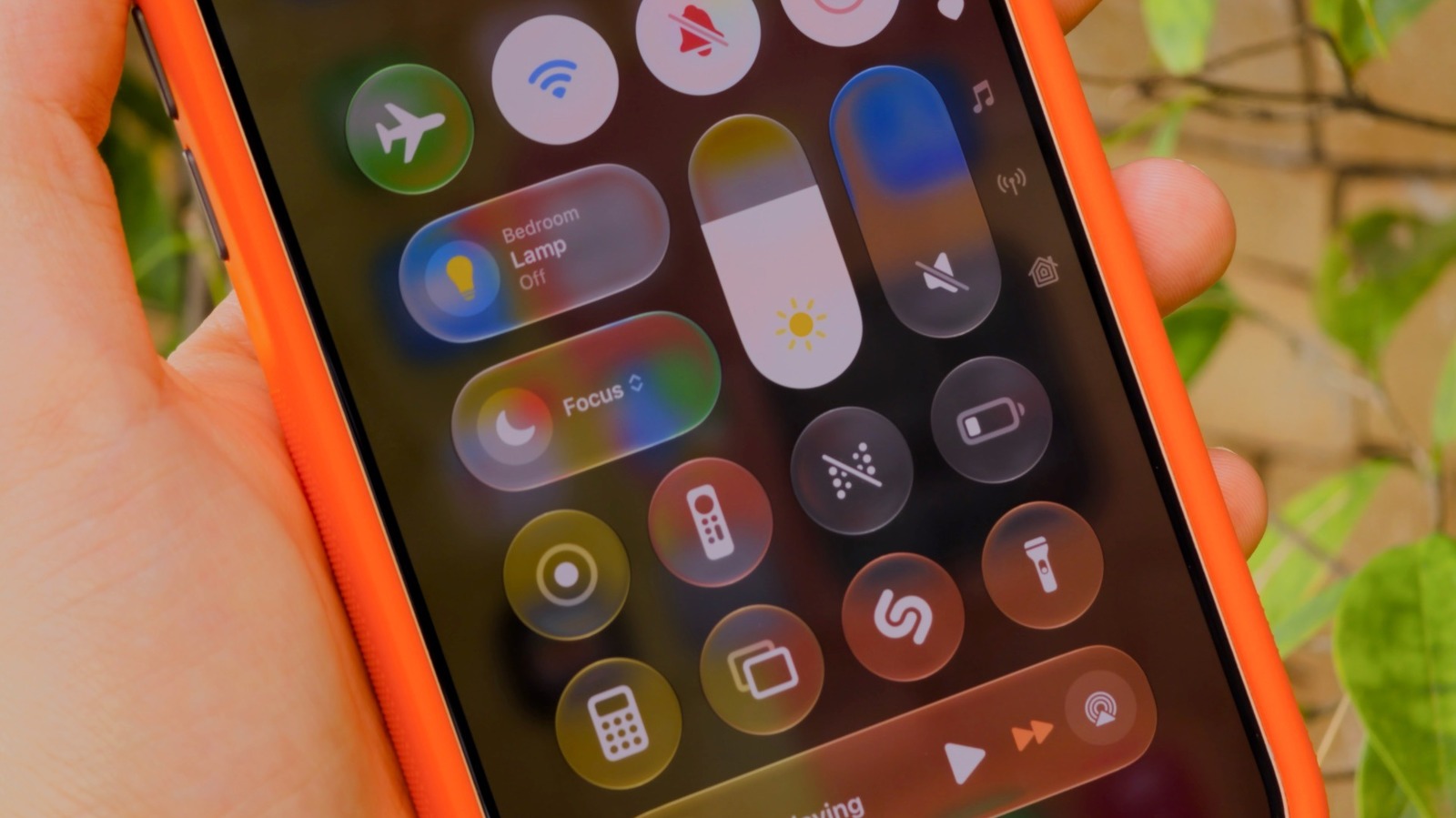
Your iPhone has more ways to silence notifications than you realize.
Filipe Espósito for Engadget
Notifications can get really annoying, especially during a meeting or at bedtime. The good news is that your iPhone has plenty of ways to silence and suppress them: Do Not Disturb, Focus modes and, of course, the classic silent mode.
While silent mode is active, notifications still appear, but your phone won’t make any noise (though it might vibrate). In Do Not Disturb, notifications don’t show in the first place. And Focus modes are like Do Not Disturb on steroids — highly customizable for specific situations, like work or sleep. iOS has some predefined Focus modes, plus you can create your own.
It’s worth noting that these features aren’t new. Do Not Disturb was first introduced with iOS 6, and it has a single job: fully silencing all your notifications. You won’t see any banners, calls or alerts when it’s turned on. It works well when you really don’t want your phone distracting you. But Do Not Disturb can be too strict when you still want to receive important alerts, like calls from your family. That’s why Apple introduced Focus with iOS 15.
Setting up Focus modes and Do Not Disturb on iPhone
Filipe Espósito for Engadget
Do Not Disturb and Focus live in your iPhone’s Control Center, accessible by swiping down from the top-right corner of your screen. If you’re still rocking an iPhone with a Home button, slide up from the bottom instead. Tap the Focus button and you’ll see every available option laid out: classic Do Not Disturb, plus Personal, Work and Sleep. To tweak a specific mode, tap the three dots, then Settings.
If you’ve never used a Focus before, you’ll need to set it up first. That’s what makes this feature so powerful: in its settings (Settings > Focus), you can choose which apps and people are allowed to notify you when a mode is on. Let’s say in the Work Focus, you only allow notifications from apps like Slack and Mail, while all others are silenced. The same goes for people; it’s in your control whether calls or messages from specific contacts notify you.
To set these up, tap People or Apps while inside a Focus’s options. You can choose to Allow or Silence Notifications From the list you created — whichever makes more sense for that Focus. Under Apps, be sure to enable Time Sensitive Notifications so you still receive important alerts like reminders, alarms or calendar events. You can also customize a Focus mode by applying Filters and Smart Activation. It’s definitely worth taking the time to check out all the available options, given what a great productivity tool Focus is.
As you may notice, Do Not Disturb is its own Focus, meaning it’s customizable like the rest. You might wish to allow alerts from your spouse even in Do Not Disturb, perhaps.
Smart Focus modes for bedtime and driving
Filipe Espósito for Engadget
You can toggle focus modes manually from Control Center anytime, but your iPhone can also trigger them automatically. For example, there’s a Sleep Focus that turns on when it’s time to go to bed. It’s based on your sleep schedule in the Health app, meaning there’s no need to turn it on manually every night. Driving works similarly, as it turns on when your iPhone connects to CarPlay to help reduce distractions on the road.
If you have Apple Intelligence enabled, there’s also the special Reduce Interruptions Focus. This uses AI to figure out which notifications might be important and which aren’t. Because this does all the work for you, it’s a good Focus to try first. If you’d like to create your own Focus from scratch, tap New Focus at the bottom of the Control Center panel, or hit the Plus (+) button under Settings > Focus. Give your new mode a name and icon, then customize it like any of the others.
By default, anyone who contacts you via iMessage will see a small notice that you have a Focus turned on. While any Focus mode is active, some or all notifications will be suppressed following the way you’ve set it up. You’ll still receive these messages, emails and other notifications; you just won’t get pings for them. When you want notifications to alert you normally again, turn the Focus off.