


Gboard has always been one of those apps I install, play with the theme a little, set up once, and then mostly forget about.
But after spending more time in its settings, I realized Gboard can do a lot more for productivity than I gave it credit for.
I made these basic tweaks and turned Gboard from an average keyboard into something that helps me work faster.
Related
Google’s best AI isn’t Gemini — it’s Gboard
Gboard’s AI is often overlooked, but it’s a powerful tool we use daily without realizing it
I started using voice typing more
It’s a delight on Pixel phones
Voice typing used to be one of those Gboard features I knew existed but rarely bothered with.
That changed after I started using it more seriously on a Pixel.
Google’s Advanced voice typing on Pixel 6 and newer phones feels much smoother than basic speech-to-text.
I can talk at a natural pace, and Gboard automatically handles punctuation instead of forcing me to dictate every comma and full stop.
I can even say something like “Heart emoji,” and Gboard inserts the emoji. It also has voice commands for deleting words, clearing text, sending messages, and making other edits.
That makes a big difference when I am replying to a long message, dumping an idea into Google Keep, or quickly drafting something while I am away from my desk.
Instead of typing everything with my thumbs, I can get a rough paragraph down in seconds and make a couple of small corrections afterward.
Google is taking this idea further with Rambler, its Gemini-powered voice input feature for the Pixel 11 series.
Instead of transcribing everything word-for-word, Rambler understands how people naturally speak, removes filler words, restarts, cleans up punctuation and grammar, and turns the result into more polished text.
I can’t wait to try it out.
Manually add and pin entries in the clipboard
A major productivity booster
One of the simplest Gboard changes that saved me time was enabling the Clipboard and using it properly.
Instead of treating it as a temporary place for copied text, I turned it into a small library of things I type again and again.
For example, I pinned my home address, frequently used email replies, and sentences I often send while working.
I also keep things like delivery instructions, basic contact details, and a few standard responses there.
The important part is pinning them. Now, when I need to enter one of those details, I don’t type the entire thing from scratch.
I tap the Clipboard icon in Gboard, choose the pinned entry, and it drops straight into the text box. It takes only a few taps.
I find this especially useful when I am filling out forms, replying to repetitive messages, or sharing the same information across different apps.
It sounds like a small feature, but after I started using pinned clipboard entries, I stopped wasting time retyping the same sentences over and over.
Create a personal dictionary
Teach Gboard your writing habits
Gboard supports multiple languages, but my everyday typing includes plenty of local words, names, slang, and mixed-language phrases that don’t always fit neatly into its dictionary.
The problem is that Gboard sometimes treats those words as mistakes and tries to autocorrect them into something different.
That gets annoying quickly, especially when I use the same words.
So, I added those terms to my Personal Dictionary from the Gboard Settings > Dictionary > Languages menu.
I have done this with local Gujarati and Hindi words, names, and a few work-related terms that Gboard doesn’t recognize properly.
When they are in the dictionary, Gboard stops second-guessing me. The words appear naturally in suggestions, and I spend less time undoing bad corrections.
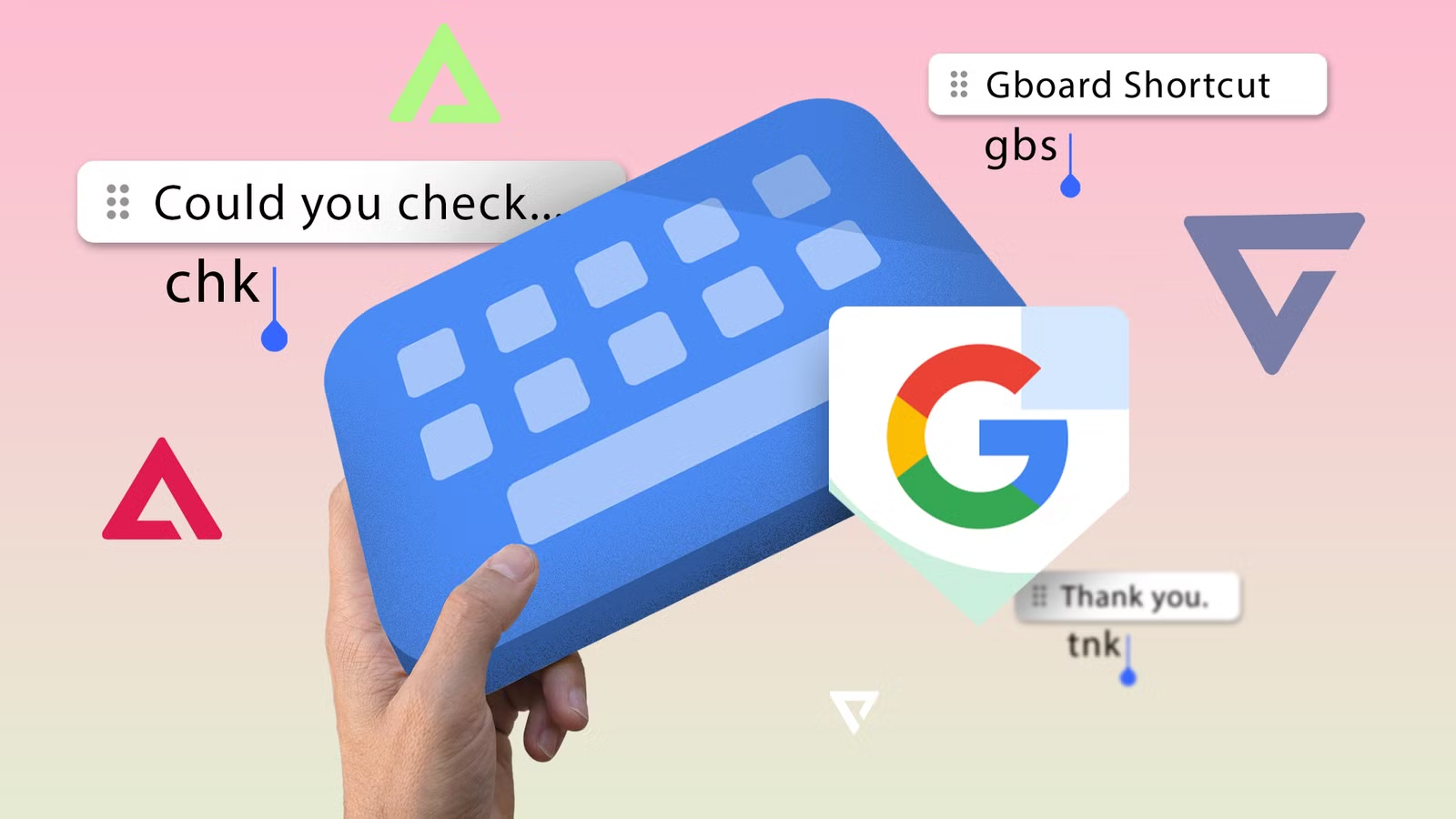
I also like that Gboard lets me assign shortcuts to dictionary entries.
Related
I started automating Google Keep with Gemini Live; now I can’t go back
My ideas now skip the typing
Save screenshots to clipboard
Share those snapshots in no time
I also enabled the Save recent screenshots in clipboard toggle in Gboard settings.
I take screenshots all the time, whether it is a receipt, a product page, a conversation, an error message, or something I want to share with someone later.
Earlier, I would take the screenshot, open Photos, find it, tap Share, and then choose the app.
That is a lot of steps for something so simple.
With this option enabled, my recent screenshots show up inside the keyboard’s Clipboard section.
Gboard has more power hiding inside
Gboard still looks fairly basic when you first install it, but a few small changes make it feel more useful.
None of these features are complicated, and that is exactly why I like them.
I didn’t need another keyboard or a separate productivity app.
I spent a few minutes setting up Gboard around my habits. Now it does more than help me type.
It quietly removes friction from dozens of small tasks throughout my day.
You can even resize the keyboard to your preference and start typing faster in no time.