


One of them is a pretty useful security feature.
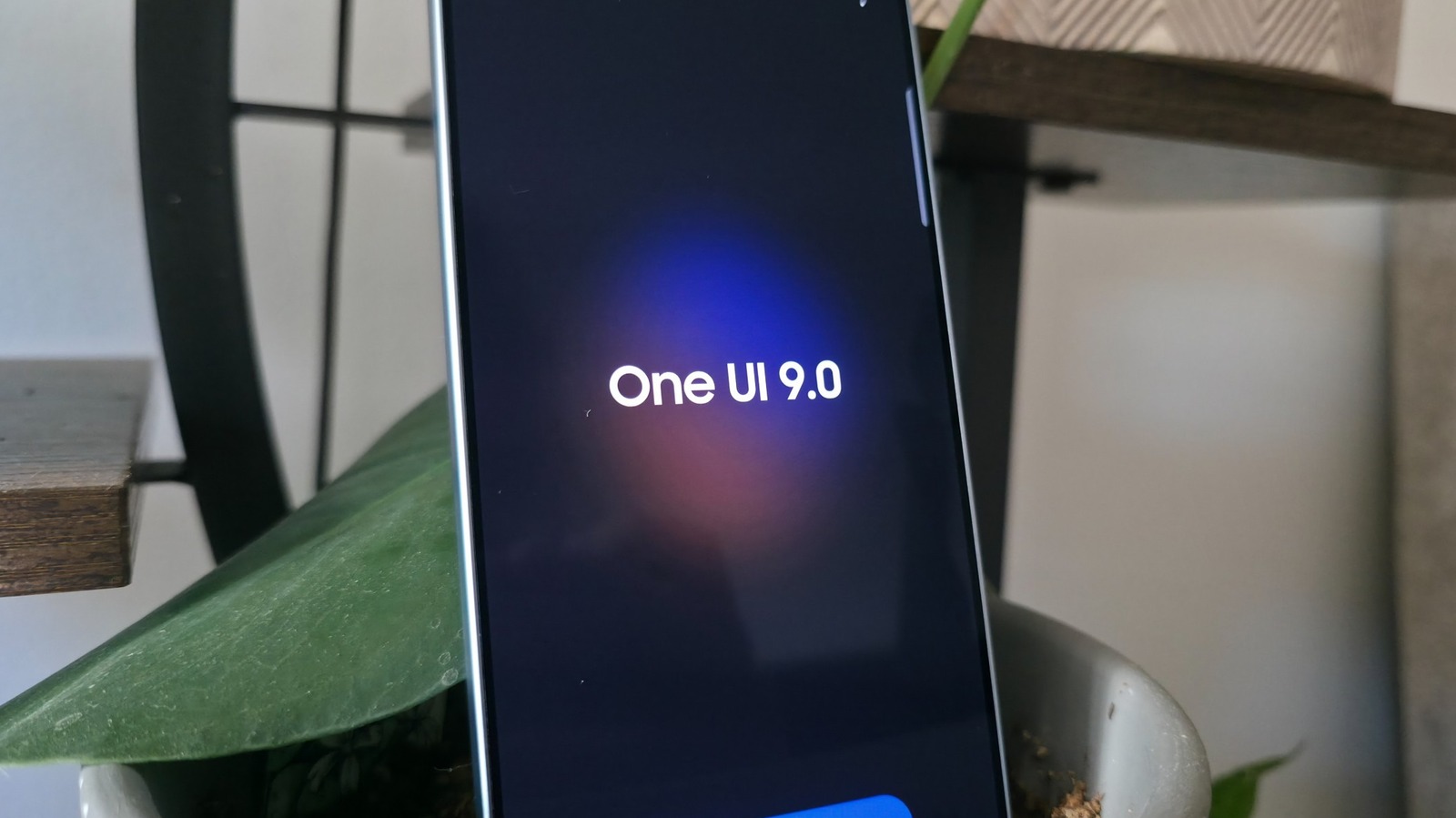
With its latest crop of foldables in August came Samsung’s One UI 9 update, the first version of the company’s interface for Galaxy devices to be built atop Android 17. Along with a fresh new version of the operating system, One UI 9 brings some welcome updates and features. It’s rolling out widely as of this writing to recent flagships prepped for the update.
By now, we’ve grown accustomed to a slew of sloppy AI features accompanying new smartphones, so it’s a great relief to report that many of the new inclusions this time around seem like things real people might actually appreciate. Even some AI features are a bit more grounded than the gimmicky photo generation features from the past couple of years.
After installing One UI 9 on both a Galaxy S26 Ultra and S25 Ultra, we tested its most exciting new features to figure out which are the most useful. While some features seemed great on paper, like the Now Nudge feature that’s supposed to serve up contextual information when you need it, they turned out to be lackluster in practice. Now Nudge still hasn’t shown me anything useful, even with a scary amount of my data being fed into it. On the other hand, some of the more pedestrian additions to the software turned out to be quite handy. Here are the five Samsung Galaxy features you should be using after updating to One UI 9.
My FanCam lets you turn a wide video into a tracking shot
Samsung has spent a lot of effort on AI photo and video editing features you’ve probably never touched, but now it seems to be homing in on the things people will find useful. One of the marquee features in One UI 9 is My FanCam, which lets you turn a wide shot into a tight tracking shot of a single person. One marketing clip from Samsung shows a video of a rock band, and when My FanCam is invoked, each of the band’s members is highlighted on screen. Once the user chooses the guitarist, the video crops around him in close-up.
Aside from concerts, the feature is perfect when shooting dance videos for social media. Rather than being forced to stay in the frame of a vertically shot video, you can dance in widescreen and then crop to the vertical framing afterward. It also seems like a promising way to get highlights of your kids’ sports games. My FanCam will simply track a subject across an entire video, and you don’t need to shoot video in a specialized mode to make it work. The magic happens when you open a video you’ve already recorded in Samsung Gallery and tap the Galaxy AI button, which is an icon that looks like sparkles.
AI-powered video editing apps like CapCut have offered similar functionality for years, so the fact that you can now produce the same thing natively in Samsung’s Android software is a welcome addition. Accomplishing this kind of tracking shot in a manual editing program like Adobe Premiere Pro can require hours of tedious work, so it’s remarkable to see this automatic capability run on a smartphone. Blessedly, the feature works on-device without sending data to the cloud. In Engadget’s testing, My FanCam was available and worked while the phone was in airplane mode. You will, however, need a Samsung account login. Engadget tested the feature on a Galaxy S26 Ultra and S25 Ultra, but One UI 9 is still in the process of rolling out to older models. Outside reporting shows that Galaxy phones in the S24 series are the oldest models to have My FanCam in the beta version of One UI 9.
Even more Quick Panel customization
Max Miller for Engadget
Customizing your phone is easier in One UI 9. With One UI 7 in 2024, Samsung visually overhauled One UI, and among the biggest changes was the decision to split quick settings and notifications into two different panels. One UI 8 and 8.5 went even further by allowing users to customize the Quick Panel, as it’s called. Settings can be placed anywhere they fit, and they can even be resized. Now, in One UI 9, Samsung is giving users even more control.
The biggest change this time around is to the volume and brightness sliders. Yes, you could reorient them vertically before, but the volume slider always had the ringer mute shortcut glued to one end. The same was true of the brightness slider and dark mode toggle. Now, you can ditch those buttons and turn the sliders into solo operators. Sliders in general are now also more minimal, shimmying free of the large UI pads around their borders in previous software versions. Borders around tiles have also been nixed.
The most subtle change is to the music player widget that lives in the Quick Panel (though it also appears atop the notifications panel and in the live notification chip in the top left of the screen). The little waveform that appears on the scrubber bar during playback now matches the current album art.
Better document scanning helps flatten the curve
Max Miller for Engadget
For many years, Samsung has offered a document-scanning feature inside its native One UI camera app. It’s one of the most convenient ways to quickly scan paper documents, signage and more. But it does struggle with curved surfaces, making it difficult to scan book pages or anything else that doesn’t lie completely flat.
In One UI 9, Samsung gave the document scanner a major upgrade that should help it to digitize books and other bound documents more accurately, as well as documents with folded corners. Previously, if a document appeared warped after scanning it with the camera, there were a few tweaks you could make after the fact to help smooth it out, but the odds of doing so successfully weren’t great. Ditto for folded paper, in which case dog-ears and other folds showed up as harsh lines in the scanned photo. In One UI 9, the scanner will automatically compensate for both scenarios, meaning you can scan two pages of a book and it will look like a flat, digital render of the pages rather than like a reading packet handed out by your high school English teacher.
There are a few more goodies this update brought to the scanner. An updated finger eraser automatically removes your thumb from photos you took of documents while holding them. The tool can compensate for moire and glare, too, and there’s even a new home screen shortcut so you can launch right into the scanning tool the moment you need it — no fiddling in the camera app required. In tests we performed (shown above) scanning book pages, the scanner did a decent job of removing my thumb and doing away with a dog-ear, though a full two-page book layout seemed to stymie it.
Generative Now Brief cards show information you actually want
Max Miller for Engadget
First introduced in One UI 7 with the Galaxy S25 series, the Now Brief on the lock screen’s Now Bar has never lived up to its promise. Samsung claimed it would use AI to show “real-time updates that matter most right on the lock screen,” but it was mostly useless. “The day rolls on” is helpful information if you’re unaccustomed to linear time, but otherwise? Not so much.
In One UI 9, Samsung has lightened up on figuring out what the Now Brief should tell you, and that’s a good thing. Instead, you can create custom cards that will update at a set time with information of your choosing from a handful of apps, including Samsung Health, Samsung Weather and YouTube. For example, you might tell Samsung Health to update you at 9PM with your step count and calories burned for the day.
You build Now Brief cards with a Mad Libs-style generative prompt. Oddly, and perhaps to save on cloud processing costs, there is a daily cap on how many times you can generate or edit Now Brief cards. It’s a bit reminiscent of the new generative Create My Widget feature Google showed off for Android 17, and which Samsung will reportedly ape for One UI 9.5.
There’s no getting around the fact that this feature requires a lot of your personal data and processes off-device. For all the new capabilities in Now Brief, it will only serve up each generated card once per day. The rest of the time, it’s doing things like telling me I’ve been ignoring my parents and should catch up with them — even though I spoke with both of them last night. Is this the “super intelligence” I’ve heard so much about?
Security Brief alerts in real time
Max Miller for Engadget
Yet another Now Bar feature arrives in One UI 9, and many people will find it more useful than the ability to generate a weather or health widget. After switching on the “Security and privacy” toggle in the Now Brief settings, you’ll get an alert on the Now Bar every time your phone detects an app that may be malware or is behaving strangely. Hopefully, you’ll never see such an alert, but the more proactive your device can be at spotting threats, the easier it is to deal with them should they ever manifest. Samsung is calling the feature Security Brief.
Apps from the Play Store generally shouldn’t trigger an alert from Security Brief unless they’re abusing their permissions by requesting your location a lot in the background or otherwise acting suspiciously. If you determine the threat to be legitimate, you can follow the alert to take action.
If you’re the type of person who installs software on your Android phone from outside the Play Store, Security Brief may bug you with false positives. App packages from the internet are often unsigned by their developers, especially if they’re made by hobbyists, and SammyGuru reported that an app it routinely uses for Galaxy tutorials was flagged by Security Brief. In Engadget’s testing, we could not get an alert to appear in the course of normal use, and I was reticent to install unsigned APKs in the hopes of triggering one. Samsung lists support for Security Brief as far back as the Galaxy S23 series.
When Now Bar launched in 2025, many saw it as a response to the iPhone’s Dynamic Island for live information. But whereas that feature garnered robust support from third-party developers, Now Bar languished for years without a great deal of even first-party support. Very few apps work with it even now, and it would have made sense for Samsung to throw in the towel, so seeing new capabilities added multiple years later is encouraging.