


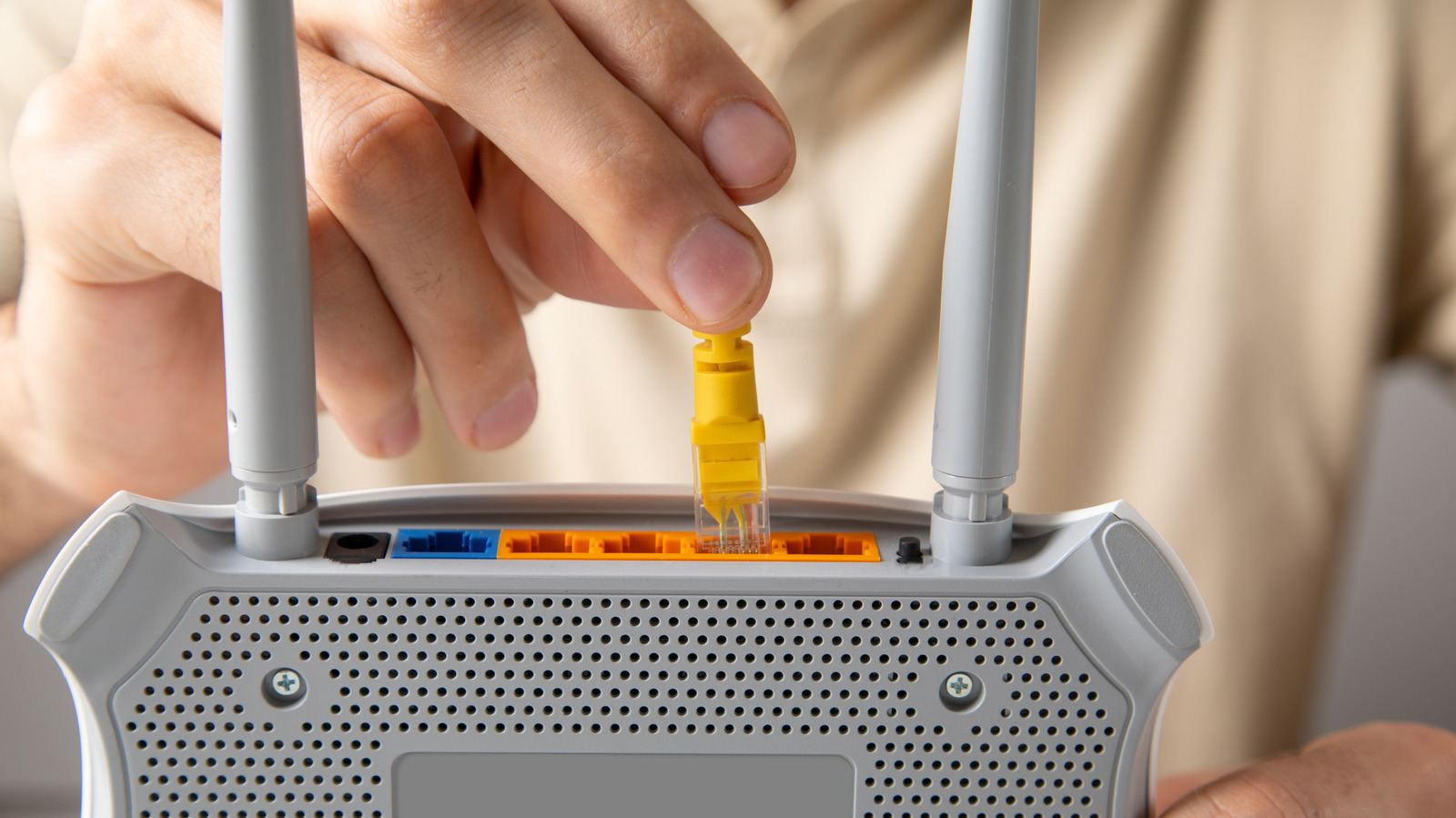
A stuck ethernet cable can be extremely frustrating. Luckily, you can usually remove one pretty easily using these methods.
ANDRANIK HAKOBYAN/Shutterstock
Frequently, Ethernet cables can be a cheat code to better network performance. This is mostly because they eliminate the range, interference and band congestion issues that Wi-Fi is vulnerable to. Seriously – if you’re dealing with unstable streaming or gaming on your PC, just try hooking it up to your router with a Cat6 or Cat7 Ethernet cable.
They do come with some drawbacks. The main one is convenience, since Ethernet starts to become impractical for devices on the opposite side of the room your router is in, let alone the opposite side of your house. Also, even some of the best streaming devices for 2026 still use 100-megabit Ethernet instead of gigabit, actually making them slower than Wi-Fi. It’s not clear why companies think they can get away with this in 2026, but we digress.
A small but not insignificant flaw is the connector type that Ethernet uses. It can sometimes get stuck, and if it does, you can’t just yank a cable out with brute force. Fortunately, there are a few ways to remove a stuck Ethernet cable. One method involves jiggling it up and down while pulling, and you can also try using a small tool like a flathead screwdriver. If you’re still unable to remove the cable, you may need to visit a professional or contact tech support.
How to safely remove stuck Ethernet cables
Visualfield/Getty Images
The reason caution is called for is because the connector is usually made of light plastic and designed to “lock” into a port with the help of a protruding tab. If you pull without thinking, this tab can break, leaving behind debris and preventing the cable from locking in again. There’s also a risk of damaging data or power pins. In an extreme scenario, the tab may stay put while the cable’s raw wiring strips away.
If an Ethernet cable refuses to budge, your first move (after turning off your device) should be to hold down the tab, then try carefully bending the connector up and down (or vice versa) as you pull. This should hopefully clear the cable from its moorings. If this doesn’t work, you may want to try pressing the connector further in before pulling, while continuing to hold down the tab. Either way, keep holding onto the frame of the device your cable is plugged into, since this provides stability and resistance.
What can you do if the cable remains stuck? You might try using a tool like a flathead screwdriver or the tip of a pen to keep the tab as depressed as possible. Exercise caution here, though. While there shouldn’t be any damageable pins near the tab, you could accidentally scrape the pins at the bottom if you successfully pull the cable out.
Avoid using pliers. These may help if nothing else is doing the trick, but the amount of pressure needed to clamp and pull risks breaking the connector, which, as we mentioned, is typically made out of light plastic. One half of the pliers will also be dangerously close to those data and power pins.
Is there anything else you can do?
Cunaplus_m.faba/Getty Images
Unfortunately, not really. Ethernet ports don’t have emergency ejection buttons of any kind. If you’ve tried all of the steps above and the cable remains stuck, it’s better to leave it in there unless you have no alternate ports or need the cable for something else. Contact tech support for your device, or bring the product to a local repair shop.
To be clear, the threat of a stuck Ethernet cable is pretty minimal. They’re actually designed for easy removal, and it’s possible to go your entire life without encountering this issue. But since it does happen in the real world, it’s better to be prepared.
If you want to avoid trouble, it may actually be wiser to stick to Wi-Fi. With Wi-Fi 6 and Wi-Fi 7, it’s now possible to achieve the same gigabit speeds as Ethernet, sometimes even faster. Range and interference barriers may not be as easy (or cheap) to solve, but you’ll likely need to deal with those anyway, given how many products lack Ethernet as an option. There’s no room for a jack on a smart bulb.