


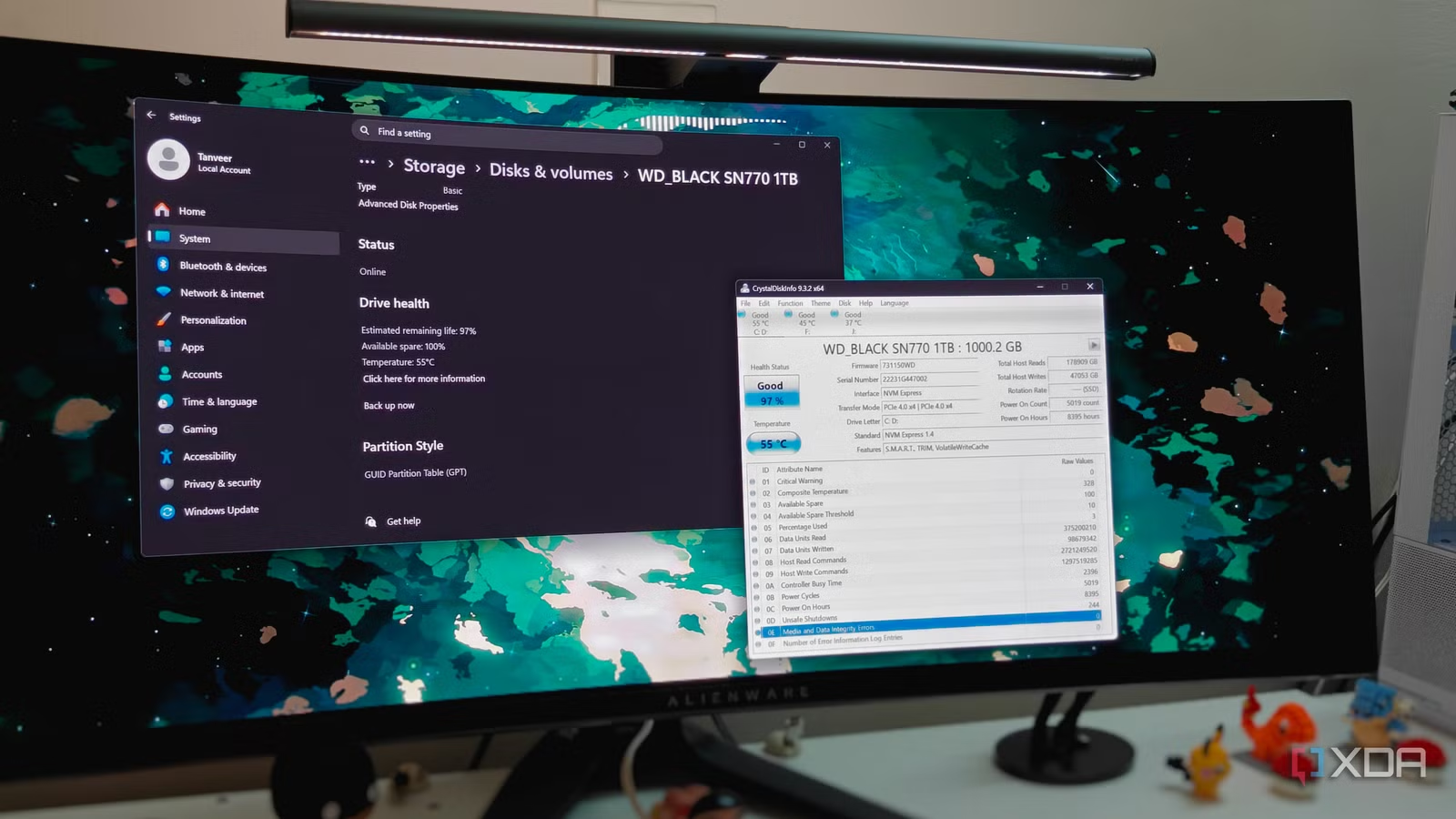
CrystalDiskInfo has been synonymous with SSD and HDD monitoring for years. It reads your drive’s Self-Monitoring, Analysis, and Reporting Technology (S.M.A.R.T.) attributes and presents them on a single screen for easy reference. Checking your SSD’s health percentage, temperature, or other metrics is pretty simple with this free tool.
However, you don’t really need to install a third-party tool if all you need to know is your SSD health and temperature. SSDs have a limited lifespan due to the finite write cycles of NAND flash, so most people only need to know their drive’s remaining life. And Windows’ built-in storage settings are more than enough for that.
Related
Your SSD has built-in maintenance tools that Windows keeps hidden from you
Windows can maintain your SSD really well, but it sure makes you work for those features
Windows has built-in monitoring info about your SSD
Most people don’t need anything more
Every drive, whether it’s an HDD or SSD, has a reserved area to store its S.M.A.R.T. data. This data is persistent across reboots, power cycles, and host machine changes. It is this data that the OS or third-party software queries and displays to the user. S.M.A.R.T. data is the primary source to monitor a drive’s remaining health or diagnose underlying faults.
Most users don’t know this, but you don’t need extra tools to see your SSD’s S.M.A.R.T. attributes. Windows already has an easy way to glance at your drive’s Estimated remaining life, Available spare, and Temperature attributes. All you need to do is navigate to Settings > System > Storage > Disks & volumes and click Properties under the SSD you want to check.
The Estimated remaining life is the same as the oft-used “SSD health” metric, which indicates how much of your SSD’s estimated lifespan is over. It’s only a rough prediction based on the NAND flash wear of your drive, so it doesn’t guarantee that your SSD will work perfectly until this attribute goes to zero.
Available spare refers to the reserve NAND blocks on your SSD that it uses once the active blocks start to fail. Most people will see a 95–100% reading here, which means the SSD hasn’t dipped into its spare capacity at all. Lastly, Temperature shows the current temperature of your SSD. This Properties page of your SSD is enough to give you almost all the information you need to get a rough indication of your SSD’s health.
Related
Windows 11’s default settings are quietly wearing out your SSD and turning them off can extend its life
A couple of tweaks can quietly extend the remaining lifespan of your drive
CrystalDiskInfo is still useful for power users
It exposes deeper information about your SSD
While Windows shows you the estimated remaining life of your SSD and the available spare capacity, that’s not the whole picture. Even your SSD’s 100% health doesn’t guarantee that everything is hunky-dory underneath. All you can really say with certainty is that you’ve written 5% of your SSD’s rated write capacity, also known as the TBW rating (terabytes written). NAND flash wear, however, is just one possible pathway to SSD failure.
Naturally, SSD health doesn’t take into account unexpected power, thermal, or firmware-related faults that can kill your SSD years before you’re even close to exhausting your TBW rating. What you need to investigate is whether your SSD has had any drive write errors in the past. Windows doesn’t show you that information; you need CrystalDiskInfo for that.
CrystalDiskInfo’s Media and Data Integrity Errors and Critical Warning attributes show the true picture of your SSD. The former is a log of the instances when your SSD’s error-correction mechanism failed to fix a read or write error, indicating the presence of faulty cells. The latter takes into account other attributes to signal to the user that the drive demands urgent attention.
Most SSDs don’t begin to have data integrity errors years into their life, so Windows’ built-in information is sufficient for most users. However, if your SSD is showing symptoms of underlying faults, it’s best to use CrystalDiskInfo to inspect the metrics not exposed by Windows’ storage settings.
Related
Your SSD isn’t old, it’s slowing down for 3 reasons you rarely think about
The reasons might be hiding under your nose
What should you do with a failing SSD?
Back up your data and get a replacement
If you spot a non-zero entry next to Media and Data Integrity Errors or Critical Warning in CrystalDiskInfo and your SSD has been finicky of late, you need to prepare for the worst. The first order of business is to try software fixes like CHKDSK to fix minor faults. If that doesn’t work, it’s time to move your data off the drive by backing it up to a healthy drive. Your faulty SSD can be repurposed into a non-critical system or let go entirely.
In this market, replacing your SSD with a new one won’t be easy on your wallet. Prices of NVMe SSDs have increased by 3–4 times compared to September 2025, so you’ll have to be flexible. SATA SSDs are cheaper and still fast enough for gaming and regular system operations for most people. You could even look at used SATA SSDs as long as you can inspect them before buying.
If you want an NVMe SSD anyway, avoid Gen5 drives and pick an affordable Gen4 model. I’d suggest looking for a deal on a 2TB Gen4 SSD, which could get you a decent drive for around $250. A 1TB model will be too small for most people, and the cost per GB will also be higher.
Related
Stop buying “Pro” NVMe drives for a gaming PC
You’re paying for sequential speeds which don’t matter in game
SSD health isn’t the full picture, but Windows is still good enough to see it
Whether your SSD is faulty or not depends on a lot more factors than a single health percentage. That’s only a rough estimate of how much data you’ve written to your drive. Most people won’t kill their SSD in a few years, so Windows is still sufficient to measure your drive’s health. If you’re facing storage-related errors on your PC, however, try CrystalDiskInfo to find out more about your drive and whether you need to replace it.