


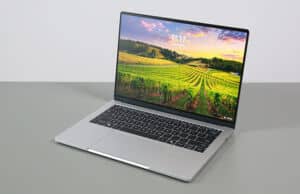
This is my review of the Asus ExpertBook A7 series, in the Intel Wildcat Lake Core Ultra 7 configuration (there’s also an AMD variant).
This is a rather peculiar notebook. On one side, it’s a brutalist premium chassis with fair ergonomics and inputs, and an awesome matte OLED display. On the other, however, it’s built on Intel Wildcat Lake hardware, which is a low-power, low-performance platform meant for casual use in budget-friendly devices.
These two make the ExpertBook A7 a product difficult to position. It can easily stand next to any other upper-tier ultrabook out there in terms of construction and features, but it can only handle basic daily tasks and some light multitasking, as the platform struggles with heavier loads of any kind. Furthermore, this mostly sits in a weird place price-wise as well, as more expensive than other devices built on Wildcat Lake hardware, but also more affordable than ultrabooks with similar craftsmanship and screens. Nonetheless, the entry-tier option available at $899 on the US market is quite an interesting offer.
This device grew on me as I used it. It felt really slow at first, but that’s mostly because I’m used to much snappier devices and have zero tolerance for lag with everyday use. But then, once everything got installed on it and I only used it for browsing and text editing, I got to tolerate what it can do. All in all, if you need a premium-feeling portable laptop with an awesome screen and only plan on running light loads on it such as browsing, streaming, and some Office work, this could be for you. But even so, this could have been so much more competitive with Panther Lake hardware onboard.
I’ve gathered all my thoughts on this Asus ExpertBook A7 series down below in this review article.
Specifications – Asus ExpertBook A7 A7406CMA
Asus ExpertBook A7 A7406CMA series, 2026 model
Screen
14 inch, OLED, 16:10 aspect ratio, non-touch, matte anti-glare,
2.8K 2800 x 1800 px, 48-120Hz VRR refresh,
500 nits brightness, 1000 nits peak,
100% DCI-P3 colors
Processor
Intel Wildcat Lake (Core Series 3)
Core 7 350, 6 Cores (2x P, 4x LPE)/6 Threads, up to 4.8 GHz
Video
Intel iGPU, 2 Xe 3rd-gen Cores, up to 2.6 GHz
Memory
16 GB LPDDR5-7467 (soldered), up to 16 GB
Storage
512 GB M.2 NVMe SSD (Sandisk PC SN5100S) – single M.2 2230 slot
Connectivity
Wireless 7 (Intel BE211) 160MHz, Bluetooth 5.4
Ports
left: 1x USB-C 3.2 gen2, 1x USB-C 3.2, 1x HDMI 2.1 TMDS, mic/headphone
right: 1x USB-A 3.2 gen2
Battery
65 Wh, 65W USB-C charger
Size
311 mm or 12.25” (w) x 214 mm or 8.46” (d) x 9.9 to 11.9 mm or 0.39” to .46″(h)
Weight
2.65 lbs (1.2 kg) + .18 (.4 lbs) for the USB-C charger and cables, US version
Extras
clamshell format with ~140-degree opening angle,
white backlit keyboard, 1.1 mm travel, glass haptic touchpad,
2MPx FHD webcam with IR, no privacy shutter, fingerprint sensor,
dual speakers,
dual-fan dual-radiator three-heatpipe cooling module,
Lunar Silver or Eclipse Black colors
An iteration built on AMD hardware is available as well, with the exact same traits, display, and battery, but AMD Krackan Point hardware: up to a Ryzen AI 345 with 16 GB RAM. That’s sold as the ExpertBook A7 AM7406CKA series, and we’ll discuss its particularities in the performance section of this article.
Design, build quality, ergonomics
This ExpertBook A7 is one of the nicest built ultrabooks I’ve got my hands on over the years.
Asus kept things simple here, with a CNC unibody aluminum main chassis with an anodized exterior finish, and similar aluminum materials for the lid and underside. Everything feels solid and rigid and premium to the touch. Asus mention they’re using a stronger grade of 6000-series aluminum here than on their past unibody designs – this allows for the thinner overall chassis without sacrificing rigidity.
As a result, this ExpertBook A7 is a pretty portable format, thinner than most other 14-inch ultrabooks and about 1.2 kilos in weight.
Asus offer the series in two color options: this silver one that we have here, and a black variant. I haven’t seen the black in person, but this silver variant is surely the more carefree of the two, where you don’t have to worry about the anodized finish chipping away around the edges over time, or about constantly having to wipe clean smudges and finger oils.
In this silver variant, this notebook looks like old-school MacBook Airs or HP EliteBooks, with the silver metal chassis and black keyboard. I like these retro, practical, and clean aesthetics. Here it is next to an EliteBook.
At the same time, this is a brutalist approach to ergonomics, with sharply cut edges all around that can bite into your fingers and wrists. Not the most comfortable approach, but it kind of adds to the exquisite feel of this chassis, alongside the sensation of touching a solid slab of metal. This can easily rival a MacBook Air or any of the other high-tier Windows ultrabooks in terms of construction and general feel. Having used it for a few days, I preffer this over the current Zenbooks and the ExpertBook Ultra chassis with their various implementations of ceramic-coated pieces of aluminum.
My other nit is with the limited screen opening angle, of about 140 degrees or so. A 180-degree display is a must for me on this sort of ultraportable device, and it’s a pity Asus no longer offer it on any of their 2026 devices, as they did in the past. Oh, and there’s an always-on light in the power key, annoying when watching a movie at night.
These aside, the rubber feet provide solid grip on a desk, the hinges are strong and keep the screen well anchored in place, and there’s a notch on the front lip that allows you to easily pick up and open the screen. Careful, though: the two corners around that notch are even sharper than any of the other edges.
The IO is lined on the edges, with two USB-C ports, one on each side, a full HDMI, a USB-A, an audio jack, and a security lock – haven’t seen one of these in a while. There’s no Thunderbolt 4 support, as the USB-Cs are only 3.2 gen2, but both support charging and video, allowing for flexibility when connecting peripherals or plugging this in.
All in all, this is one of the nicest ultraportable chassis Asus ever made. Simple, sturdy, and classic-looking.
Before we move on, I’ll leave you with a few images of this ExpertBook A7 next to a few other devices in the ultraportable space: the MacBook Air 13, the Zenbook 14, and the Zenbook S14.
Keyboard, touchpad
The inputs on this ExpertBook series are atypical for an Asus ultraportable laptop.
The keyboard comes in black, unlike on Zenbooks, which generally implement keyboards that color-match with the laptop’s overall theme. Instead, the black keyboard looks more professional and offers excellent contrast, although, sure, the keycaps will show some finger oil over time.
Then, this layout implements full-size left and right arrow keys, while the up and down keys are still half-sized, and these keys implement Home/End/PgUp/PgDn functionality as secondaries. Furthermore, the power button is part of the keyboard, and it’s the top-right key – on Zenbooks, Asus put the Delete key in the corner and then implement the power key to its left side; but at least this key is recessed and feels entirely different than the standard keycaps, and its ability to put the laptop to sleep when pressed accidentally seems to be disabled by default.
I’ll also add that this power key integrates a finger sensor in it, as well as a fairly bright always-on light, annoying when watching a movie at night. Never understood the reasoning for an always-on light in the power button/key, especially when placed next to the display.
Now, as far as the typing experience goes, this is a short-stroke keyboard with only about 1 mm of key travel, so it needs time to get used to. I’m a fan of low-travel keyboards and got along fine with this one here, which generally resembles the experience on a MacBook Air. However, most of you might struggle at first with this sort of implementation. It is what it is.
The keys are backlit with white LEDs. There are three brightness levels to choose from, as well as an Auto function. The LEDs are fairly dim, but work as they’re intended, and while some line still shines out from under some keys, this is less visible than on other Asus devices with taller key switches.
For mouse, Asus implemented a huge glass haptic touchpad on this series, and my experience with it has been frustrating at times.
Let’s get this straight: I’m not a fan of haptic touchpads of any kind. Not even those on MacBooks. For general use, taps, swipes, gestures, these are fine. But when it comes to clicking and dragging, I can’t get along with them, and I especially barely got along with this one here. Fiddling with the touchpad settings, slowing down the cursor speed and adjusting sensitivity to Light helped out to some extent, though.
Furthermore, this touchpad is huge and goes all the way to the front lip of the laptop, which can cause ghost swipes and touches from your clothes when using this on the lap. At least palm-rejection worked smoothly and wasn’t an issue.
I know that a lot of people swear by these haptic touchpads, but I’m just not one of them. Give me an old-style glass-made averagely-sized clickpad any day of the week, with enough separation from the keyboard and front lip. Unfortunately, most devices choose what I call form-over-function implementations these days.
As far as biometrics go, there’s a finger sensor in the power key here, as well as IR support in the webcam.
14-inch OLED display
The display on this ExpertBook A7 is a 14-inch 16:10 format, with a modern-gen OLED panel.
This is an OLED panel we haven’t tested on other devices, made by EDO, code name EE00QBA71.B. It’s not the Samsung OLED implemented in other 2026-gen ultraportables such as the Zenbook S14 or the Lenovo Yoga Slim 7i Ultra. It’s also a regular OLED, not the Tandem OLED implemented in the ExpertBook Ultra.
Furthermore, what we have here is a matte implementation of this panel, with an anti-glare coating that does a good job of diffusing glare and reducing reflections. Paired with the high brightness levels (500 nits sustained SDR, with 1000 nits peak), this display is usable in bright-light conditions, including outdoors during the day, unlike most of the other glossy OLEDs.
At the same time, the anti-glare coating does impact color accuracy and contrast when watched from an angle, as the content doesn’t quite pop in the same way. The specs mention a glossy variant of this panel offered for the series as well, but it’s unclear whether that’s actually going to be available in retail or not.
This is also a non-touch implementation, so there’s no screen door effect and none of the grain noticeable on touch OLEDs. Thus, light backgrounds and texts are sharp, without any muddiness. I no longer have the ExpertBook Ultra or the ThinkPad X1 Carbon around for a direct comparison, but from what I remember, texts look cleaner on this OLED than on the matte versions of those.
On top of all these, this displays dark blacks, excellent contrast, and vivid colors with 100% DCI-P3 gamut coverage. Plus, it’s a 120 Hz panel, with VRR between 48 to 120 Hz.
Here’s what we got in our tests, with an X-Rite i1 Display Pro sensor:
- Panel HardwareID: EDO EE00QBA71.B;
- Coverage: 100% sRGB, 90.2% Adobe RGB, 99.6% DCI-P3;
- Type: 2.8K 2820 x 1800 px, 10-bit, 120 Hz;
- Measured gamma: 2.17;
- Max brightness in the middle of the screen: 492.10 cd/m2 on power;
- Min brightness in the middle of the screen:
- Contrast at max brightness: 1:1;
- White point: 6500 K;
- Black on max brightness: 0 cd/m2;
- PWM: Yes, to be discussed.
So is there any catch, though? Not really. This is one of the nicest OLEDs ever tested, but we still need to touch on the OLED PWM flickering; however, I don’t have the right tools to test the exact PWM frequencies (to be updated). From the little my eyes can tell, PWM seems to be used at a somewhat noticeable frequency at lower brightness levels, but not at max settings. That means you can use the DC flicker-free dimming brightness option available in the myAsus app to adjust the brightness without flickering, which is an important trait for Asus OLED notebooks.
Hardware and performance – Intel Core Ultra 9 Panther Lake
Our test model is a top-specced configuration of the 2026 Asus ExpertBook A7, code name A7406CMA, with an Intel Core 7 350 processor and Intel integrated graphics, 16 GB of LPDDR5x-7467 memory, and a middling 512 GB gen4 SSD.
Disclaimer: This is a review unit offered by Asus. The laptop is tested with the software available as of late October 2026 (BIOS 312, MyAsus 4.0.77.0 app, Intel V32.0.101.9150 driver). This is early-days software, so some aspects can change in future updates.
Spec-wise, this series is based on Intel’s Wildcat Lake hardware platform, with Core Series 3 processors and Intel integrated graphics.
The CPU on this review unit is the Core 7 350 SKU, a hybrid design with 6 Cores (2x Performance and 4x Low-Power Efficiency) and 6 Threads. These are the same Intel latest-gen cores offered on Panther Lake chips, with Performance Cores built on the Cougar Cove architecture and Efficiency cores that are the refreshed Darkmont architecture, as explained in this indepth article on Intel Wildcat Lake laptops.
There’s also a Core 5 320 configuration offered for this series, for a slightly lower price. It’s pretty much the same hardware, with the same number of CPU and GPU Cores, just running at minimally slower speeds. If you can get the Core 5 for a better price with the same amount of RAM, get that one instead; however, there’s a fair chance Asus will mostly offer the Core 5 options with less RAM, while forcing you into the Core 7 for 16 GB of memory (which you want to get if you plan to keep this for a few years).
As far as graphics go, the Wildcat Lake Core 300 processors bundle an Intel iGPU with 2x 3rd-generation Xe3 Cores. These are the same cores as on the Panther Lake iGPU, just very few of them.
The RAM is onboard, with 16 GB of LPDDR5X-7467 on this unit. Configurations with either 8, 12, or 16 GB of RAM are going to be available in retail.
For storage, Asus opted for a mid-range PCIe Gen4 SanDisk drive here. It worked fine, with no throttling or overheating. It’s an M.2 2230 format, which means it can be upgraded, but the options are more limited than with regular 2280 drives.
Before we move on, I must mention the AMD-based variation of this lineup, called the Asus ExpertBook A7 AM7406CKA lineup. This is built on an AMD Ryzen AI 7 345 platform, with a 6-core CPU (2x Zen5 performance cores, 4x Zen5c efficiency cores) and a Radeon 840M iGPU. Compared to the Intel specs, the AMD platform is significantly faster in multi-threaded CPU loads, slightly faster in GPU loads, but also not quite as capable in single-core CPU tasks and not as efficient. Thus, expect it to run a little warmer and not last for quite as long on battery power.
The SSD and the WiFi module are upgradeable on this laptop. To get inside, you need to remove the back panel, which is held in place by a handful of Philips screws. They’re all the same size. You’ll need to work around with a plastic tool to pry open that D-Panel, starting from the back. It’s snapped in place pretty snugly, so take your time.
A few things are worth mentioning here, though. The side walls are quite thick on this unibody chassis, and the components are attached directly onto the aluminum frame, without using extra plastic parts. On top of these, the hinges and the ports are reinforced and tested to ensure a sufficient number of use cycles: 50000 ope/close cycles for the screen, with the hinge part that attaches to the lid being integrated into the lid unibody shell, and not screwed in place as on most other laptops. As for the USB-C ports, those are reinforced as well, tested for 15000 use cycles, and designed with power-pin insulation to prevent metal shortening. These might sound like marketing mambo jumbo, but they’re actual real improvements that will impact the lifespan of this product and differentiate it from some of the other devices out there.
As far as the software goes, this Zenbook gets the standard MyAsus app, which allows control over the power profiles, battery, and screen settings, updates, etc.
There are three performance/thermal profiles to choose from:
- Performance – 27W sustained TDP in CPU loads, 18W sustained in mixed use, with ~32 (with mixed use) to 40 dBA (with CPU loads) fan noise at head level;
- Standard – 18W sustained in CPU loads and mixed use, with ~32 dBA fan noise;
- Whisper – further limits the CPU at ~12W, with fan noise of sub-30 dBA.
Standard is where I’d use this laptop all the time. Performance mode gets too loud and only pushes higher power in sustained CPU loads, as otherwise the laptop performs similar to Standard mode with general use and mixed heavy loads.
We’ll discuss performance in a bit, but first, here’s what to expect in terms of speeds and temperatures with daily chores such as streaming video, editing text, or browsing the web.
Productivity Performance and Benchmarks
On to more demanding loads, we start by testing the CPU’s performance in the Cinebench R15 loop test.
On Performance mode, the Core Ultra 7 350 processor starts at 35W and stabilizes around the 28W PL1 limit in all runs, with temperatures in the mid-80s °C and fan levels of 40 dBA. The Cinebench scores average about 1100 points. That’s not much by today’s standards.
On Standard, the power drops to about 18W, with much quieter fan noise around 32 dBA, and temperatures in the low 70s °C. The scores end up around 850 points, so about 75-80% of Performance mode.
Then, Whisper mode keeps the fans even quieter at 30 dBA, but the TDP is limited to 12W, which means the scores further drop to ~720 points, so about 60% of Performance mode.
Finally, our sample ran at around 22W of power in Performance mode, and scored poorly at around 750 points. That’s most likely going to change with future software updates, since most other modern Intel platforms perform very well on battery power.
To put these in perspective, here’s how this WildCat Lake Core 7 350 implementation fares against other hardware platforms available in current and past-generation thin and light laptops.
This is a bottom-tier performer in the 14-inch ultrabook space today. It’s about 2/3 of the performance of a Panther Lake Core Ultra 7 355 and 1/2 of the performance of a Core Ultra 7 356H or Ultra 9 386H implementation. It’s also slower than a Lunar Lake 200V or an AMD Ryzen AI 7 445 platform, the latter being offered on the AMD-based variant of this same ExpertBook A7 chassis.
In fact, this is about on par in multi-threaded performance with Core i7-1355U Intel Raptor Lake or Core Ultra 7 155U Meteor Lake platforms from several years ago, but faster than the previous Intel Tiger Lake iterations (Core i7-1165G7).
In other words, this Core 7 350 hardware is about a fraction of what you can get in sustained CPU performance with other modern platforms (and I haven’t even included the latest Apple M5/M6 or Qualcomm Snapdragon X2 Elite options in this comparison below).
We then went ahead and further verified our findings with the more taxing Cinebench R23 loop test and in Blender. We measured similar behavior, power limits, fan noise, and temperatures.
We then ran the 3DMark CPU profile test.
Finally, we ran our combined CPU+GPU stress tests on this notebook, on the Performance profile. 3DMark stress runs the same test for 20 times in a loop and looks for performance variation and degradation over time. This unit passes the test both when kept flat on the desk or when raised on a stand. More on that in the gaming section.
Benchmark results and performance summary
With that out of the way, let’s get to some benchmarks. We ran our standard set of tests with the laptop on Performance mode (18-27W sustained TDP) and the screen set at its default 2.8K resolution. This mode allows 28W of sustained TDP in heavy CPU loads with fan-noise levels of around 40 dBA, but for mixed general use that also involves the iGPU, the crossload TDP drops to about 18W or so, and the fans run quieter at 30-32 dBA.
Here’s what we got.
- 3DMark 13 –CPU profile: max – 4343, 16 – 4310, 8 – 4343, 4 – 3268, 2 – 2137, 1 – 1118;
- 3DMark 13 – Fire Strike: 3681 (Graphics – 3915, Physics – 17118, Combined – 1403);
- 3DMark 13 – Steel Nomad Light: 1185;
- 3DMark 13 – Time Spy: 1702 (Graphics – 1512, CPU – 5969);
- 3DMark 13 – XeSS: -XeSS Off – 5.96 fps, XeSS On – 16.69 fps, 197% performance difference.
- Uniengine Superposition – 1080p Extreme: 808;
- Uniengine Superposition – 1080p Medium: 2588;
- Aida64 Extreme, memory test: -;
- PCMark 10: 6455 (Essentials – 9712, Productivity – 9922, Digital Content Creation – 7577);
- GeekBench 6.6.0: Multi-core: 7354, Single-Core: 2506;
- GeekBench 7.1.0: Multi-core: 7773, Single-Core: 2131;
- GeekBench AI 1.7.0 (ONNX, CPU): Single: 981, Multi: 1916, Quantized: 4061;
- Cinebench R15 (best run): CPU 1173 cb, CPU Single Core 280 cb;
- Cinebench R23: CPU 7868 pts (best run), CPU 7777 pts (10 min loop test), CPU Single Core 2019 pts (best run);
- Cinebench 2024: CPU 479 (10 min run), CPU Single Core 122 pts;
- Cinebench 2026: CPU multiple threads: 1907 (10 min run), CPU single thread: 496 pts.
And here are some work-related benchmarks, on the same Performance profile:
- Blender 5.1.2 – Classroom scene – CPU Compute: 12m 58s;
- Blender 5.1.2 – Classroom scene – GPU Compute, OneAPI: 6m 06s;
- SPECviewperf 2020 – 3DSMax 07: 12.73;
- SPECviewperf 2020 – Catia 06: 11.63;
- SPECviewperf 2020 – Creo 03: 18.16;
- SPECviewperf 2020 – Energy 03: 2.01;
- SPECviewperf 2020 – Maya 06: 52.45;
- SPECviewperf 2020 – Medical 03: 5.84;
- SPECviewperf 2020 – SNX 04: 7.37;
- SPECviewperf 2020 – Solidworks 07: 21.25;
Not much of a performer by any means, except for competent scores in single-core CPU tests.
Otherwise, with multi-threaded loads, this is 20-40% slower than a Panther Lake or Lunar Lake Core Ultra platforms at similar power levels, while on the GPU side, the Wildcat Intel iGPU with only 2x Xe cores can only do so much: it’s much slower than the 4x core Panther Lake GPU, slower than the Intel Arc 140v/140T iGPUs in previous Intel platforms, and even slower than a Radeon 840M iGPU offered in low-power and low-cost AMD implementations these days.
All in all, you’re not getting this platform for serious sustained performance. This is fine for casual use and can handle some multitasking, but even launching and using several apps at once can make this notebook feel sluggish. Call me biased, since I’m used to much more capable platforms and have zero tolerance for hiccups and lag with daily use, but I’m not going to sugarcoat the experience this Wildcat Lake platform can provide.
Wild Lake Core 7 350 vs Panther Lake Core 7 355, Lunar Lake Core Ultra 7 258V, Ryzen AI 7 445
Here’s how this Core 7 350 hardware fares against a few alternatives available on similar devices.
The Ryzen AI 7 platform is particularly interesting, as that’s also offered on the AMD-based version of this ExpertBook A7 notebook – that’s built on Krackan Point Ryzen AI 7 345 hardware, but that chip is identical to the Gorgoin Point Ryzen AI 7 445 included here. This AMD variant offers a more competent CPU, while the Radeon 840M iGPU is only a little bit more capable than the Intel Wildcat iGPU.
Furthermore, I’ve added the low-power Panther Lake and Lunar Lake chips, just to better understand how those compare and what this device could have been if Asus had implemented Panther Lake hardware here instead of Wildcat Lake – 25-50% higher CPU multi-threaded performance, roughly 100% faster iGPU. Furthermore, a Core Ultra 7 356H at 20W would have been even faster in sustained CPU loads, at 50-70% what the Wildcat Core 7 can do.
ExpertBook A7,
Core 7 350 + Intel,
18-27W Performance mode
Zenbook 14 UX3480,
Core Ultra 7 355 + Intel,
28W Performance mode
Zenbook S14 UX5406,
Core Ultra 7 258V + Arc 140V,
24W Performance mode
Zenbook 14 UM3406,
Ryzen AI 7 445 + Radeon 840M,
28W Performance mode
3DMark – Fire Strike
3681 (G – 3915, P – 17118, C – 1403)
6469 (G – 7119, P – 22104, C – 2357)
8993 (G – 9984, P – 21713, C – 3429)
5027 (G – 5350, P – 12169, C – 1937)
3DMark – Time Spy
1702 (Graphics – 1512, CPU – 5969)
3094 (Graphics – 2787, CPU – 8258)
4443 (Graphics – 4155, CPU – 7323)
1998 (Graphics – 1771, CPU – 7305)
Uniengine Superposition – 1080p Extreme
808
1577
2108
835
Cinebench R23 (best run)
7868 cb – multi core,
2019 cb – single core
10565 cb – multi core,
2015 cb – single core
9930 cb – multi core,
1855 cb – single core
11201 cb – multi core,
1831 cb – single core
Blender 5.1.2 – CPU, Classroom
12m 58s
8m 21s
–
8m 13s
SPECviewperf 2020 – 3DSMax:
12.73
15.84
23.69
27.45
SPECviewperf 2020 – Catia:
11.63
14.49
18.94
29.66
SPECviewperf 2020 – Maya:
52.45
85.10
98.87
85.51
Standard modes, quieter at ~30 dBA
Here’s how this laptop performs in Standard mode. This limits the TDP in heavy CPU loads, but otherwise performs similarly to the Performance profile with mixed use.
Here are some benchmark results for this Standard mode:
- 3DMark 13 – CPU profile: max – 4333, 16 – 4295, 8 – 4316, 4 – 3239, 2 – 2062, 1 – 1112;
- 3DMark 13 – Fire Strike: 3661 (Graphics – 3867, Physics – 16784, Combined – 1424);
- 3DMark 13 – Time Spy: 1662 (Graphics – 1477, CPU – 5731);
- Uniengine Superposition – 1080p Extreme: 805;
- Cinebench R23: CPU 7674 pts (best run), CPU 7234 pts (10 min loop test), CPU Single Core 1962 pts (best run);
- Blender 5.1.2 – Classroom scene – CPU Compute: 14m 25s;
The Blender and Cinebench loop results are within 90% of Performance mode, while the other scores are on par here. Hence, this is the go-to profile to use on this device.
Now, the overall capabilities of this platform are still limited, of course, but at least the overall noise level is very low, at around 30 to 32 dBA max. That means you’ll hardly hear the fan at all in standard environments.
Gaming Performance
We also ran a couple of games on the Performance profile of this Core Ultra 7 350 + Intel Graphics configuration, at FHD+ resolution, with Low/Lowest graphics settings. I threw in a few other platforms for comparison.
Low settings
ExpertBook A7 2026,
Core 7 350, Intel,
Perf – 18W, FHD+ 1200p
Zenbook 14 2026,
Ultra 7 355, Intel,
Perf – 28W, FHD+ 1200p
Zenbook S14 2026,
Ultra 9 386H, Intel,
Perf – 28W, FHD+ 1200p
Zenbook S14 2024,
Ultra 7 258V, Arc 140V,
Full – 28W, FHD+ 1200p
Zenbook 14 2026,
Ryzen 7 445, 840m,
Perf – 28W, FHD+ 1200p
Cyberpunk 2077
(DX12, Low Preset)
–
27 fps (20 fps – 1% low)
24 fps (12 fps – 1% low)
–
–
Cyberpunk 2077
(DX12, Low Preset, XeSS, FG)
–
60 fps (28 fps – 1% low)
56 fps (26 fps – 1% low)
–
–
Far Cry 6
(DX11, Low Preset, TAA)
24 fps (16 fps – 1% low)
42 fps (34 fps – 1% low)
46 fps (38 fps – 1% low)
52 fps (38 fps – 1% low)
36 fps (22 fps – 1% low)
Horizon Forbidden West
(DX12, Very Low Preset,
TAA, Upscale Off)
21 fps (16 fps – 1% low)
38 fps (30 fps – 1% low)
48 fps (40 fps – 1% low)
45 fps (32 fps – 1% low)
27 fps (18 fps – 1% low)
The Witcher 3: Wild Hunt
(DX 11/12, Low Preset, TUAA)
26 fps (20 fps – 1% low)
78 fps (62 fps – 1% low)
77 fps (53 fps – 1% low)
78 fps (56 fps – 1% low)
48 fps (32 fps – 1% low)
You can hardly play any of these somewhat recent games on this platform. You’ll either have to drop the resolution to 720p, or just stick with older titles.
The measured framerates are significantly lower even when compared to the low-power Panther Lake Core Ultra platform or the AMD Krackan/Gorgon Point Ryzen AI 7.
And here are some logs.
The GPU runs at full speed on the Standard and Performance profiles, at 2.6 GHz, both profiles at around 16-18W crosload TDP and with barely audible fan noise of around 30 dBA. At these power levels, internal temperatures average around mid-50s to low-60s °C with the laptop raised off the desk, and a few degrees higher when using it flat on a desk.
Unplugging the laptop and using it on battery power doesn’t change any of these findings.
Noise, Heat, Connectivity, speakers, and others
Asus went with a dual-fan, dual-heatsink, dual-heatpipe thermal module on this laptop, but everything is quite thin to cope with the limited chassis height.
This module handles general use well in this chassis, but mostly because the system power is set low at around 16-18W for mixed use even in Performance mode. That translates into internal temperatures in the high-50s to mid-60s °C and fan noise levels of just over 30 dBA, both excellent for a device of this kind.
At the same time, when pushed higher in CPU multi-threaded loads, the fans spin faster and louder (up to 40 dBA), and the internal temperatures jump up significantly: mid-80s °C at 27W and 95+ °C at 35W. Thus, overall, this chassis and cooling module are adequate for a TDP level of around 20W or so.
As far as the noise levels go, expect 40 dBA on Performance, 30-32 dBA on Standard, and sub 30 dBA on Whisper mode.
The fans rest idle with very light use and video streaming, but browsing and mixed use wake them up quickly, both when having the laptop plugged in or using it on battery power. They keep barely audible, though, so you won’t even notice the noise unless you’re using the laptop in a completely silent room.
As for external temperatures, the chassis stays cool with light use, with the entire chassis under 30 °C.
*Daily Use – streaming Netflix in EDGE for 30 minutes, Whisper Mode, fans idle
With demanding loads, thermals are never an issue here, as even when gaming for an hour on Performance mode, the chassis temperatures rarely go over 35 °C around the hotspot at the top, while the keyboard area generally stays under 30 °C. This ExpertBook A7 is one of the cooler-running ultraportables tested over the years.
Opting for Standard mode doesn’t change things in any noticeable way with mixed use, not in terms of thermals or fan noise.
*Gaming – Performance mode – playing Witcher for 30 minutes, fans at ~32 dB
For connectivity, there’s Wi-Fi 7 160Hz and Bluetooth 5.4 through a standard Intel module. Everything worked smoothly during my time with this laptop.
Audio is handled by a set of dual speakers that fire through the cuts on the sides.
These speakers are fairly large, but thin, so they get quite loud, but the sound quality is rather tinny. Decent overall, but not quite on par with the MacBook Air speakers.
Finally, there’s a 2MP camera placed at the top of the screen. Barely usable in good light, and lousy in dim light, much like on the ExpertBook Ultra and recent Zenbooks – Asus must upgrade their cameras, especially on these work/business targeted series, where the competition offers superior options. This camera lacks a physical privacy cover, but it supports IR for Windows Hello.
Battery life
There’s a 65 Wh battery inside this 2026 Asus ExpertBook A7, fairly sized for a compact notebook, and a bit smaller than what they put on the ExpertBook Ultra and Zenbooks.
Here’s what we got in our battery life tests, with the screen’s brightness set at around 120 nits (~50 brightness, since this is a 500 nits OLED at max). I’ve also set the Windows 11 power mode to Best Power Efficiency.
- 4.5 W (15+ h of use) – idle, Whisper Mode, screen at 10%, Wi-Fi ON;
- 7-8 W (~8-10 h of use) – text editing in Google Drive, Whisper Mode, screen at 50%, Wi-Fi ON;
- 5.5-6 W (12+ h of use) – 1080p fullscreen video on Youtube in Edge, Whisper Mode, screen at 50%, Wi-Fi ON;
- 5-6 W (12+ h of use) – Netflix fullscreen in Edge, Whisper Mode, screen at 50%, Wi-Fi ON;
- 8-10 W (~7-9 h of use) – browsing in Edge, Standard Mode, screen at 50%, Wi-Fi ON;
- 40 W (~1.5 h of use) – Gaming – Witcher 3, Performance Mode, screen at 50%, Wi-Fi ON.
Fair efficiency and runtimes overall, but at the same time about on par with existing platforms from Intel/AMD/Qualcomm (which means other devices can last a little longer, since they bundle larger batteries). Nonetheless, you’re getting a full day of use on a charge, which should be enough for most people.
For reference, here’s what we got on the Core Ultra 9 386H configuration of the Zenbook S14, with a similar 2.8k 120Hz OLED touchscreen.
- 3 W (20+ h of use) – idle, Whisper Mode, screen at 10%, Wi-Fi ON;
- 6-7 W (~12-14 h of use) – text editing in Google Drive, Whisper Mode, screen at 50%, Wi-Fi ON;
- 5-6 W (~13-15 h of use) – 1080p fullscreen video on Youtube in Edge, Whisper Mode, screen at 50%, Wi-Fi ON;
- 5 W (~15 h of use) – Netflix fullscreen in Edge, Whisper Mode, screen at 50%, Wi-Fi ON;
- 7-10 W (~7-10 h of use) – browsing in Edge, Standard Mode, screen at 50%, Wi-Fi ON;
- 35 W (~2 h of use) – Gaming – Witcher 3, Performance Mode, screen at 50%, Wi-Fi ON.
Mostly the same results, so the Wildcat Lake hardware isn’t more efficient than the top-tier Panther Lake chip – no surprise, though, since the two platforms share the same LPE Cores.
The laptop ships with a 65W USB-C charger, a compact format with a detachable cable, called an ExpertCharger. This is the smallest and nicest Asus charger I’ve seen so far; both the brick and the cable are white, just like on MacBooks, and unlike any of the other Asus chargers. However, you’re most likely not getting the laptop with an included charger in the EU region, due to recent regulations, so you’ll have to buy one on the side.
Price and availability- Asus ExpertBook A7
Follow this link for updated prices and configurations in your area.
The ExpertBook A7 starts at $899 on the US market for a Core 5 320 configuration with 12 GB of RAM and 256 GB of SSD storage, while the same CPU paired with 16 GB of RAM and 512 GB of SSD storage jumps to $1299. The Core 7 350 CPU adds an extra $100 on top, for a total of $1399 for the unit reviewed here.
Since the SSD is easily upgradeable, and the difference in performance between the Core 5 and Core 7 CPUs is minimal to none, that base model makes the most sense to me, especially since you’re getting this device for light use anyway, where the jump from 12 to 16 GB of RAM isn’t going to make that much of a difference to justify paying hundreds extra.
Over here in Europe, the same Core 7 350 configuration goes for about 1400 EUR in Germany, and 1300 GBP in the UK, while the lower-specced variants should also be available later on from around 1000 EUR/USD.
The AMD variant built on the Ryzen AI 7 345 platform with 16 GB RAM and 512 GB SSD is selling for about the same price as the Intel options here in Europe. I can’t find it in the US, though.
Now, all things considered, these are competitive prices for this sort of premium laptop in 2026. Just make sure the Wildcat Lake hardware meets your needs, as explained throughout this review.
Follow this link for updated prices and configurations in your area.
Final thoughts- Asus ExpertBook A7 review
This ExpertBook A7 grew on me as I used it, but I still find it a hard sell for most people.
It felt really slow at first when I got it out of the box and started installing all my usual test programs, but that’s mostly because I’m used to much snappier devices and have a short fuse when it comes to lag with everyday use. But then, once everything got installed on it and I only used it for browsing and text editing, I got to tolerate what it can do.
All in all, if you need a premium-feeling portable laptop with an awesome screen and only plan on running light loads on it such as browsing, streaming, and some Office work, this could be for you. But even so, this could have been so much more competitive with Panther Lake hardware onboard. In fact, I would expect the AMD Ryzen configurations to feel snappier, and I’d primarily look into one of those over this Wildcat Lake variant.
I’d also look into the base-tier configurations where available. At that level, this ExpertBook A7 is still more expensive than a Dell XPS 13 or a refurbished MacBook Air M2/M3, but you’re getting a better screen and better IO, which somewhat justify the premium. On the other hand, at the 1400-1500 USD/EUR levels asked for the higher-tier specs, your money is better spent elsewhere, either on a new latest-gen MacBook Air, or on a more powerful ultrabook such as a Zenbook or a Lenovo Yoga Slim.
Finally, I’ll add that many articles compare this to the MacBook Air, but having used it alongside my Air, I’d say it’s quite far from it. It might look like an Air, might walk like an Air, but sure doesn’t quack like one – meaning, it doesn’t run as smoothly and isn’t passively cooled.
Bottom point: this is one of the nicest-looking and feeling ultraportables out there, and offers good ergonomics and an awesome screen, but it’s just slow for general use, to the point where it’s hard to justify buying in this day and age. Looking for your thoughts and feedback down below.
Disclaimer: Our content is reader-supported. If you buy through some of the links on our site, we may earn a commission. Terms.
Navigation: Ultrabookreview.com » Asus
Review by: Andrei Girbea
Andrei Girbea is a Writer and Editor-in-Chief here at Ultrabookreview.com. I write about mobile technology, laptops and computers in general. I’ve been doing it for more than 15 years now. I’m a techie with a Bachelor’s in Computer Engineering. I mostly write reviews and thorough guides here on the site, with some occasional columns and first-impression articles.