


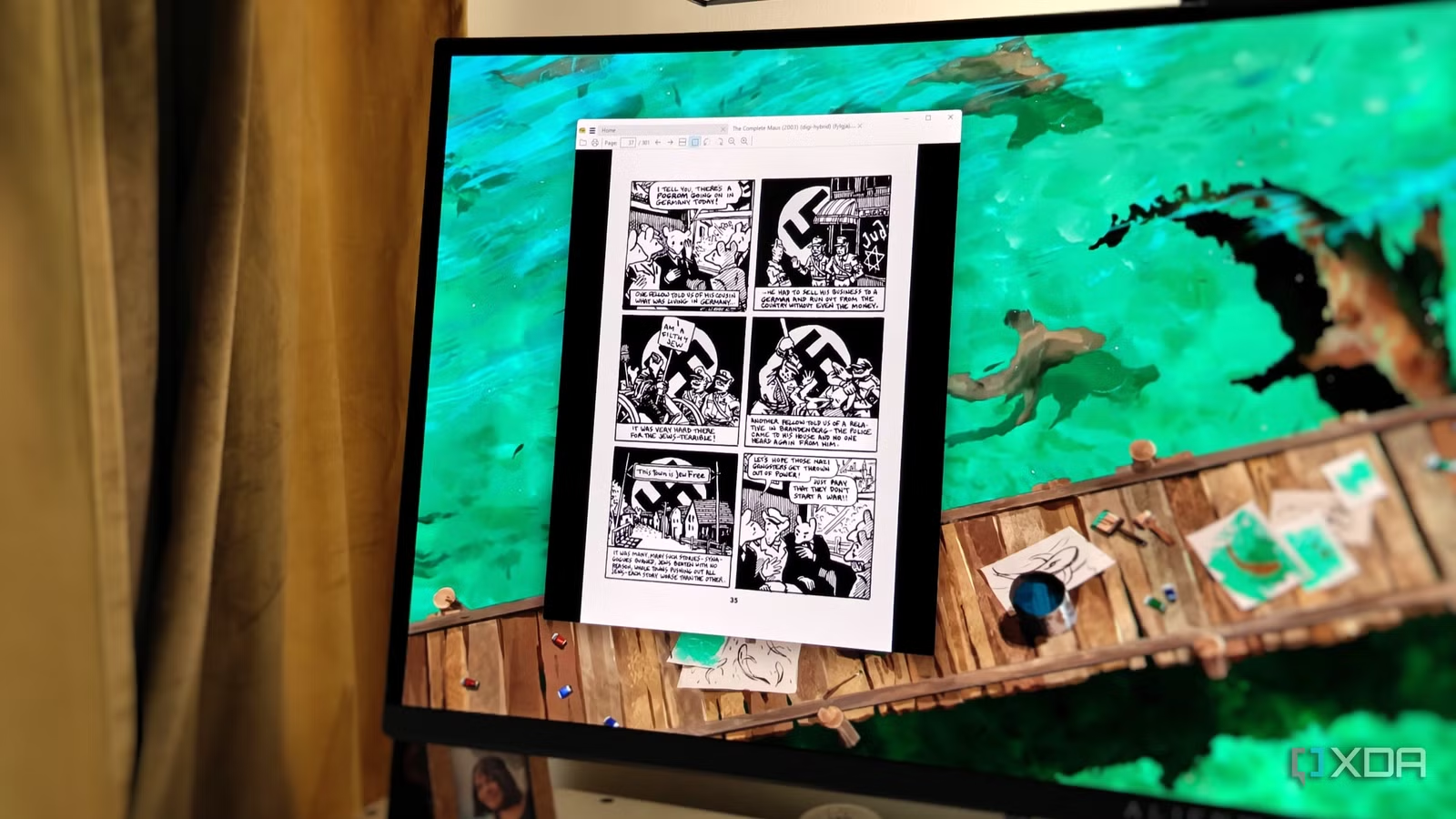
Having a PDF reader is non-negotiable on my PC since I need to read, refer to, and edit PDF files almost every day. Although I’ve used Adobe’s free offerings for many years out of habit, I recently reassessed the applications I keep on my PC after migrating to Windows 11. The clean installation allowed me to reconsider installing heavy and bloated programs for a single purpose.
That’s when I discovered SumatraPDF after seeing fellow XDA writers share their experiences with it. Contrasting it with Adobe Reader, it’s the polar opposite: lightweight, lightning-fast, and uncluttered. It’s not a 1:1 replacement for an advanced PDF editing toolkit, but I don’t need it to be. I use another application for those rare occasions when I need to sign or edit a PDF document. For reading documents and comic books, however, SumatraPDF has become my go-to app.
Related
I replaced Adobe Acrobat with a 10x faster, browser-based open-source PDF toolkit
I deleted Adobe Acrobat, freed up gigabytes of space, and haven’t missed it once.
I hate installing too many third-party apps, but SumatraPDF convinced me
It easily earned its place
I love it when built-in Windows apps are enough for work and play, so I don’t need to clutter my system with yet another third-party app on my system. This is why I still use Microsoft Photos, Defender, and Snipping Tool instead of downloading alternatives with more features. In some areas, I just don’t need anything more than what Windows already provides me with. Although my browser can always open PDF files, I don’t like it cluttering my open tabs where I’m writing and researching.
Hence, Adobe Acrobat Reader remained a mainstay on my PC for decades, even when reading PDFs used to be rare. When I moved to Windows 11 a few months ago, I wanted to install only those programs that were absolutely necessary. Adobe’s free reader was serviceable, but it was needlessly bloated, slow, and resource-heavy, considering I only used it for opening PDF files – no annotating or signing needed.
So, when I found SumatraPDF, I realized PDF readers didn’t have to be convoluted, and I wished I had moved to it years ago. SumatraPDF is a free and open-source PDF reader created with a minimalist design philosophy. It’s everything Adobe Acrobat Reader isn’t — fast and distraction-free. It reminds me of simpler times when every single program wasn’t forced to ship with modern visual trends and tons of menus.
It’s barely 25MB in size after installation, which is negligible compared to several hundred MBs hogged by Acrobat Reader. It’s intentionally under-designed to keep things snappy, and it does one thing perfectly, which is help you open and read PDF files. There are only a handful of buttons to navigate, search, rotate, and zoom the document. In fact, most of the functions can be used without touching the mouse at all, since it’s designed to be keyboard-friendly.
Related
4 open‑source PDF tools that replace Adobe Acrobat for everyday work
PDF power without the monthly subscription
I no longer need a separate ebook and comic book reader
Reading comics on the go has never been simpler
What I love about SumatraPDF is that it isn’t just a PDF reader. It also supports file formats like EPUB, MOBI, CBZ, CBR, and more for ebook and comic book collections, and this easily makes it one of the first programs I install on a new PC. I like to catch up on my collection when I’m traveling, so when I got a new laptop around three months back, SumatraPDF was at the top of the third-party programs I wanted to download.
Whether it’s my comic books, novels, graphic novels, or manga, SumatraPDF allows me to get to the action instantly. Instead of me figuring out how to block distractions to improve my reading experience, SumatraPDF already does it for me. The fact that the installer is just 10MB in size earns it a permanent place on my USB drive alongside a copy of my comic book collection. I can get it up and running in a few seconds, even when I’m using a friend’s laptop.
Related
This free tool is the Jellyfin for comics — and it turned my chaotic collection into a proper library
Dedicated server for comics and manga.
It doesn’t replace advanced PDF editors, but I have a different app for that
BentoPDF fills the gap
As I mentioned, SumatraPDF isn’t designed as a do-it-all PDF editor. It does one thing perfectly, which is what adds to its appeal and snappy experience. I can live with having two different apps taking care of PDF duties on my PC. While SumatraPDF handles PDF and comic book reading, BentoPDF handles PDF editing, signing, and everything else.
BentoPDF is another open-source project, designed to run entirely in your browser. All the annotating, watermarking, splitting, and signing operations locally on your PC inside a browser tab. BentoPDF, just like SumatraPDF, is lightweight and intuitive. The two-app arrangement doesn’t nag me since both programs use basically no system resources and stay out of the way I don’t need them.
SumatraPDF just happens to fit in that simple and snappy PDF reader niche, so it has naturally become a part of my workflow. Its “dated” UI and simplistic feature set aren’t drawbacks; they’re an asset when it comes to focusing on the task at hand.
Related
I prefer BentoPDF over StirlingPDF as my primary PDF toolkit, and I’m not going back
The PDF upgrade I didn’t expect, but won’t undo
SumatraPDF shows heavier alternatives how it’s done
You don’t always need overengineered, resource-heavy programs to do one job. Adobe’s offerings across PDF editing, photo editing, and video editing may be popular, but SumatraPDF’s design philosophy is commendable. It’s extremely lightweight and snappy, and excels at basic PDF reading. It has also become my default comic book reader on Windows. All the advanced PDF editing it doesn’t handle is reserved for other lightweight tools on my system.