


Considering all the extra obstacles Google has created for custom ROM setups, I figured I’d have to jump through several hoops to run Linux environments on phones. While this notion may hold true for hardcore projects requiring a custom kernel, it’s very much possible to experiment with different Linux distros on any ol’ Android phone – and that’s something I only realized after attempting to self-host FOSS services on my pocket-sized companion.
Thanks to Termux, it’s possible to deploy a Linux environment where I can tinker with different shells, package managers, and even server management tools. But by default, Termux only works with command-line apps, and although my Android-based Linux tinkering needs are almost always met by CLI tools, I’ve always wanted to test full-on GUI setups on a “mere” phone. Thankfully, I recently ran into the Termux-Desktops repo by genius developer LinuxDroidMaster, which provides a bunch of cool ways to deploy full-on desktop environments using the Termux X11 server add-on.
Related
Sailfish OS showed me what Linux phones could actually be, and we need more of it
A fantastic idea, but it needs more support
The Termux Native route provides solid performance with desktop environments
But it doesn’t work with every Linux app out there
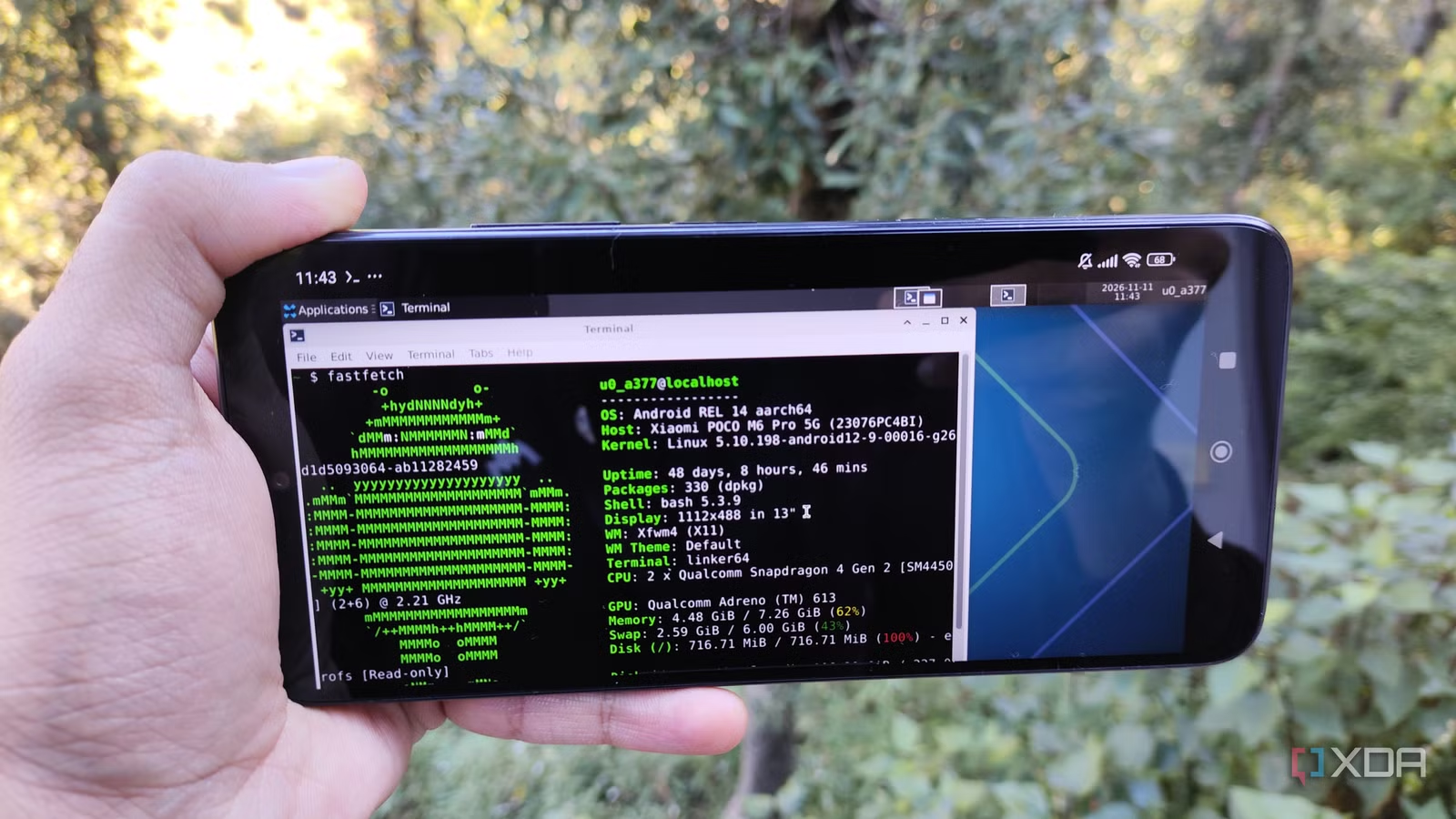
Starting with the easier (and faster) method for a rootless Linux GUI experience, the Termux Native instance sets up all the packages required for my desktop environment directly on my phone. Since it doesn’t rely on virtualization to emulate different aspects of Linux, it’s what I decided to use with my old, budget-friendly Poco M6 Pro 5G.
I’ve already installed Termux and Termux X11 from their GitHub links, so I only had to grab the pulseaudio to enable audio playback on my GUI apps with pkg install pulseaudio as well as wget for the rest of the scripts required for this project via pkg install wget. Then, I used the pkg install xfce4 command to pull the Xfce desktop environment files before running wget https://raw.githubusercontent.com/LinuxDroidMaster/Termux-Desktops/main/scripts/termux_native/startxfce4_termux.sh to grab the Xfce startup script and bash ~/startxfce4_termux.sh to execute it.
Soon, my GUI-laden environment booted up within Termux X11, and to my surprise, the interface was smooth as butter. The touchscreen gestures worked well, too, though I had to plug in a dedicated keyboard for my terminal escapades. But I wanted to test a couple of apps, so I headed back to Termux and used the tur-repo to arm my local Linux environment with Firefox, GIMP, TigerVNC, and a couple of other apps. Sure enough, the apps worked without any issues, and I was impressed by how well the whole setup turned out.
Unfortunately, the Termux Native method doesn’t support every GUI application out there. I couldn’t find Joplin or Obsidian within tur-repo, and the same holds true for VS Code, Planify, and a bunch of other productivity-centric apps. Sure, I could look into alternatives like Code-OSS, but I still won’t be able to tinker with my usual Linux suite.
Credit where it’s due, this method also supports Mobox, an emulation tool that I’ve extensively used to run PC games on Android. However, the Termux Native + Mobox combo is meant for running classic Windows apps within a Linux environment, but since it’d cause a lot of overhead on my weak, outdated, budget-friendly phone, it was time to look into the other Termux-Desktops methods.
Related
I turned my phone into a Linux desktop with this free app
It’s basically Linux running inside an app, with a desktop environment, too.
Switching to the PRoot variant got rid of the software compatibility problem
Too bad it’s a bit slow on old phones
Besides Termux Native, LinuxDroidMaster’s repo also has the PRoot method for setting up GUI apps. There’s even a Chroot variant, but since that’s only meant for rooted devices, I figured I’d test it out on a different device some other time. As for PRoot, installing the Xfce packages took significantly longer than it did for Termux Native.
But once I’d pulled the packages in my Debian environment, I pulled the startup script with wget https://raw.githubusercontent.com/LinuxDroidMaster/Termux-Desktops/main/scripts/proot_debian/startxfce4_debian.sh, replaced the username in it with the nano editor, used the chmod +x startxfce4_debian.sh command to turn it into an executable, and finally ran it with ./startxfce4_debian.sh.
The UI felt a tad sluggish, as PRoot runs everything within an isolated container, but it was more than usable for simple tasks. On the bright side, I was able to install a lot more apps than the Native Termux method, as I had some degree of control over this Linux environment.
Run a full-fledged Linux GUI on your pocket-sized companion
Personally, I’m really impressed with how well my outdated phone managed to run apps with Termux-Desktops. I’ll probably stick to Termux Native and use Xfce as the desktop environment, as this combo provides the best performance on my potato phone. But once my Samsung daily driver starts to slow down and I end up replacing it, I’d love to set up a custom Android distro on it and start tinkering with Chroot-powered Linux desktop environments.