


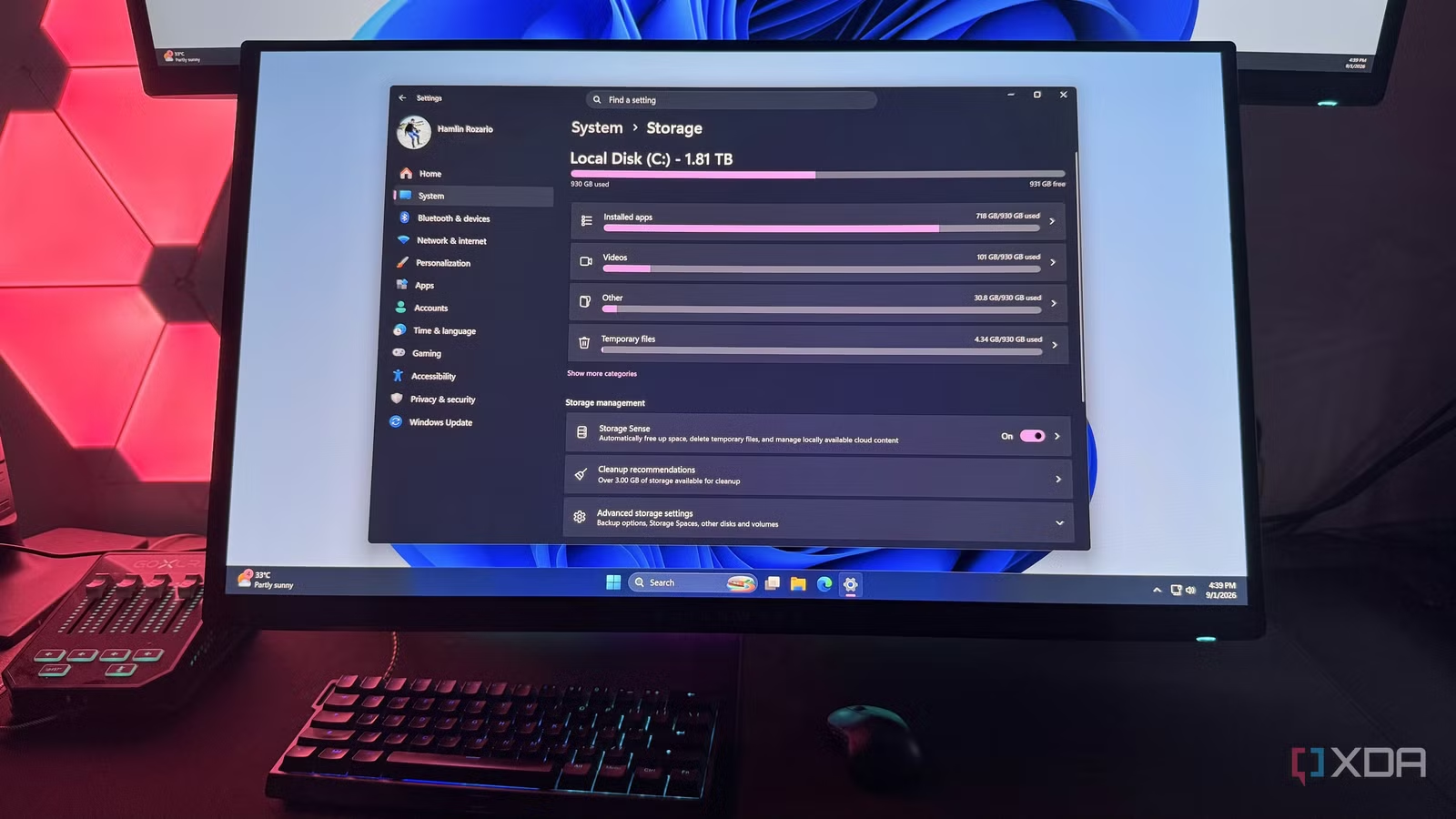
As someone who’s used Windows for most of my life, I’ve disabled several features over the years, mainly because I didn’t need them or because they got in the way of my daily workflow. But rarely have I ever turned off a feature and gotten anything meaningful in return. This time around, that wasn’t the case. I just disabled a feature I don’t recall ever using on a desktop and got back about 25GB of free space immediately.
I’m talking about hibernation, which is useful if you want your PC to preserve everything you’re doing without putting it in sleep mode. I can see myself using it on a laptop, where that extra bit of battery life can make a difference, but I don’t really see the point on a desktop. I’m usually in front of my PC for most of the day, and when I’m away from the keyboard, the monitors turn off automatically after a few minutes. And once I’m done for the day, I just shut it down. So giving this feature up was a no-brainer, especially when I can always use sleep mode.
Related
You should disable Windows Hibernation
It’s just not worth it for most users
Hibernation was taking up way too much space
Having 64GB of RAM only made it worse
Before I dig into the details, let me explain how hibernation works and how it differs from sleep mode. When you put your PC into sleep mode, Windows keeps everything you’re doing in RAM while the rest of the system enters a low-power state. Hibernation, on the other hand, saves that data from RAM to system storage before powering down your PC. So when you turn it back on, whether that’s hours or days later, you can pick up where you left off without your PC continuously drawing power in the meantime.
Yes, your PC still uses a tiny amount of standby power while it’s hibernating, but it’s barely anything compared to sleep mode. Windows stores this data in a file called hiberfil.sys, and its size depends on how much RAM you have. By default, this file takes up roughly 40% of your RAM, which matches the 25GB of space I freed up on my PC with 64GB of RAM. If you have 32GB of RAM, you can expect to free up a little over 12GB by disabling hibernation, whereas that number drops to 6GB if you only have 16GB.
Disabling hibernation takes one simple command
You get back all that space instantly
The good news is that you don’t have to dig through the Windows Registry and mess around with a bunch of keys to delete the hiberfil.sys file. All you need to do is open Command Prompt as an administrator, type in the following command, and hit Enter:
powercfg /hibernate off
That’s pretty much it. If you go to Settings -> System -> Storage on Windows, you may not see the updated space right away because Windows just rounds the number there. However, you can double-check the exact free space before and after you disable hibernation by using the command fsutil volume diskfree C:.
Look for Total free bytes and compare the number before and after you turn off hibernation. This is how I confirmed that I had actually gotten back a little over 25GB of storage space. You can confirm that hibernation is disabled by going to Control Panel -> Hardware and Sound -> Change what the power buttons do and opening the dropdown. You won’t find Hibernate along with Shut down and Sleep. But if you ever change your mind, simply use the command powercfg /hibernate on and Windows will recreate the hiberfil.sys file and take up that space again.
The only thing I’m missing out on is Fast Startup
I’ve already said why hibernation can be beneficial for laptops. If you’re constantly opening and closing your laptop throughout the day, you want it to consume as little battery as possible while you’re not using it. But desktop users have little reason to worry, since their PC is plugged into the wall anyway. Except hibernation isn’t the only feature that relies on the hiberfil.sys file. Fast Startup uses it too, so deleting that file means you’ll be limited to a normal startup, which usually takes a few seconds longer.
Personally, I rarely shut down my PC these days. If anything, I usually only restart it because of Windows updates. So I’m perfectly fine with a slightly longer normal startup once in a while. But I do understand that might not be the case for you. Fortunately, you still have an option in this instance. You can use the reduced hibernation mode, which reduces the size of the file from 40% of your RAM to 20%. The command for enabling it is powercfg /hibernate /type reduced. This way, you still get back about half the storage space while keeping Fast Startup.
I have more use for that 25GB than hibernation on a desktop
If I were using a laptop, I probably would leave this feature untouched. But on a desktop, that 25GB of space could go towards important files, another small game, screen recordings, or pretty much anything else I’d get more use out of. Sure, that isn’t a huge amount when you have a 2TB SSD, but when a feature I don’t even bother with takes it up, I’d rather have it back. And it’s not like I’m giving this feature up for good because one command is all it takes to get the file back.
Related
Windows hasn’t properly shut down when you click shut down since 2012, and it explains a decade of weird bugs
Most users won’t miss this troublesome feature causing it anyway