


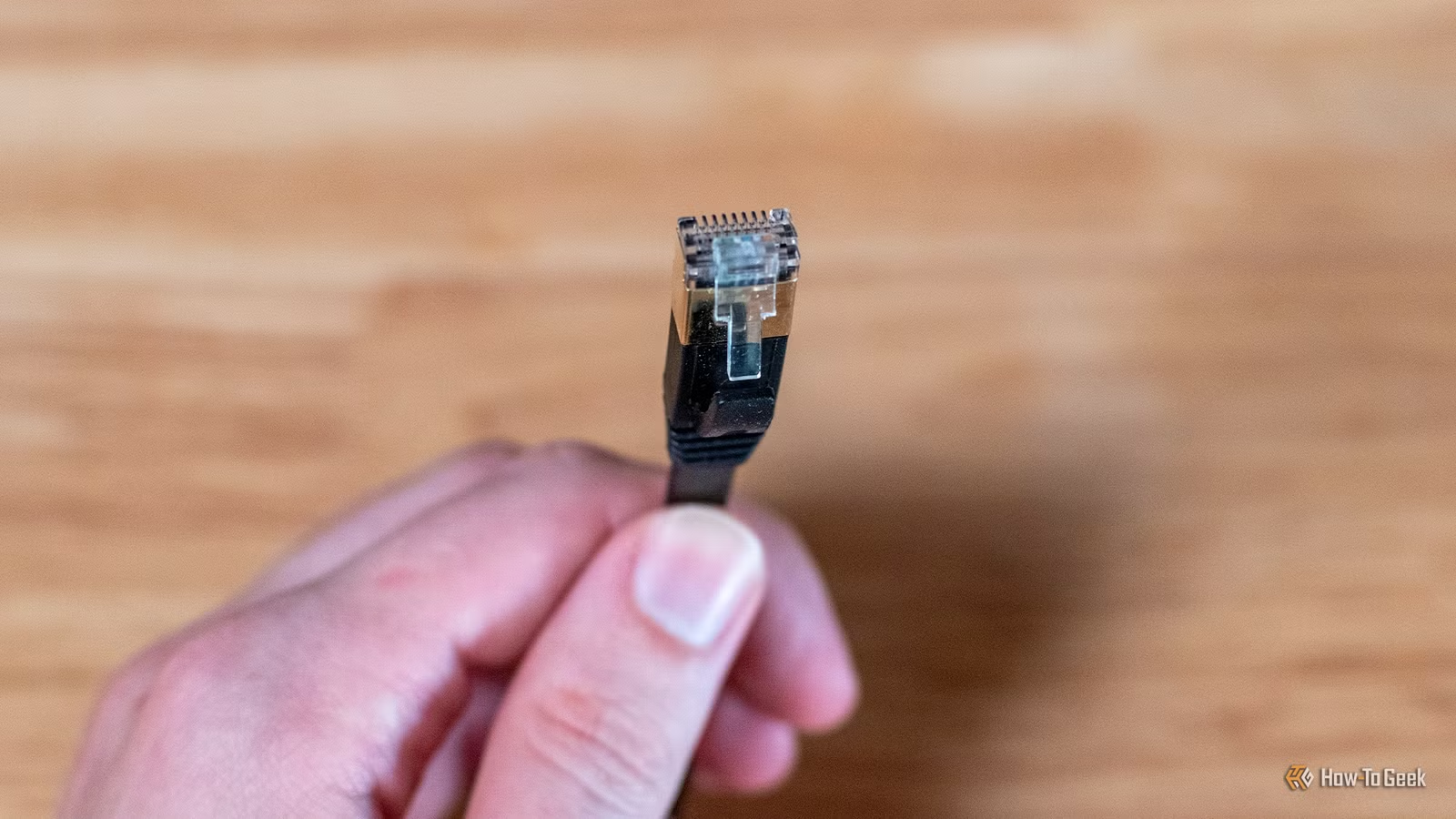
If you want a fast, stable connection, and you want to do it properly, you go wired. We all know this, but just because wired is the right answer doesn’t mean there’s no wrong way to do it. If you traipse one long cable all around the house and out to the annex, you may hit a wall you didn’t know existed. Ethernet has a hard distance ceiling, and once you pass it, things will start going wonky.
Here’s the real number, what happens when you cross it, and how to reach farther without breaking anything. It’s worth knowing, because a wired link isn’t automatically a trouble-free one.
The 100-meter rule isn’t a suggestion
It’s a number three separate standards agree on
The maximum length for a copper Ethernet channel is 100 meters, or 328 feet. This number is defined by the TIA/EIA-568 cabling standards, ISO/IEC 11801, and IEEE 802.3, and it exists for a reason. Two things happen when a cable runs too long: the signal fades (attenuation), and the pairs inside the cable interfere with each other (crosstalk).
The 100-meter rule covers the whole path from end to end, splitting it into a 90-meter fixed run through your walls plus up to 10 meters of patch cords combined at both ends. Past that distance, the standards simply can’t guarantee the signal will still be clean enough to trust.
Related
Eero’s silent cloud syncs are turning your router into yet another tracking device
Your router is the last thing you want to be tracked by
Going over the limit doesn’t break your connection—it corrupts it
You normally still get a connection, but not a good one
Credit: Patrick Campanale / How-To Geek
Once you cross the 100-meter limit, problems can start appearing. Your connection won’t just drop out completely, however, which can make it harder to diagnose. A run of 110 or 120 meters, for example, will often connect at full speed and behave for days before it starts acting up.
What’s happening underneath is that the weakened signal produces errors. When that happens, the connection either negotiates down to a slower speed to stay stable, or it keeps erroring and re-sending packets, which you experience as lag, jitter, and random drops. You’re also more likely to see the problems appear when the network is busy or when the cable heats up.
If you suspect the cable, the fastest test is to swap in a short, known-good one, or plug straight into the router and compare. A cheap cable tester can catch the obvious wiring faults too.
No, a longer cable isn’t adding “lag” the way you think
The delay from distance is real, but it’s not your problem
The longer a cable is, the further a signal has to travel, and you might assume this adds a natural amount of lag. This is a complete non-problem, however, simply because a signal moves through copper at roughly two-thirds the speed of light. This means a full 100-meter cable adds only about 500 nanoseconds of delay—far too little for you or your game to notice.
Distance may be the trigger, but the travel time most definitely isn’t the culprit. It’s the errors and retransmissions from the degraded signal doing the damage.
The “limit” changes depending on your cable and your speed
100 meters is the ceiling for 1 Gbps—push for more and it shrinks
While the maximum distance limit is always 100 meters, different cables offer different speeds over that distance, or can trade distance for extra speed.
Cable
Speed over full 100 m
10Gbps range
25/40 Gbps range
Cat5e
1Gbps
—
—
Cat6
1Gbps
55 m (37 m worst case)
—
Cat6a
10Gbps
100 m
—
Cat8
10Gbps
100 m
30 m
If you’ve got Cat5e cables, 1 Gbps is your limit. However, if you’ve got Cat6, you can up the speed over shorter distances, and with Cat6a, you can go all the way to 100 meters at 10 Gbps.
How to go farther without wrecking your connection
The one thing that won’t work is the thing people try first
Credit: Adam Davidson / How-To Geek
First off, here’s what not to do: couplers. This won’t regenerate the signal, so all you’re doing is adding an extra connection that could fail. Genuinely useful coupler jobs are about convenience over short distances, not extending reach.
What actually works is adding a powered switch in the middle of the run. This receives and re-sends the signal, resetting your 100-meter budget. As long as the switch is at least as fast as the rest of your network, you won’t lose any speed. A spare switch you already own will do the job perfectly.
Beyond that (though this isn’t relevant for most home setups), a dedicated Ethernet extender can push a single run to around 300 meters, PoE (Power over Ethernet) extenders can be daisy-chained past 500 meters for devices like cameras and access points, and fiber with media converters can reach several kilometers while ignoring electrical interference—just remember fiber on its own can’t carry PoE.
So, is your cable too long?
In the end, this is a simple problem with a simple solution. All you need to remember is that 100 meters is the ceiling, crossing it corrupts (not kills) your connection, and the only proper fix is to regenerate the signal. So, before you blame the router or fire off an angry message to your ISP, measure the run and rule out length first.