


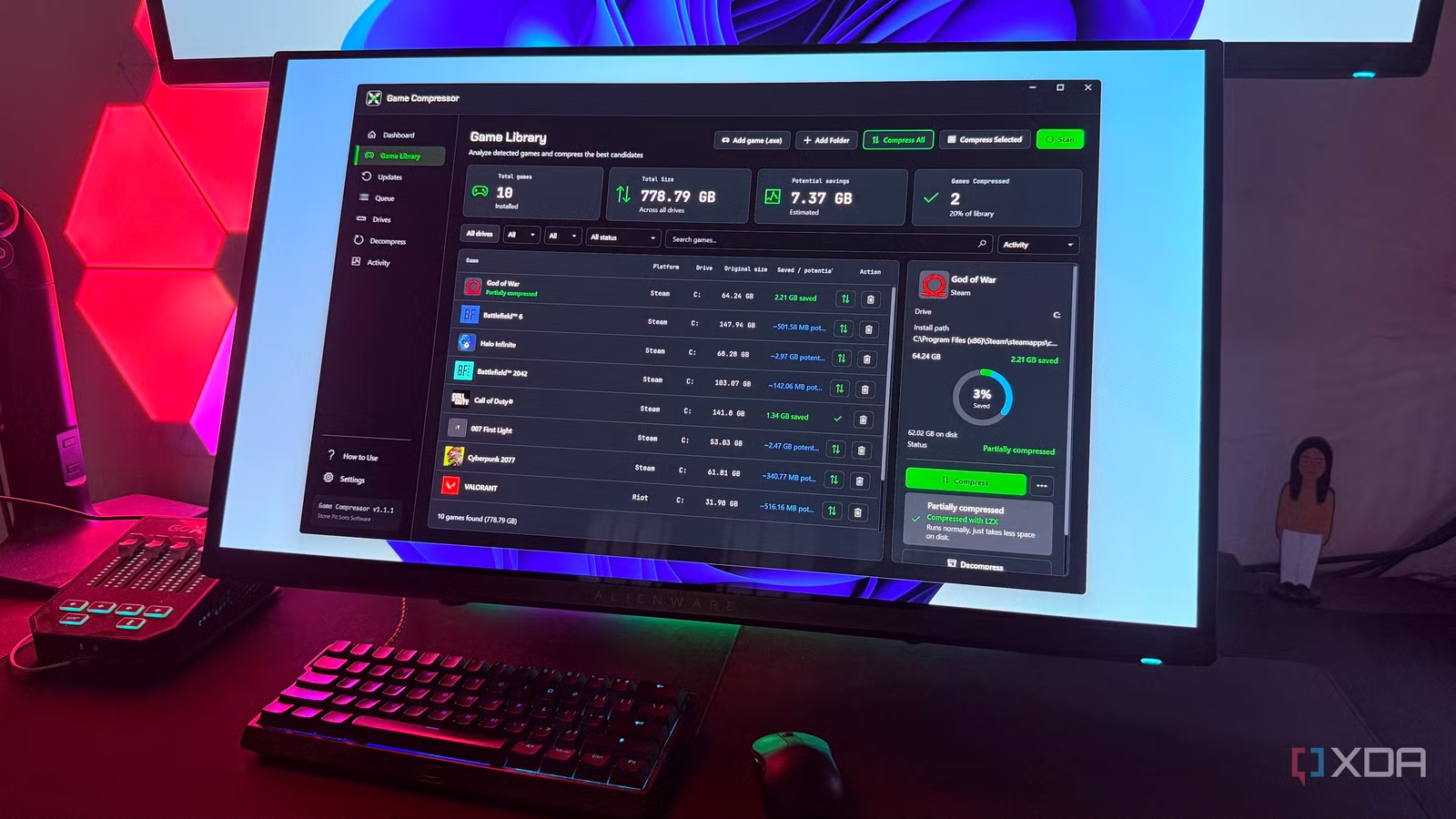
Recently, I spent $6 on a compression tool that I randomly found on Steam as I was looking for new games to play. Since I was seriously considering getting a secondary SSD, even at the current inflated prices, I figured I had nothing to lose by giving it a shot first. After all, it doesn’t even cost as much as an indie game these days. If it could free up enough space to put off that SSD purchase for a while, that’s a win in my books. And sure enough, it helped me get back hundreds of gigabytes of space.
Shortly after, though, I was looking into its LZX compression algorithm to learn about the potential downsides and its impact on gaming performance, and that’s when I stumbled upon something I wish I had known before I spent that money. Windows already has a built-in command-line tool called compact.exe, which lets you use exactly the same type of compression. Had I known this sooner, I would’ve obviously tried it first before deciding whether the app is worth paying for. Now that I’ve tried both, I don’t think that $6 was a waste either.
Related
Game Compressor freed up 300GB on my SSD without deleting a single game
My games were taking up more space than they needed to.
Windows’ compact.exe can compress games natively
All you really need is Command Prompt
Windows already gives you everything you need to compress games using LZX, so Game Compressor isn’t doing anything extraordinary. Think of it as a GUI wrapper around Windows’ native compression functionality. All you need is Command Prompt, Terminal, or PowerShell and the right commands. Now, I know most of you may be clueless about what to type in, but figuring that out isn’t tricky either. Type compact.exe /? to see a list of all the available options and learn what each one does.
The list might seem overwhelming at first, but compressing a game using LZX only takes one command after that. For example, compact.exe /c /s:”C:\Program Files (x86)\Steam\steamapps\common\Battlefield 6″ /i /exe:lzx applies LZX compression to the files in that folder and its subfolders. Here, /c starts the compression, /s includes the subfolders, and /i makes sure compression continues even if an error occurs. But it’s /exe:lzx that lets you use the same LZX compression algorithm that Game Compressor uses.
I don’t lose any control by using compact.exe
I can still decompress, recompress, or switch algorithms as I see fit
At first, I thought doing all of this through the command line would mean giving up some of the control I get with Game Compressor, but that really isn’t the case here. For starters, game updates can leave newly rewritten files needing compression again, and Game Compressor makes this easy with its dedicated Updates section. That doesn’t mean I need the app to recompress them, though. I can simply run the same compact.exe command again on the folder after an update, and Windows handles the rest.
The same goes for anything else I’d want to do later. To decompress the files, I just need to replace /c with /u in the command line. I can even switch to a faster algorithm like XPRESS16K if I want faster compression at the cost of some space savings by replacing /exe:lzx with /exe:xpress16k. I’d stick with LZX because, in my experience, it didn’t really affect performance, but I did make sure I avoided compressing games that use DirectStorage. Even Game Compressor doesn’t recommend that because DirectStorage has its own asset-decompression path, which can cause performance issues.
I still don’t regret paying that $6
That’s a small price to pay for the convenience Game Compressor offers
You’re probably thinking I made a mistake spending money on a third-party tool for a feature that’s available natively. Sure, if all I wanted to do was compress a couple of games every now and then, I’d agree with you. But Game Compressor takes all this command-line work out of the process. It gives me a user-friendly interface to work with, and all the games installed on my PC, whether they’re from Steam, EA, or Epic Games, immediately show up the moment I launch the app.
From there, I can click Compress All, which automatically compresses my entire library while smartly excluding the ones that use DirectStorage. And when I update my games, the ones that need recompression will show up in the Updates section of the app. The closest alternative I could find for free was CompactGUI, which is open-source and gives you an interface, but you still have to manually point it to each game folder and compress them one by one. For the kind of convenience Game Compressor offers, I think $6 is justified, especially since I already spend way more on in-game cosmetics.
You’re better off trying the free option first
I’ve seen some users say that compressing games isn’t worth the trouble because it can affect performance, but LZX compression works at the file-system level, and most CPUs these days can handle the decompression on the fly just fine. As I said earlier, I didn’t notice any difference in loading times. However, if you’re on the fence and don’t want to risk wasting your money, compact.exe is a great place to start. You can see firsthand whether it impacts performance, and if it doesn’t, you can decide whether Game Compressor’s convenience is worth the $6.
Related
I put my Steam library on a cheap USB stick, and it changed how I think about game storage
My library travels with me, everywhere I go