


Android’s NFC reader does more than tap to pay. Held against the right tag or accessory, it can do a ton of stuff. Here are just some things you can do that will immediately improve your experience.
Trigger smart home routines
Turning a single tap into a full automation
Credit: Ismar Hrnjicevic / How-To Geek
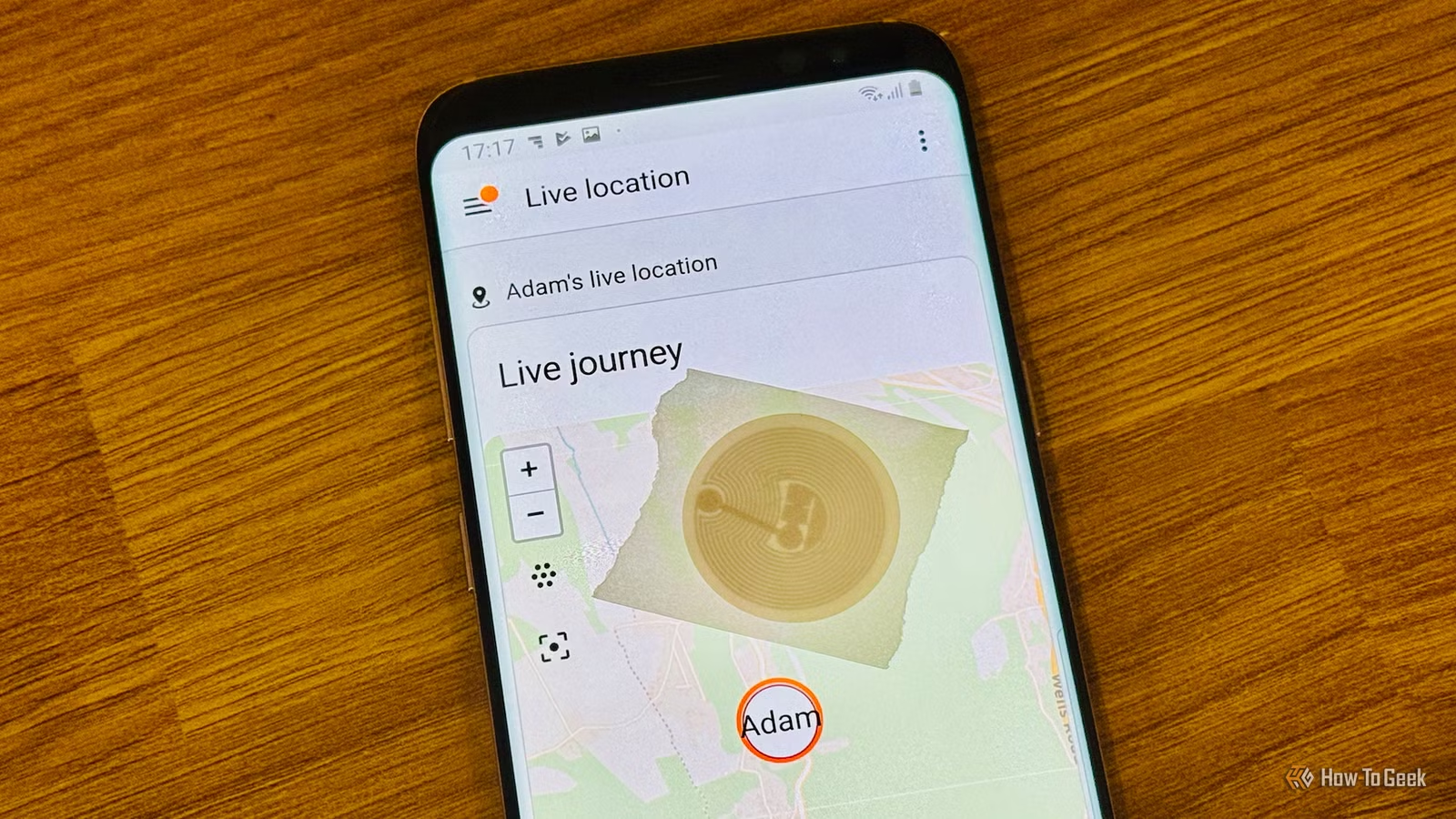
Most people only ever use their phone’s NFC reader to tap a payment terminal, but the same hardware can read cheap, blank NFC stickers programmed to fire off entire routines. Apps such as Tasker, Automate, NFC Tools, and manufacturer-specific tools like Samsung’s Modes and Routines let a user write a specific command, or chain of commands, onto an NTAG213 or NTAG215 sticker that costs well under a dollar.
Once written, tapping the phone against that sticker triggers the assigned action immediately, without needing to unlock the device first on most models, since NFC reading happens at the hardware level as long as the screen is on and NFC is enabled in settings.
The practical uses are broad. A sticker on a nightstand can switch the phone into Do Not Disturb, dim the screen, and start a sleep timer in one motion.
A tag mounted on a car’s dashboard can launch Google Maps, connect to the car’s Bluetooth system, and set the media volume to a preset level before the seatbelt is even fastened. In a smart home setup connected through Home Assistant or a similar platform, a tag by the front door can arm a security system and turn off interior lights when leaving, then reverse those settings when scanned again on the way back in.
Because the tags themselves store only a short instruction or link rather than sensitive data, they are relatively low-risk to place around a home or office. The main limitation is that automation apps vary in reliability across Android versions and manufacturer skins, so it is worth testing a routine tag with a single action first before building out a more complex chain of commands.
Instant Wi-Fi sharing
Skip the typing and just tap in
Typing out a long, case-sensitive Wi-Fi password for a guest is a small but recurring annoyance, and Android’s NFC reader offers a faster way around it. Using an app like NFC Tools, a network’s name, password, and security type can be written directly onto a blank NFC tag using the standard Wi-Fi Simple Configuration format. Once that tag exists, anyone with an NFC-capable Android phone can hold their device against it and receive a system prompt offering to join the network immediately, with no manual entry required.
This approach has become common in small offices, cafes, short-term rentals, and homes with frequent guests, often as an alternative or companion to a printed Wi-Fi QR code taped to a wall. The NFC version has a slight edge in convenience, since it does not require opening a camera app or scanning anything visually; a single tap against a tag mounted near the router or by the front door is enough. It also tends to work more reliably in low light or when a printed code has become worn or damaged.
There is a trade-off worth keeping in mind. Because the tag physically stores the network credentials, anyone who taps their phone against it, intentionally or not, can join the network, and a lost or stolen tag effectively exposes the password to whoever finds it. For most home setups this is a minor concern, but for shared or public spaces it is worth placing the tag somewhere supervised, using a dedicated guest network with limited access to other devices, and rewriting the tag whenever the password changes.
A workaround since Android Beam disappeared
Credit: Bertel King / How-To Geek
Some of you older Android users may remember Android Beam, the feature that let two phones tapped back to back exchange contact cards, links, and small files directly. Google deprecated Beam starting with Android 10 and removed it entirely by Android 14, replacing it with Nearby Share, which relies on Bluetooth and Wi-Fi Direct rather than a physical tap. That change means the classic phone-to-phone NFC handshake for swapping contact details no longer works out of the box on current Android versions. For what it’s worth, Google is bringing it back for Pixel phones with Quick Share, but it’s going to be some time before it’s an Android-wide thing.
What still works, and has become increasingly popular as a replacement, is reading contact information from a physical NFC tag rather than another phone. A growing number of NFC-enabled business cards, keychains, phone case inserts, and even smart rings store a contact card in the standard NDEF vCard format. Tapping a compatible Android phone against one of these objects prompts the device to display the encoded name, phone number, email, and any other included details, with an option to save them straight to the contacts app. The same trick works with a self-made tag: writing a personal vCard onto a blank NFC sticker using an app like NFC Tools turns any object it is attached to into an instant digital business card.
This has made NFC tags a fixture at conferences, networking events, and small business counters, where handing someone a printed card has increasingly given way to a tap-and-save exchange.
Pair Bluetooth devices quickly
Credit: Dibakar Ghosh | How-To Geek
Many Bluetooth speakers, headphones, and car infotainment systems include a small NFC chip specifically to speed up pairing, a feature usually marked with an NFC logo somewhere on the device. Instead of opening a phone’s Bluetooth settings, scanning for nearby devices, and selecting the right one from a list, a user can simply hold their phone against the marked spot on the accessory. The two devices exchange pairing information over NFC in a fraction of a second, a process built on the Bluetooth Secure Simple Pairing handover standard, and the connection completes automatically without any code entry.
This feature has been available on select speakers and headphones from brands like JBL, Sony, and Bose for years, and has also made its way into some car head units, letting a driver connect a phone by tapping it against a marked panel near the stereo rather than digging through an in-car menu while parked. It is particularly useful in situations where pairing needs to happen quickly and repeatedly, such as a shared speaker passed between multiple people at a gathering, since each new phone can pair in a single tap rather than needing the device to be manually put into pairing mode each time.
The catch is that NFC pairing only works if both the phone and the accessory support it, and not every Bluetooth product includes the feature even among otherwise similar models. Checking for the NFC symbol on the accessory itself, usually near the power button or on the top panel, is the easiest way to confirm compatibility before assuming the shortcut will work. Where it is supported, though, it turns one of the more tedious parts of using Bluetooth gear into something closer to an afterthought.
NFC does more than tap to pay
NFC can have a lot of uses, including firing off smart home routines to sharing Wi-Fi, contacts, and Bluetooth pairings in a single tap. Android’s NFC reader remains one of the most underused tools already built into most phones — no extra hardware required, just the right tag or accessory.