


Anastasiia Sapozhnikova/Shutterstock
Not too long ago, we only had a few devices connected to our home router, such as smartphones and computers. But that’s no longer the case. In more advanced setups that use Ethernet, you have network switches, NAS (Network Attached Storage) devices, PCs, and more, all exchanging large amounts of data over the network. This means an average connection may not deliver the required bandwidth. And simply upgrading the internet plan doesn’t always work, because your router’s Ethernet port may still be the bottleneck in your setup. This is where the 2.5G Ethernet port comes into the picture.
A 2.5G Ethernet port, also called 2.5GbE, supports wired network connections with speeds of up to 2.5Gbps. This is 2.5x the speed supported by standard Ethernet ports (1Gbps), which you can still find on many older routers. And to overcome this speed and bandwidth limitation, routers now feature 2.5G Ethernet ports, which can be used for critical devices on your network, say your computer, NAS, and network switch. There are even a handful of routers with 5G ports, but these are pretty rare right now.
Keep in mind that a 2.5G Ethernet port looks and works the same way as a regular Ethernet port. You connect one end of the Ethernet cable to the port and the other to the device to establish a wired connection. You don’t need a different kind of cable, most modern (cat 6) Ethernet cables work fine. The difference essentially comes down to the connection speeds it supports. Also, the 2.5G Ethernet port is backward compatible, meaning it will even work with devices that support lower speeds.
How to check if your router has a 2.5G Ethernet port
alexkich/Shutterstock
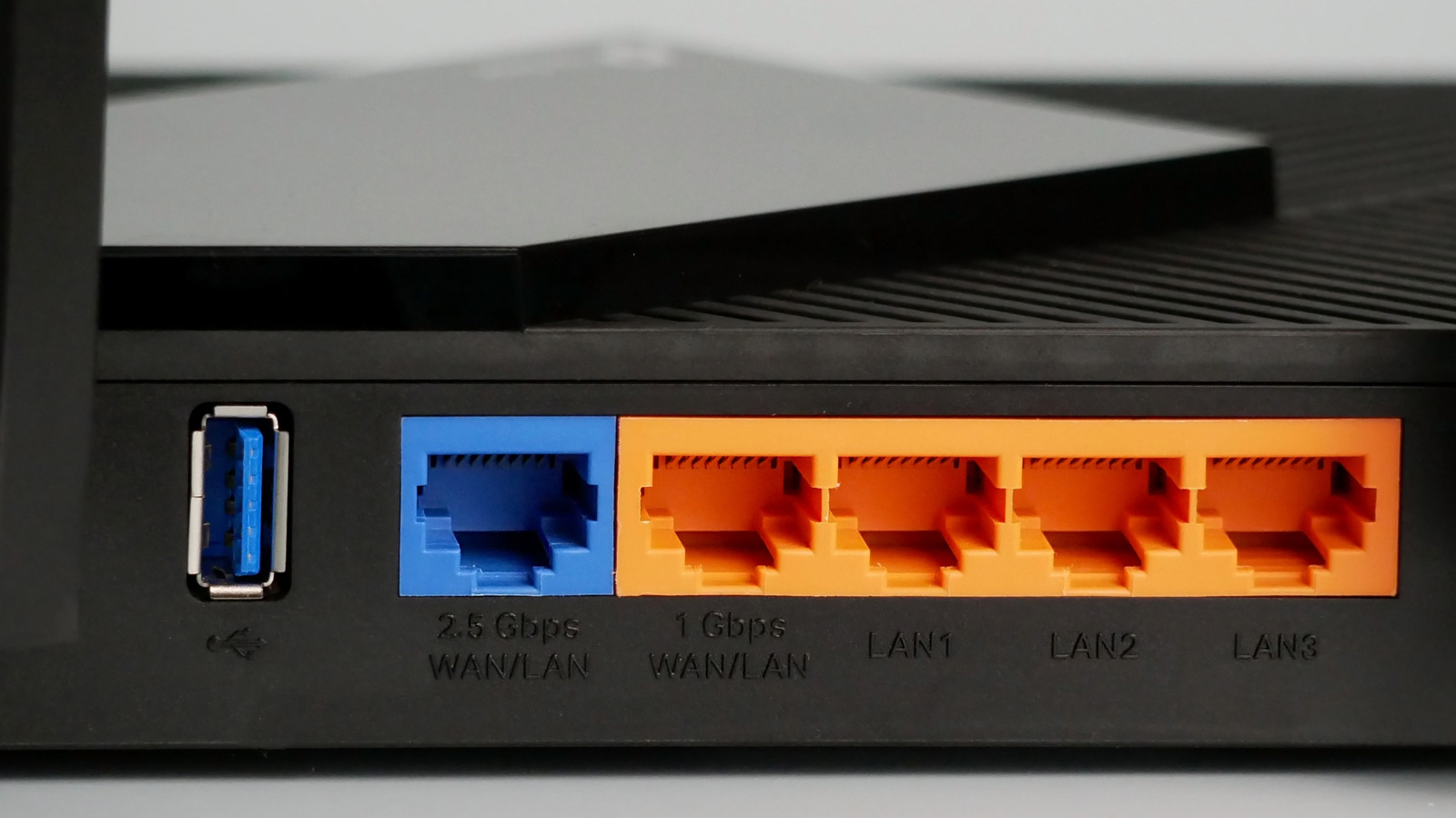
If you are unsure whether your router has a 2.5G Ethernet port or simply don’t know which one it is, a quick visual inspection should clear things up for most of you. Many router manufacturers label the ports, so the 2.5G Ethernet port should have the “2.5G” label somewhere around it. In case it’s not there, try checking the router’s manual to find out the exact configuration of each Ethernet port.
Remember, the router you have also plays an important role here. Most routers have one or two 2.5G Ethernet ports, while the rest are capped at 1Gbps. On advanced modern routers, however, you will find several 2.5G Ethernet ports, in addition to 10G ports. For instance, the TP-Link Archer BE900 Wi-Fi 7 router has four 2.5G Ethernet ports, two 10G ports, and one 1G port. In either case, checking the ports for labels or looking up the router’s manual does the trick.
Do you need the 2.5G Ethernet port?
Octavian Lazar/Shutterstock
First, check the internet speed your ISP is providing. If it’s under 1Gbps, a 2.5G port won’t make your internet faster. However, it can still speed up local transfers between devices on the network, say a PC and NAS. For internet access, though, the standard 1Gbps port should work fine. Apart from that, assess your requirements, the tasks you perform, and the kind of performance you need. For example, if you primarily use the computer to surf the web, watch videos, download the occasional file, or for casual gaming, switching to the 2.5G Ethernet port won’t noticeably improve performance. That’s because none of these tasks are really bandwidth-intensive. Of course, if your router has a 2.5G port and the devices support it, you can connect them using an Ethernet cable, but you shouldn’t get a new router unless you have a fast enough internet plan or local devices that benefit from it.
On the other hand, if you have a NAS hooked to your network, frequently perform large cloud backups, or have several active bandwidth-intensive tasks, the 2.5G Ethernet port on your router is worth exploring. Similarly, it makes sense if you want to get the most out of your internet plan, provided it’s above 1Gbps. However, you will also need Ethernet cables capable of handling the speed, Cat5e or newer, to be precise.
Lastly, if your router has a single 2.5G Ethernet port, and you want to connect multiple devices to it, a network switch can help. Just make sure that you get a multi-gig network switch, or the switch will become the bottleneck.