


Disclosure: When you purchase through links on our site, we may earn an affiliate commission.
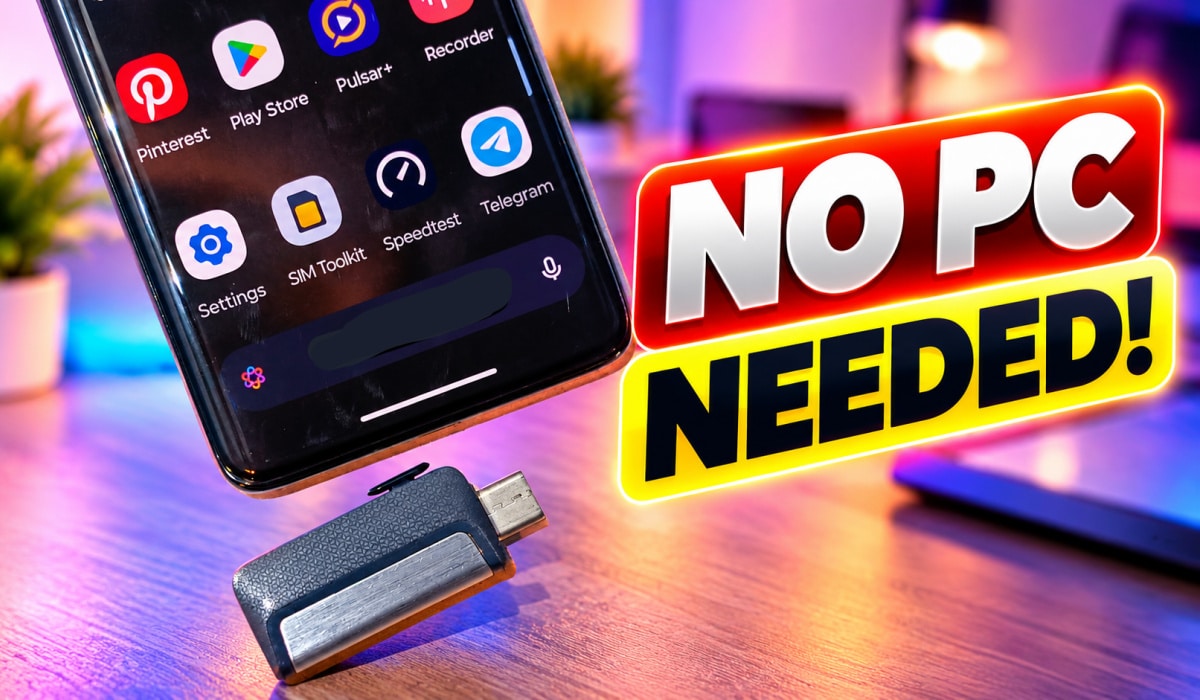
If your Android phone has a USB-C port, you can plug a USB-C flash drive straight into it and move files back and forth. No computer, no cable, no adapter.
The setup I recommend is the simplest one: a USB-C phone and a USB-C flash drive. One plug, nothing in between to lose or fail.
In this guide, I’ll show you how to connect the drive, find your files, copy them in both directions, and eject the drive safely. I’ll also cover what to do if your phone doesn’t see the drive.
What you need
- An Android phone with a USB-C port. Google’s Files app supports USB storage on Android 7.0 (Nougat) and newer, which covers practically every USB-C phone in use today.
- A USB-C flash drive. A drive with a USB-C plug goes straight into your phone. Dual-connector drives with USB-C on one end and USB-A on the other are the most practical, because the same drive also works with older laptops and desktops. The SanDisk Ultra Dual Drive Luxe and Samsung’s Type-C Flash Drive are two widely available options.
- A file manager app. Files by Google is preinstalled on Pixel phones and many others, and it’s free on the Play Store. Samsung Galaxy phones use My Files, which works the same way.
- A compatible drive format. FAT32 and exFAT work on most Android phones. Use exFAT if you’ll be moving files larger than 4GB, because FAT32 can’t store any single file bigger than that. NTFS support varies by phone maker, so don’t count on it.
How to connect a USB-C flash drive to your Android phone
I’m using Files by Google for these steps. Menu names can differ slightly on Samsung’s My Files and other brands’ file managers, but the flow is the same.
Step 1: Plug in the flash drive
- Plug the USB-C flash drive directly into your phone’s charging port.
- You should see a notification saying a USB drive is connected.
- Tap the notification. If Files asks for permission to access the drive, tap Allow.
If no notification shows up, unplug the drive and plug it back in. If that doesn’t work, skip to the troubleshooting section below.
Step 2: Open the flash drive and find your files
- Open the Files app.
- Tap Browse, then scroll to Storage devices.
- Tap your USB drive. You’ll see its folders and files just like your phone’s internal storage.
From here, you can open photos, play videos, and read documents directly from the drive.
Step 3: Copy files from the flash drive to your phone
- On the USB drive, find the file you want.
- Tap the three-dot or down-arrow menu next to the file, then tap Copy to. To copy several files at once, tap Select first and tick each file.
- Choose Internal storage, open the folder you want, and tap Copy here.
Use Move to instead of Copy to if you want to take the file off the flash drive.
Step 4: Copy files from your phone to the flash drive
- In Files, open Internal storage or a category like Images or Videos.
- Select the files you want to back up.
- Tap Copy to, choose your USB drive, pick a folder, and tap Copy here.
Step 5: Eject the flash drive safely
Don’t just pull the drive out, especially right after a copy. Unfinished writes can corrupt files.
- Go to Settings > Storage and tap your USB drive.
- Tap Eject. On some phones, you’ll also see an eject icon next to the drive in the file manager.
- Wait for the confirmation, then unplug the drive.
On a Samsung Galaxy: pull down the notification panel, expand the USB drive notification, and tap Unmount. You can also go to Settings > Battery and device care > Storage, tap the three-dot menu, then Advanced, and tap the eject icon next to your USB drive.
What to do if your phone doesn’t detect the flash drive
- Turn on OTG in Settings. Some phones, including OnePlus models and their OPPO and Realme siblings, switch USB OTG off by default. Open Settings, search for “OTG,” and turn on the OTG connection toggle. On these phones, it usually switches itself off again after about 10 minutes without use.
- Reseat the drive. Unplug it and push it firmly back in. A thick phone case can stop the plug from seating fully, so take the case off and try again.
- Check the format. If your phone sees the drive but says it’s unsupported or asks to format it, the drive is probably NTFS or another format your phone can’t read. Back up the files on a computer first, then reformat the drive as exFAT.
- Try another device. Plug the drive into a computer, or try a different flash drive in your phone. That tells you whether the problem is the drive or the phone.
- Clean the port. Pocket lint in your phone’s USB-C port can stop the drive from connecting properly. Clear it out gently with a wooden or plastic toothpick, never metal.
- Restart your phone. It’s basic, but it clears a lot of glitches with USB detection.
FAQ
Is a USB stick or thumb drive the same as a flash drive? Yes. Flash drive, USB stick, thumb drive, and USB drive all mean the same thing. What matters for this guide is that the drive has a USB-C plug.
Do I need an app to use a flash drive on Android? No extra app. A file manager like Files by Google or Samsung’s My Files is all you need, and most phones already have one installed.
Does using a flash drive drain my phone’s battery? A little. Your phone powers the flash drive through the USB-C port, so it draws some battery while it’s plugged in. Eject and unplug it when you’re done.
Can I play videos and music directly from the flash drive? Yes. Tap a file on the drive in your file manager and it opens in your default player. You don’t have to copy it to your phone first.
Why can’t I copy a large video to my flash drive? If the file is bigger than 4GB and your drive is formatted as FAT32, it won’t fit, even if the drive has plenty of free space. Reformat the drive as exFAT, after backing up what’s on it.
Final word
A USB-C flash drive is the easiest way to move files on and off an Android phone without a computer. Plug it in, open Files, copy what you need, and eject before you unplug. If you’d rather watch than read, the video version of this guide will be up on my YouTube channel, Mister Mobility in about 36 hours from now.