


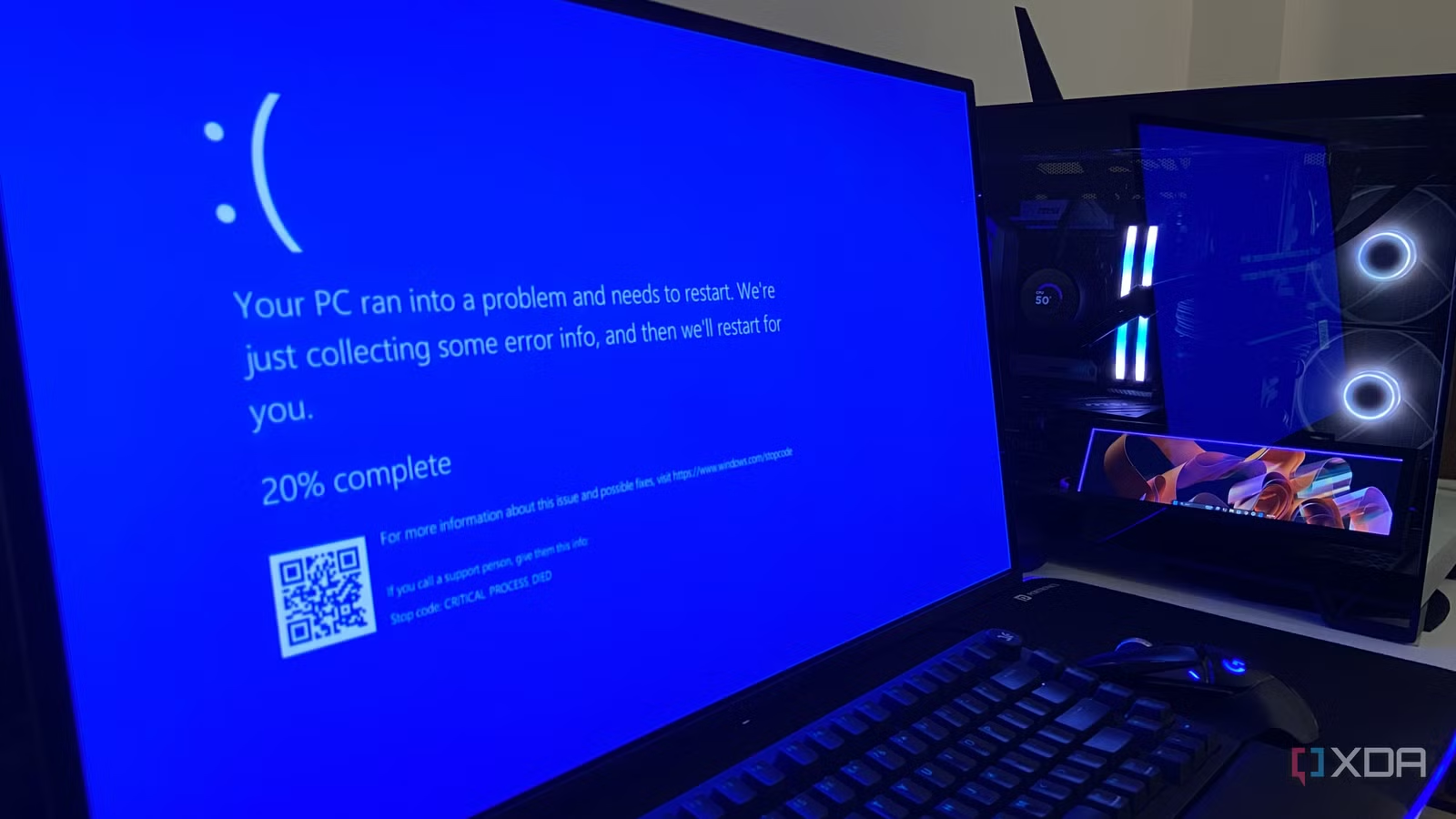
Given how many times Windows 11 throws seemingly messy and complex problems to solve, I’m willing to bet that almost every long-time user has been at the brink of wiping the OS and reinstalling it from scratch.
Not every user’s workflow allows for the time to go down a long and arduous troubleshooting process, jumping from one Reddit thread or Microsoft Learn forum to another, and not every user can be expected to have the level of patience that these issues sometimes demand out of the blue.
But reinstalling an entire operating system comes with its own set of configuration headaches. You have to configure all your app and driver settings back again by hand, and doing so can often cost you more time than using Windows’ own built-in recovery tools. The only thing you have to know is that they exist, and how to find them. Here are some native utilities that can save you hours before you clock out of work to fix a broken OS.
Fix problems using Windows Update
A reinstall that will leave all your files exactly where they were
I’ll admit the sheer irony of opening the list with something that reinstalls your OS, but the path that I’m recommending makes sure that your files, programs, and drivers stay exactly the way as you configured them. To do this, you have to go into Settings > System > Recovery, where you’ll find the option to “Fix problems using Windows Update”. Besides that, you’ll find an option to “reinstall now”.
Let’s say you found yourself in the unfortunate situation wherein Windows boots, but your system files and components are damaged, and your updates keep failing for one reason or another. This option lets you reinstall the current OS version while keeping your apps, files, and settings. What it does is that it downloads a repair copy of the last successfully installed update, which saves you the hassle of hunting down an ISO or reaching for a USB to flash.
Related
My Windows install is ten years old, and a handful of maintenance habits are why it still runs like new
Essential maintenance keeps my old Windows 11 system running smoothly.
Uninstall Updates
It comes in handy whenever Patch Tuesday comes around
Some of the messes on Windows 11 come with an obvious culprit, and the latest update is usually the first suspect when things don’t look right on my PC. If you’ve ever used your Windows PC for gaming and found glitches, artefacting, or anomalous behavior suddenly after you clicked “Update and shut down” the night before, you’ve probably already been in that position. I know that I did when Forza Horizon 5 worked fine the night before and the following day had broken shadows and textures.
Unfortunately, Microsoft has kept expanding the list of things that broke one thing or the other on Windows 11 this year, and there’s no telling if it’s a trend that’ll cease anytime soon. Take the KB5074109 security update in January, for example, which left some devices running 24H2 and 25H2 unable to boot, and the only workaround was removing it from the recovery environment.
If you can still boot into your OS, you can head into Settings > Windows Update > Update history and choose to “Uninstall updates”, pick the offender from the list, and remove it. If your OS flat out doesn’t boot, it’s possible to do it through the recovery environment under Troubleshoot > Advanced options > Uninstall updates.
Related
Windows 11 will soon let you recover your PC from the cloud, and yes, it includes the drivers
Here’s hoping it arrives in due time.
Point-in-time restore
It’s an undo button for your PC, with a 72-hour memory
If I’ve uninstalled the latest update and an issue on my PC still lingers, the next suspect is, well, me, or something that I did unwittingly. Luckily, Point-in-time restore offers a path out of whatever self-inflicted mess you’ve landed yourself in, and if you tinker a lot with your PC like I do, it’s worth keeping this one in mind.
This feature reached general availability in June 2026, and from then on, Windows has been snapshotting the entire system drive roughly every 24 hours and retaining it for up to 72 hours. It’s enabled by default on unmanaged PCs which have a Windows volume of 200GB or more.
Unlike all the other options that I’ve listed so far, this recovery method does touch your files, and that’s a critical part of how it’s designed. Otherwise, it couldn’t undo the issues that you’ve accidentally caused. A restore will rewind everything on the drive, including all apps, files, and settings, so anything created after the snapshot is gone. Anything backed up to the cloud like OneDrive won’t be affected, though. You can access it through the recovery environment via the troubleshooting menu.
Related
This one Windows 11 update made my PC faster and consume less RAM, and I didn’t change a single setting
There’s no reason not to upgrade to 26H2
Quick machine recovery
For the times when the problem isn’t only on your PC
There are times when issues on your PC haven’t been caused by you, and you can’t fix them on your own. Such issues can occur for a wide variety of reasons, like a bad update or a driver knocking out a number of PCs, and on such occasions, the fix has to come from Microsoft.
For such occasions, it’s worth knowing what Quick machine recovery is, and how you can find it. You probably already know that after several failed boots, Windows will automatically drop you into the recovery environment. What it does next is connect to the internet over Ethernet or Wi-Fi and check Windows Update for a fix from Microsoft. If there is one, it installs and the PC restarts.
This is on by default for Windows 11 Home and Pro PCs that aren’t managed by an organization, and you can find the option to enable it under Settings > System > Recovery > Quick machine recovery. If you’d rather not wait for it to kick in, you can run it yourself through the recovery environment via Troubleshoot > Advanced options > Quick machine recovery.
These four tools can save you from hours of troubleshooting
The only thing that’s almost certain about Microsoft’s OS is that it will continue to break in new ways, and that’s exactly why the tools I’ve mentioned should be a part of everyone’s troubleshooting arsenal. More often than not, they’ll save you from jumping from one troubleshooting thread to another or reinstalling the OS right from the beginning, both of which are hassles anyone with a busy workflow wants to avoid.