


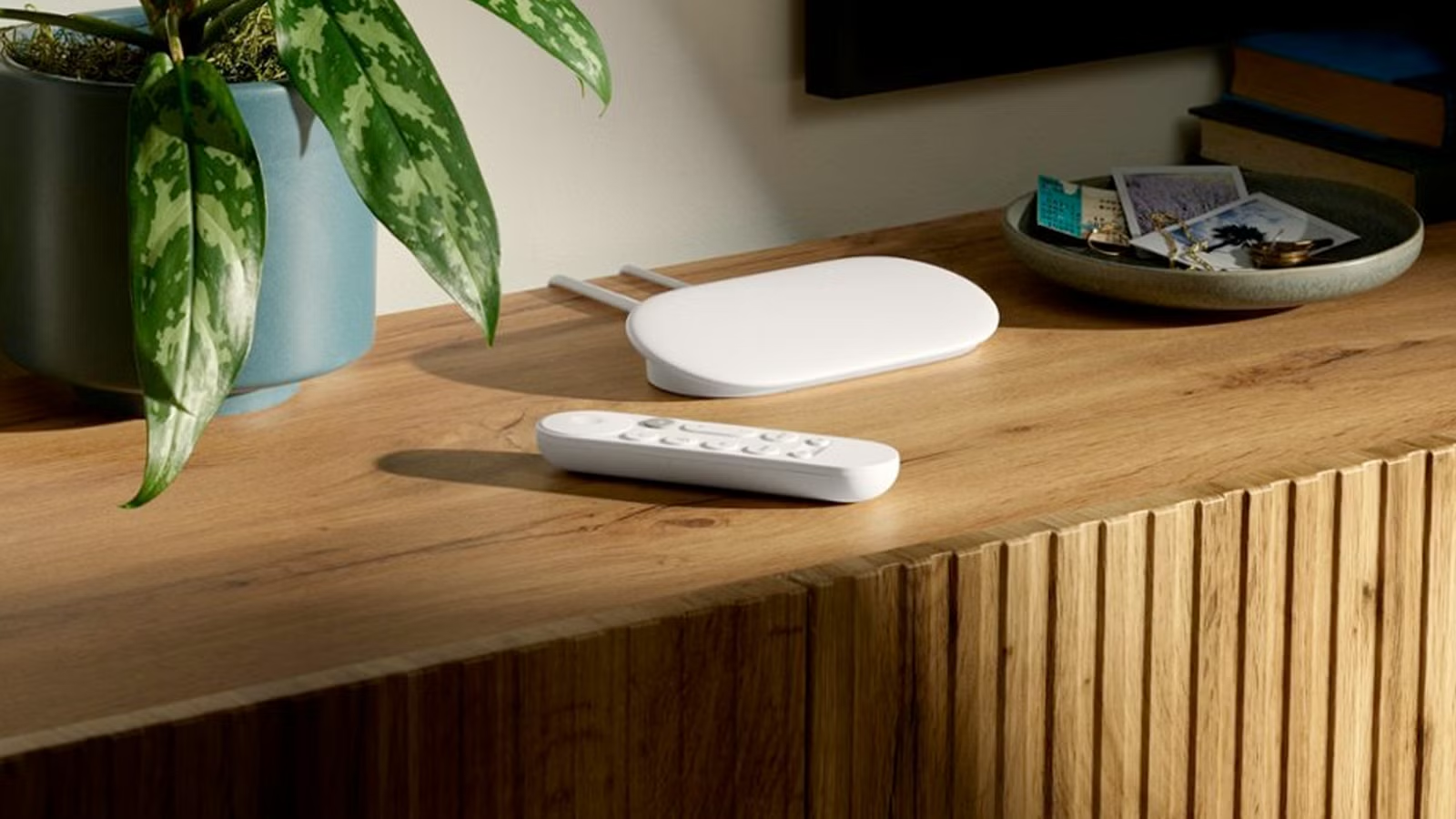
Google’s TV Streamer ships with a handful of defaults that work against you. These three changes take less than five minutes and make the whole experience faster and less intrusive.
Disable autoplay video trailers
Stop previews from playing before you ask
One of the first things you’ll notice when browsing the Google TV Streamer home screen is that trailers and promotional clips start playing automatically the moment you highlight a title. This is meant to give you a quick preview of what you’re about to watch, but in practice it’s more disruptive than helpful. The audio kicks in unexpectedly, especially if you’re browsing late at night or with others in the room, and it chews through bandwidth for content you may have no interest in watching. So for anyone who finds the constant motion and sound distracting, or who simply wants a calmer, more deliberate browsing experience, it could be the single most impactful change you can make right out of the box.
To turn it off, head into Settings, then Accounts and Profiles, and look for the Autoplay option, sometimes listed under Accessibility or General preferences depending on your software version. From there, you can toggle off video previews so that thumbnails stay static until you actually press select on a title. Some apps, like Netflix or YouTube, also have their own internal autoplay settings that operate independently of the system-level toggle, so if you’re still seeing trailers play inside a specific app after disabling the global setting, check that app’s preferences separately.
Disabling autoplay doesn’t just cut down on noise and unwanted movement on screen; it also reduces unnecessary data usage if you’re on a capped connection, and it noticeably speeds up how the interface feels to navigate since the device isn’t constantly buffering video in the background while you scroll.
Make the interface feel snappier
Credit: Lucas Gouveia/How-To Geek | vanitjan/Shutterstock
Google TV’s interface relies heavily on transition animations, sliding menus, fading thumbnails, and zoom effects when you move between rows. These animations are designed to make the software feel polished, but on the Google TV Streamer they can introduce a perceptible lag between pressing a button on the remote and the screen actually responding. This becomes especially noticeable if you’re navigating quickly through a long list of apps or scrolling through a content library.
While there isn’t a single dedicated toggle for this within the standard Google TV settings menu, you can address it by enabling Developer Options. Go to Settings, then About, and tap the build number several times until developer mode is unlocked. Inside Developer Options, you’ll find three sliders: Window animation scale, Transition animation scale, and Animator duration scale. Setting all three to a lower value, such as 0.5x, reduces the time animations take without removing them entirely, while setting them to Off eliminates the motion altogether for the snappiest possible response.
This small adjustment makes the entire system feel considerably more responsive, particularly on a device that’s already a few years into its lifecycle or when multiple apps are running in the background. It’s a setting borrowed from the broader Android ecosystem, so if you’ve ever done it on a phone or tablet, the process will probably feel familiar.
Delete your advertising ID
Limit how your viewing habits get tracked
Credit: Joe Fedewa / How-To Geek
Like most modern streaming devices, the Google TV Streamer assigns your device an advertising ID, a unique identifier that apps and advertisers use to track your viewing habits and behavior across different services to build a profile for targeted ads. This identifier persists in the background regardless of which apps you use, quietly linking your activity across Netflix, YouTube, and any other installed service that participates in ad targeting. Fortunately, Google gives you direct control over it.
Dimensions
6.4in x 3in x 1in
Wi-Fi
Yes
Ethernet
Yes
Ports
HDMI
Operating System
Google TV
Experience stunning 4K streaming with Google TV Streamer. Enjoy seamless access to your favorite apps, shows, and movies with a powerful, easy-to-use interface. Elevate your entertainment with voice control, personalized recommendations, and smooth performance in vibrant Ultra HD.
Navigate to Settings, then Privacy, and look for Ads. Inside that menu you’ll find an option to reset your advertising ID, as well as a separate toggle to opt out of personalized advertising entirely. Resetting the ID effectively starts your tracking profile over from scratch. Opting out tells participating apps not to use the identifier for targeted ads going forward, though it doesn’t necessarily stop all data collection outright.
It’s worth doing both, since resetting alone only delays profiling rather than preventing it. This won’t eliminate ads from your experience, since the device and its apps still rely on advertising revenue, but it does reduce how precisely those ads are targeted based on your specific viewing history. For anyone who’s mindful about data privacy or simply doesn’t want their watch history feeding into a broader advertising profile, it’s a quick, low-effort step that’s easy to overlook in the default setup.
Small changes, noticeably better streaming
These three settings aren’t enabled by default, but they should be. Turning them off or adjusting them takes minutes and results in a faster, quieter, and more private Google TV Streamer experience overall.