


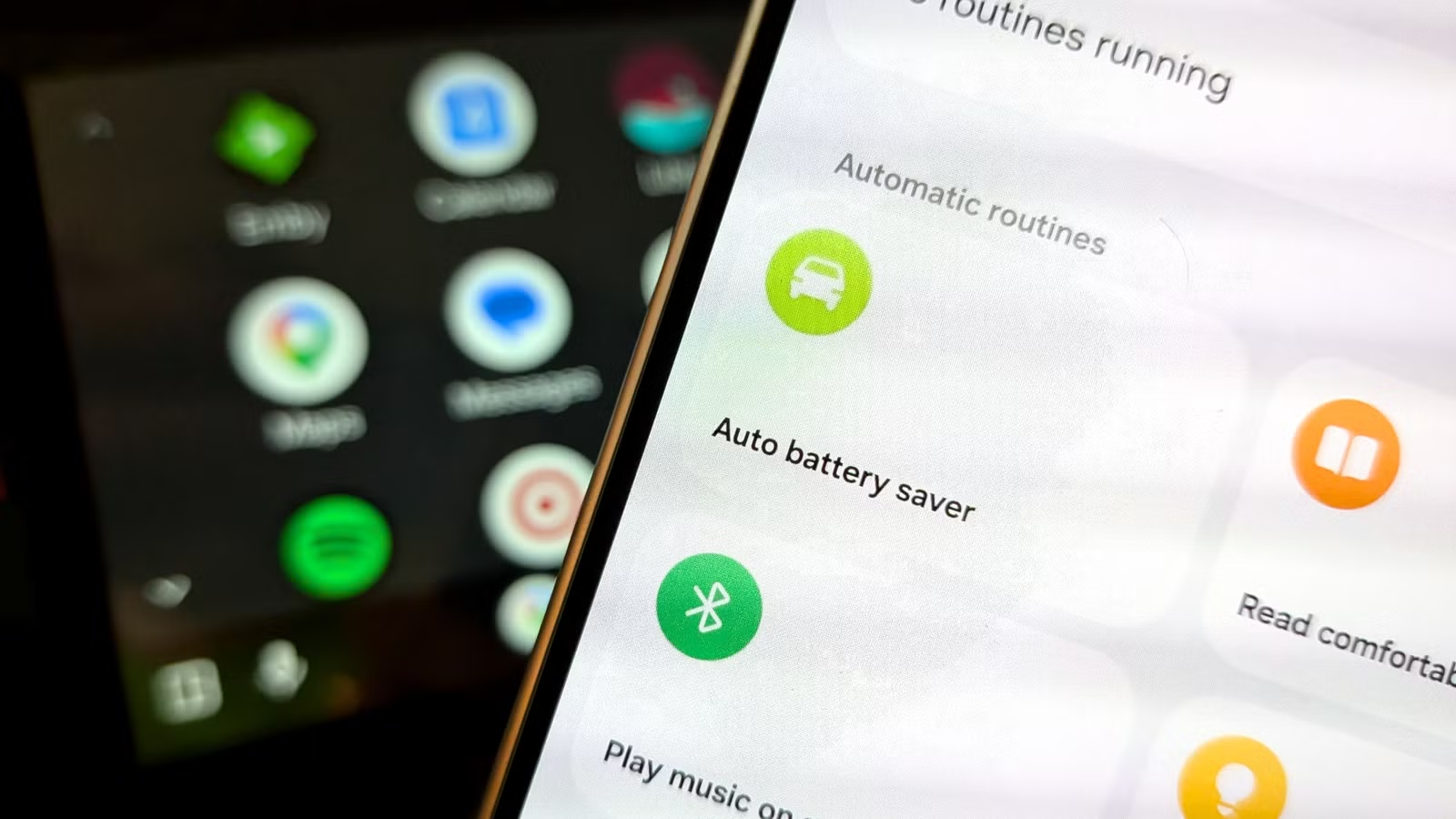
Android Auto makes it easier (and safer) to use your phone while driving—it also uses a lot of battery in the process. This is especially true for wireless Android Auto, but it can even cause the juice to drop while plugged in, too. One easy automation helps—and it makes a lot of sense.
Why does Android Auto use so much battery?
There’s a lot happening
Credit: Joe Fedewa / How-To Geek
On the surface, Android Auto is a simplified version of your Android phone projected to the screen in your car. It’s projected either through a wired or wireless connection, and that plays a big part in how it works.
With a wired connection, all the video, audio, and input controls are sent through the USB cable, like an HDMI cable connected to a TV. For wireless, the initial connection happens over Bluetooth, then a private 5GHz Wi-Fi network does the heavy lifting. Think of it like casting a video from your phone to a TV.
Now, the wired connection is much less taxing on your phone. Everything is being handled locally without Bluetooth, Wi-Fi, or other wireless networks. But your phone is still sending a high-definition video feed to your car screen, and that takes power. Running a constant Bluetooth connection and private Wi-Fi network to send that same high definition video through the air takes even more, as you can imagine.
Related
Wireless Android Auto needs both Bluetooth and Wi-Fi, and here’s why
Wireless Android Auto is great, especially when you have a long drive or need navigation instructions. You jump in and go, and your phone instantly pairs with and takes over the infotainment display. But if you’ve ever wondered why it turns on your Wi-Fi, that’s because Wireless Android Auto needs more than Bluetooth to work.
A logical fix for Android Auto battery drain
You’re not supposed to be using your phone anyway…
Android phones already have features for extending battery life. Depending on your exact device, you most likely have a “Standard” and “Extreme” battery saver mode. These modes disable certain things, like visual effects, background updates, and non-essential apps.
So, you can use this mode to limit the battery drain while Android Auto is connected, but manually enabling/disabling it every time would be a pain. Your phone may already have a way to automate this—if not, a simple app can do it.
Samsung Galaxy owners have the easiest method for doing this. We’ll create a routine in the built-in “Modes & Routines” app. Tap the (+) icon in the top, then start by choosing an “If” trigger. This could be “Driving,” which uses sensors to determine when you’re driving, or “Bluetooth device” to select your vehicle.
Next, select the “Then” action, and choose Battery > Power saving. I recommend the “Standard” mode. Lastly, give the routine a name and choose an icon. Now, when your trigger is active, Power Saving mode will be enabled, and when you’re done driving, it will automatically be disabled.
For Google Pixel phones and other devices without a built-in automation tool, we’ll use an app called “Automate.” This app builds automations with visual “flows” rather than basic if-this-then-that statements, but it’s still easy to use—check out a more detailed look here.
For this automation, we’ll be using two blocks: “Bluetooth device connected?” and “Power save mode set state.” You’ll select your vehicle or Android Auto display in the Bluetooth block, then drag a line from “Yes” to “Enable power save mode” and a line from “No” to “Disable power save mode.” This should make it automatically turn on and off when connecting and disconnecting the device.
Be sure to go into the battery saver settings on your Android phone and ensure that any of apps you regularly use while driving are excluded from being limited.
Related
Don’t ignore your Samsung Galaxy’s smartest feature
Samsung Galaxy phones are packed with apps and underrated features, and sometimes it’s easy to overlook some of the best ones. Instead of constantly using your phone and fumbling through settings, let this amazing feature do all the hard work for you. Smartphones are supposed to be “smart,” and this one Samsung feature actually delivers.
Simple solutions are the best
We’ve written several articles about saving battery while using Android Auto, especially wirelessly. The tips in those articles are great, but they do all require a bit more tinkering and manual toggles with each drive. I like the battery saver automation because I shouldn’t be using my phone while driving anyway, so why not limit what it’s doing? It might not make the most massive difference, but it absolutely helps negate some of the drain.
Type
Wireless Android Auto
Power Source
USB-C
Easily add wireless Android Auto to your vehicle with this capable little dongle.