


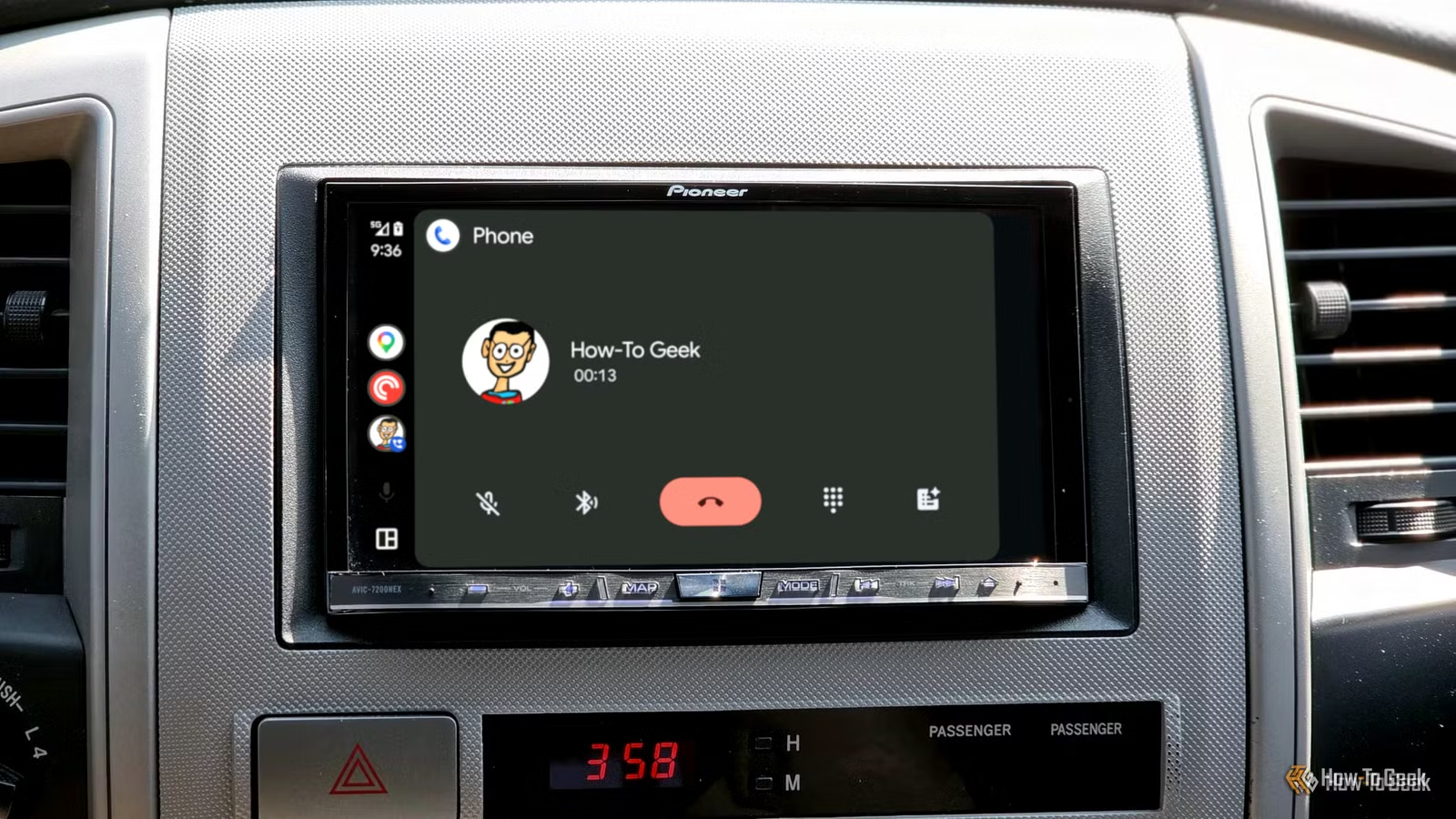
Anyone who has ever used Android Auto has likely experienced this issue at some point: you get a call on your phone, pick it up, and then… nothing. You can’t hear the person talking, or perhaps you can hear them, but they can’t hear you.
After having this happen to me randomly on several occasions, I decided to dig deeper into the problem and found a few potential solutions that should help get rid of it once and for all.
Ensure Android Auto has all the right permissions
Make sure nothing is blocking access
One of the easiest things to rule out is whether Android Auto has all the permissions it requires. If calls used to work but now randomly don’t, this could be the culprit, as Android privacy updates can sometimes automatically revoke permissions for apps, and Android Auto requires a surprising number of permissions for calls to work.
Head over to your phone’s Settings > Apps > App Management (the wording and location may differ slightly on your device). Scroll down to Android Auto and open Permissions. Here, make sure Call logs, Contacts, Microphone, Nearby devices, and Phone are all allowed.
To completely rule out potential permission issues with Android Auto, I recommend allowing all the permissions listed.
Aside from Android Auto, you should allow all permissions for Google Play services as well.
It’s also worth pointing out that there’s a system-wide option for microphone access, which you can configure in Android’s Privacy settings or through the Quick Settings panel. However, if the microphone works in other apps, this isn’t the culprit.
Check whether a different Bluetooth device is stealing your calls
Even your watch could be the culprit
Credit: Bertel King / How-To Geek
Although Android Auto uses a high-bandwidth Wi-Fi connection to communicate between your phone and your car’s head unit for the vast majority of tasks, it still relies on Bluetooth for hands-free calls. If the handshake fails for whatever reason, Android Auto could still work for media and navigation, but calls might not get patched through.
For starters, go to your phone’s Bluetooth settings, find your car in the list of paired devices, and make sure everything under Use for is toggled on.
But more often than not, the problem could be a previously or currently connected Bluetooth device taking over your calls or causing a glitch that results in no device having access to your microphone. If your calls seem to intermittently stop working, this could be the problem.
Try disconnecting any Bluetooth devices that are nearby, including your smartwatch and earbuds, then disconnect and reconnect Android Auto to see if the issue persists. Once you find the device causing the problem, consider disabling it for calls completely so that your head unit can take over.
Don’t let battery optimizations put Android Auto to sleep in the background
Some phones are a little too aggressive at battery management
Android has progressively become more aggressive at shutting down background processes to preserve battery life. Unfortunately, this behavior can sometimes affect core system components like Android Auto.
The first thing you should check is the app-specific battery optimization for Android Auto. Go to your phone’s Settings > Apps > App Management, find Android Auto, tap Battery, and set it to Unrestricted.
On Samsung phones, there’s a system-wide battery optimization option that you should configure. Go to Settings > Battery > Background usage limits > Never auto sleeping apps. Tap the plus icon and add Android Auto to this list.
Google Pixel owners should check whether the Adaptive Battery option is enabled. If it is, consider turning it off to stop it from killing background services essential to Android Auto.
It’s worth noting that some phones, like my OnePlus 15, don’t even expose battery optimization options for Android Auto, treating it instead as a system component. If your specific device doesn’t have any battery optimization options for Android Auto, rest assured that it’s handled automatically.
Try clearing Android Auto’s cache
A quick fix that often helps
For all intents and purposes, Android Auto is an app—a system app, but functionally still an app. And like any app, sometimes the best and easiest fix to try is to clear the cache. This can flush out potential Bluetooth handshake issues, reset audio routing, clear temporary data, and give Android Auto a clean slate.
Go to Settings > Apps > App Management, scroll down to Android Auto, then tap Storage > Clear cache.
Test to see if calls work now. If they do, you may have to occasionally repeat this to flush out whatever random issue is causing your calls to stop working. It shouldn’t be something you have to do often, but at least it’s a quick fix when the problem reemerges.
Keep Android Auto, your phone, and your car’s software up to date
Never forget to update
Credit: Jorge Aguilar / How To Geek
If no amount of permission fixing, battery optimization disabling, or app cache clearing has fixed your broken calls, it’s time to check if Android Auto is up to date on your phone.
Go to the Play Store, tap your profile icon, and open Manage apps & devices. Tap Manage, scroll down to Android Auto, and if an update is available, install it.
That’s only part of the battle, though. If your car’s firmware hasn’t been updated in a while, it can cause compatibility problems and bugs, including with calls. Consult your car’s owner’s manual to see how to update it to the latest version if you can’t find the option.
If everything else fails, forget and re-pair the car
When nothing else works
If you’ve tried every possible fix and still can’t get calls to work, perhaps it’s time for the nuclear option—starting the connection all over again.
Forget your car’s head unit from your phone’s Bluetooth settings by selecting it from the list and tapping Unpair. Next, go back to Settings and search for Android Auto in the search bar. Open it, then go to Vehicles, select your car from the list, and tap Forget.
Now, delete your phone from your car’s head unit. Restart both your phone and the head unit, then re-establish the connection and make sure all permissions and battery optimization settings are configured as explained earlier. Hopefully, your calls should work now.
Hopefully, that’s the last time my calls stop working
Although Android Auto is a relatively modern invention, surprisingly, it handles hands-free phone calls through Bluetooth, just like any old-school system. This can make troubleshooting frustrating because you’re trying to fix the problem on one end, when the issue is actually somewhere else. A random Android Auto glitch can also cause problems with permissions or audio routing, resulting in calls that simply don’t work.
Thankfully, there are quite a few things you can try before giving up on wireless calls altogether. Once you find the culprit, you can let calls quietly fade back into the background and simply work, just like music and navigation.
Related
The 5 most annoying Android Auto problems (and how to fix them)
Android Auto is awesome, but only when it works correctly.