


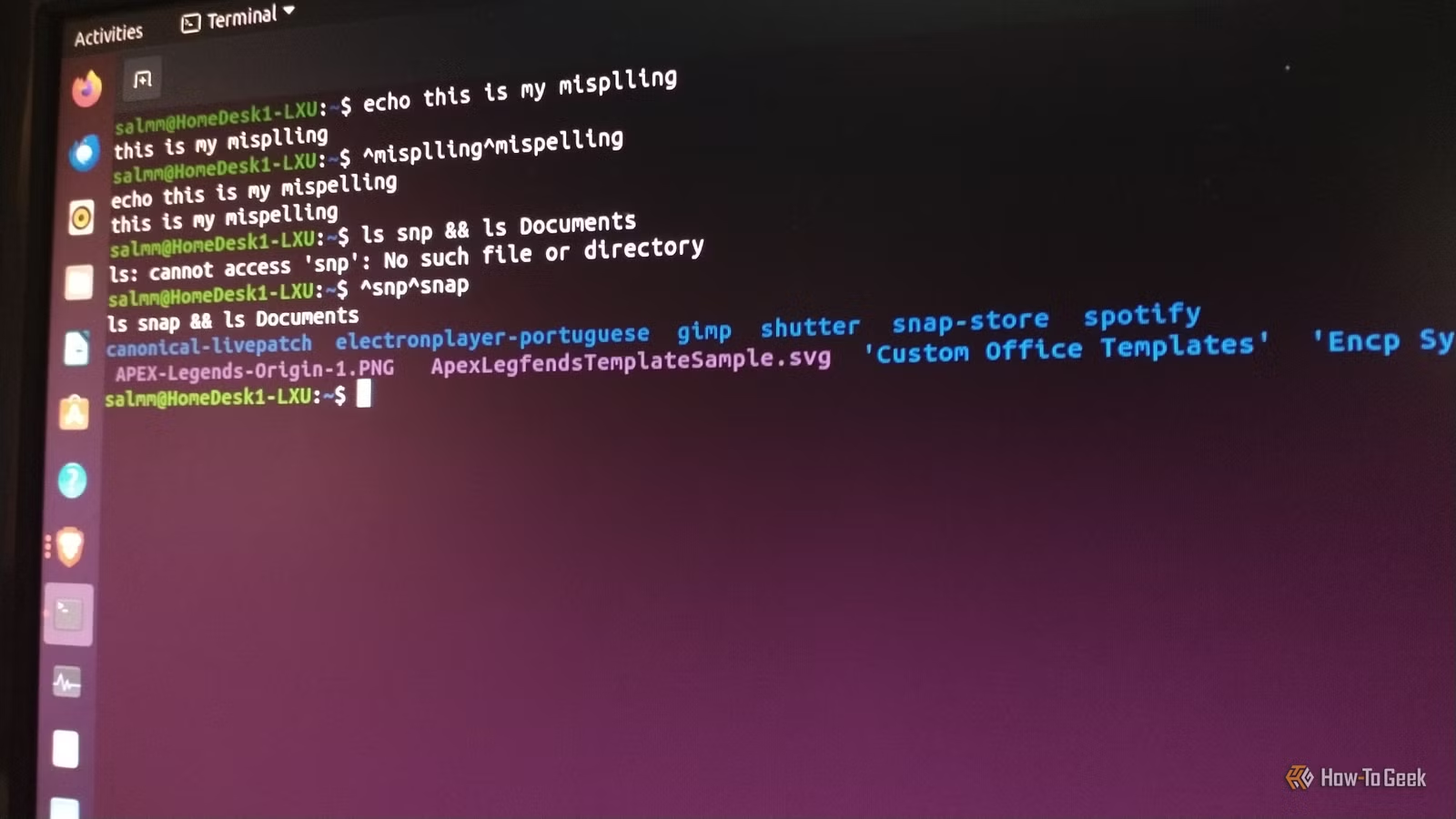
If you type a lot of commands in Bash, it can be time-consuming to navigate, correct, and add strings to achieve the desired output. I’ve found my fair share of typing errors, multi-instruction commands, and complex interpreters. There are ways to speed up the typing process without wearing you out or giving you headaches, from short codes and hotkeys to cool shortcuts and hidden features.
Navigate Bash commands fast without reaching for your mouse
Clever cursor movement by page, word, or even section using your keyboard
Credit: Steve Larner/How-To Geek
When dealing with the terminal, there are certainly some Linux commands you should never use. If you know what you are doing and have a couple of simple mistakes in your instructions, navigational hotkeys can save you time, such as pressing Alt + B to move backward word by word, or Alt + F to move forward. It’s much quicker than repeatedly pressing the arrow keys to get where you need in your commands. For an even faster approach, try pressing Ctrl + A to jump to the beginning or Ctrl + E to go to the end.
I’ve also used Ctrl + XX to jump to the beginning of a command line, and I repeat it to return to the previous cursor position. Let’s say you’re typing a sudo command and forgot to add “sudo” at the beginning; you can use this shortcut to jump to the start, add the short code, then return to where you were and finish your command.
Forget speed reading; try speed typing in Bash
Auto-finish, multiply, repeat, and append commands quickly
Credit: Steve Larner/How-To Geek
If you need to reuse the last typed word (often a filename or path) in your previous command, you can type !$ in the Bash console to use it again in your new command before pressing Enter — you won’t see it until you execute it, but it’s fast and simple. To insert it visually, type Alt + . to paste it into your command, then continue typing before pressing Enter. If you enclose the path, filename, or group of words in double quotes (“example of using quotes”), both options will consider it all to be the last word. This little trick allows you to run different commands for a specific path or filename by auto-pasting it into the new command, as long as it was at the end of the previous one. This is handy for copying code that contains spaces and switches.
Some more really cool shortcuts you may not know include an actual undo function (pressing Ctrl + _), yank — pasting back (Ctrl + Y), and Ctrl + R to autocomplete from history — you can press again to cycle through your history matches. You can also command multiple items using brace expansion, such as sudo apt upgrade {Upwork,Timeshift,Inkscape} or mkdir ~/Documents/”New Folder”{1..3}, , which creates three new folders in the Documents folder named New Folder1, New Folder2, and New Folder3.
Credit: Steve Larner/How-To Geek
When using sudo, I’ve had times when I copied a command from somewhere and executed it, but it failed because it required admin privileges. To correct it quickly and efficiently, I’d type sudo !! so it starts the new command with “sudo” and pastes the last command I entered. You can also use !! to copy the last command, and then type whatever you need along with it. This little trick can save you 10–30 seconds per command.
Autocomplete is also a nifty shortcut in Bash, and it only takes one key to launch it. If you press the Tab key while typing your command, folder path, or filename, Bash tries to autocomplete it based on previous command history. When there is more than one possible match, press it again to view the next option—you can repeat as needed to get what you want. This makes typing commands twice as fast because it auto-populates based on your history, and it helps prevent mistyping incidents that cause you headaches and consume time rather than save it.
Save time — use the Nano hotkey combo to edit long commands or scripts
Prevent errors in long scripts or instructions, and stop auto-execution on some copied instructions
Credit: Steve Larner/How-To Geek
If you want to go bigger and better, and prevent accidental Enter presses or command errors on long strings, a full text editor has you covered. Whenever I have complex or long-winded commands to type, I press Ctrl + X then Ctrl + E to open my command in Nano. I make changes or add to it, then I press Ctrl + O, then Enter to save it, followed by Ctrl + X to exit, and it magically executes the command in the terminal. Don’t worry, Nano saves to a temp folder and deletes the contents after rebooting, unless you intentionally load a specific file to edit.
Using Nano is also a safe and secure way to prevent auto-execution. Sometimes, I copy code from a website that would otherwise execute when pasted into the terminal — it does happen. Launching a temp Nano session allows me to paste it and review it before transferring it to the terminal. It’s also a simple option to prevent command errors in the terminal, especially for long lines of code or advanced command sessions that include pipes, multiple actions, loops, or more.
You wouldn’t want to execute an advanced command with errors or have to go back to fix something it performed that was not correct. You may also need it to create an actual file — you can load the editor with a new filename like nano myscriptname.sh and create your new file with the necessary code or script, then write it out.
Using hotkeys in the terminal to launch Nano stores the existing command in the “/temp/” folder, so it is temporary for Bash command purposes and will be deleted upon reboot or when you manually clear it. To save as an actual file, type nano [yourfilename].sh in the command and create your file.
Correct typos, delete segments, and fix long strings efficiently
Quick Linux Terminal editing at its best
Credit: Steve Larner/How-To Geek
When typing away in the terminal, I easily make mistakes and have to correct them as I go, from misspellings or wrong directories to forgotten switches or case-sensitive issues. I speed up the editing process by using hotkeys rather than arrows, backspaces, or delete. A quick way to erase a whole section of your command or code is to press Ctrl + U to delete everything from your cursor to the start of the command line (moving left). Ctrl + K does the same but deletes from the cursor to the end (moving right). This also comes in handy if you copy your previous command into your new line using !!. Place the cursor where you want to erase everything to the right, use Ctrl + K, then type the new characters at the end. It’s a quick way to use the beginning of a command and create the rest.
Another fabulous editing shortcut is to delete the word or segment before or after the cursor’s position. If you catch an issue with your command that is one word before the current cursor location, press Ctrl + W to cut the word. You can also press Alt + D to cut the one after the cursor position. Don’t forget you also have the Ctrl + Y (the yank feature) mentioned earlier to paste back what you cut.
Become a multitasking pro in Bash without losing anything
Suspend, switch, move to the background, and repeat or append previous commands easily
Credit: Steve Larner/How-To Geek
Bash terminal operations can get rather complex at times, leading to multiple processes like archiving and downloading, numerous command sessions, or Nano editing within one terminal. Sometimes, I need to switch between directory locations to use commands, which is where I use the pushd and popd short codes. It’s not like using cd where you can only reside in one directory, although there are great replacements for Linux cd commands these days. These two commands help manage a list of directory locations (a directory stack), where you pick which location you want as the active directory. The “pushd” command adds your current directory to the stack, so to speak. The “popd” removes it from the stack and returns you to the previous directory.
If your current CLI directory is set to “~/Documents” and you type pushd in the command line, it will add that location to the temporary folder stack and go to it — you can repeat for each new directory location or insert pushd before a location to not only add it but go to it. When I have more than two directory locations, I add “+0” or “-0” to the command to select the current directory — counting starts at 0 from the left for “+” and 0 from the right for “-” of the stack. I’ll type pushd +1 , and it goes to the second folder from the left in the stack, whereas pushd -1 goes to the second one from the right in the stack. When typing popd in the command line, it removes the current location from the library. Numbers work the same, so typing popd +1 means it will remove the second folder from the current stack. If no more exist, it ignores the command and stays in the current directory.
Another task-efficient trick is to multitask in the same terminal. To save time, I use Ctrl + Z to suspend the running process and bg to let it run in the background while working on another task. I also use the fg short code when I need to bring it back to the front of the terminal. All these shortcuts and commands are tied to one terminal session — just avoiding confusion here. You can also use the “&” operator to launch an app while keeping the terminal active and usable, such as typing & brave-browser in your active session. Without the operator, your terminal freezes up, and that is not a lovely experience.
Create shorthand aliases for command strings you commonly use
Abbreviate complete lines of code, parts of commands, or shorthand common words
Aliases are excellent time-savers, enabling you to use your own short codes to create partial or full commands. I like to open “.bashrc” using Nano to add my aliases so they are usable in any terminal, but you can also type them in your current session for temporary use. I type sudo nano ~/.bashrc and then add my aliases at the bottom. I press Ctrl + O to save it, then Ctrl + X to exit and return to the terminal. This feature can save hours of typing, allowing you to use short code in the terminal for long or specific commands or scripts.
Yes, you can make Bash easier to use and spend less time in agony
Linux is better than Windows for scripts and coding in many ways, but it can be tedious at times. Using short codes and hotkeys can cut your typing time in half, but there are so many shortcuts to learn that I suggest practicing a few first, then branching out to others as they become second nature. From quick typing and editing shortcuts to navigating and multitasking, Linux will be easier to use — less headaches and more free time for other projects or activities. You may want to bookmark this page so you can return later as you master each skill or shortcut like a pro.