


Disclosure: When you purchase through links on our site, we may earn an affiliate commission.
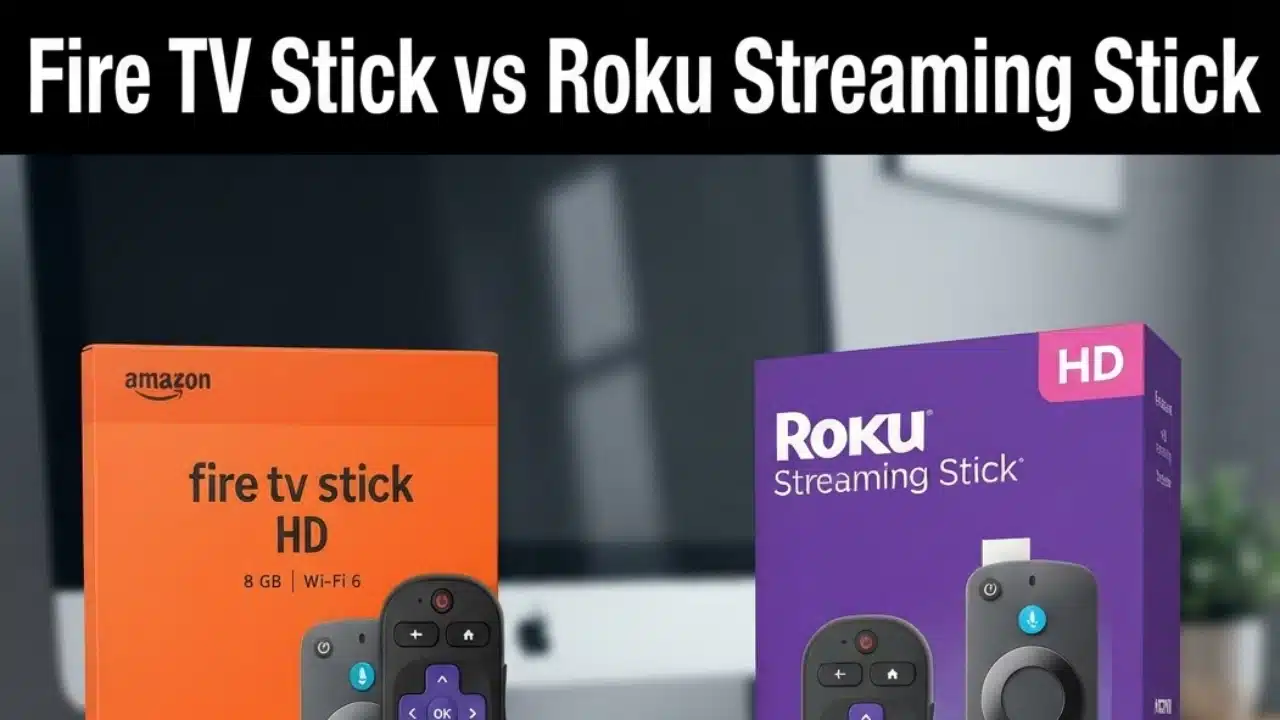
I’ve spent years testing streaming sticks, and the Fire TV Stick vs Roku Streaming Stick question is one I get asked every now and then. Both companies sell a lineup of sticks at different price points, so “which one is better” depends on which tier you’re comparing. Here’s how they actually stack up.
Quick answer
If you want the cheapest way to add 4K to your TV, the Roku Streaming Stick Plus at $39.99 beats Amazon’s 4K Select at $49.99 on price, though it skips Dolby Vision. If you want Dolby Vision at the lowest possible price, the Roku Streaming Stick 4K at $49.99 undercuts the Fire TV Stick 4K Plus. If you’re already inside the Alexa or Amazon ecosystem, or you want app sideloading and cloud gaming, get the Fire TV Stick. If you want the simplest interface with the least fuss, get the Roku.
Amazon Fire TV Stick lineup
Fire TV Stick HD, $39.99
- 1080p resolution, no HDR
- Wi-Fi 5, 1GB RAM, 8GB storage
- Alexa Voice Remote included
Fire TV Stick 4K Select, $49.99
- 4K with HDR10, HDR10+, and HLG (no Dolby Vision)
- Wi-Fi 5
- Runs Vega OS, limited to apps in the Amazon Appstore, no sideloading
Fire TV Stick 4K Plus, $69.99
- 4K with Dolby Vision, HDR10+, and Dolby Atmos
- Wi-Fi 6, quad-core 1.7GHz processor
- Runs Fire OS 8, supports app sideloading and Xbox cloud gaming through Game Pass
Fire TV Stick 4K Max, $84.99
- 4K with Dolby Vision, HDR10+, and Dolby Atmos
- Wi-Fi 6E, quad-core 2.0GHz processor, 16GB storage
- Only Fire TV Stick with the Fire TV Ambient Experience
Roku Streaming Stick lineup
Roku Streaming Stick HD, $29.99
- 1080p resolution, no HDR
- Dual-band Wi-Fi
- Roku Voice Remote included
Roku Streaming Stick Plus, $39.99
- 4K with HDR10+ (no Dolby Vision)
- Dual-band Wi-Fi
- Roku Voice Remote included
Roku Streaming Stick 4K, $49.99
- 4K with Dolby Vision and HDR10+
- Dual-band Wi-Fi, quad-core processor
- Roku Voice Remote included
Roku’s stick lineup tops out here. Its premium tier, the Roku Ultra at $99.99, is a set-top box rather than a stick, with Wi-Fi 6, Ethernet, and a rechargeable Voice Remote Pro. I’m leaving it out of the head-to-head below since it’s not really an apples-to-apples format comparison, but it’s worth knowing about if you want Roku’s best hardware and don’t mind a box instead of a stick.
Fire TV Stick HD vs Roku Streaming Stick HD
Both top out at 1080p with no HDR, so they’re for older TVs or a secondary set that doesn’t need 4K. Roku’s version is $10 cheaper. The Fire TV Stick HD has a bit more RAM. If price is the only factor, the Roku Streaming Stick HD wins this tier.
Fire TV Stick 4K Select vs Roku Streaming Stick Plus
The Fire TV Stick 4K Select gets you 4K and HDR10+ for $49.99, but it runs Amazon’s newer Vega OS, which limits you to apps in the Amazon Appstore. Roku’s Streaming Stick Plus costs $10 less at $39.99 with a similar HDR feature set, minus Dolby Vision on either device at this tier. For straightforward value, the Roku Streaming Stick Plus is the stronger buy.
Fire TV Stick 4K Plus vs Roku Streaming Stick 4K
This is the most direct matchup for picture quality, since both support Dolby Vision and HDR10+. The Roku Streaming Stick 4K is $20 cheaper at list price ($49.99 vs $69.99). The Fire TV Stick 4K Plus counters with a faster processor, Wi-Fi 6, app sideloading through Fire OS 8, and Xbox cloud gaming. If picture quality per dollar is what matters, Roku wins. If you want more flexibility and gaming features, Fire TV Stick pulls ahead.
Which one should you actually buy?
- Cheapest 4K option: Roku Streaming Stick Plus. Buy it on Amazon.
- Cheapest Dolby Vision option: Roku Streaming Stick 4K. Buy it on Amazon.
- Best for Alexa and smart home users: Fire TV Stick 4K Plus (buy) or 4K Max (buy it on Amazon)
- Fastest Fire TV Stick: Fire TV Stick 4K Max (buy it on Amazon)
- Simplest interface: Any Roku Streaming Stick
Neither brand makes a bad product at this point. It comes down to which ecosystem you’re already in, whether Dolby Vision at the lowest price matters more to you than sideloading and gaming features, and how much you’re willing to pay for extra speed.
How to connect your streaming stick to a TV
Setup takes about five minutes on either device, and the steps are nearly identical.
Setting up a Fire TV Stick
- Plug the Fire TV Stick into a free HDMI port on your TV. If the port is too close to other cables, use the HDMI extender that comes in the box.
- Connect the included USB-C cable to the stick and plug the other end into the wall adapter. Fire TV Sticks need their own power source rather than pulling power from the TV’s USB port.
- Switch your TV input to the HDMI port you used.
- Insert the batteries into the Alexa Voice Remote and follow the on-screen pairing instructions.
- Sign in with your Amazon account, connect to your Wi-Fi network, and let the stick run its software update if prompted.
- Choose which apps to install from the home screen, or skip straight to one you already use.
Setting up a Roku Streaming Stick
- Plug the Roku Streaming Stick into a free HDMI port on your TV.
- Power the stick using the included USB cable. Depending on the model, you can either plug this into the TV’s USB port or into the wall adapter that ships in the box.
- Switch your TV input to the correct HDMI port.
- Insert the batteries into the Roku remote. It should pair automatically once the stick powers on.
- Connect to your Wi-Fi network and sign in with your Roku account, or create one if this is your first Roku device.
- Work through the on-screen prompts to select your streaming channels and preferences.
Both devices will walk you through the rest of the process on screen, so you don’t need to memorize these steps. The main thing to get right upfront is the power source. A Fire TV Stick 4K Plus or 4K Max needs the wall adapter to run properly. Most Roku sticks can run off your TV’s USB port, though performance is a little more consistent with the wall adapter if your TV’s USB port has limited output.