


Modern Android smartphones, particularly those running Android 16 or Android 17, don’t entail long onboarding times. When you buy a new phone, it’s pretty much ready to go once you’ve copied the data from your old phone and downloaded all your apps. Most system settings required to make the most of your phone are enabled by default.
Still, there are some settings you need to turn on yourself, and they can significantly alter your experience. Whether it’s your phone’s display, navigation, or security, it pays to spend a minute or two enabling these 4 settings. I ensure these settings are part of my setup process on a new Android smartphone.
Related
The first 5 things I do to every Android phone before I even sign in
Important things to do before signing into Google on a new Android phone.
Background processes are convenient, but I can accept the trade-off
I prefer having more RAM at my disposal
Your Android phone keeps some processes constantly running in the background. These are essentially cached app data that enables your phone to speed up app launch times and notifications. By default, the Background process limit is set to Standard limit, and if your phone is fairly new with ample RAM, you don’t need to touch this setting.
On the other hand, those with slightly older models can improve performance and battery life by slightly tweaking this limit. I have a OnePlus 15, but I still prefer the No background processes setting, since it tangibly improves my phone’s battery performance and overall responsiveness. The downside is slightly delayed notifications and app opening times, but it’s not a big deal in practice. The memory savings are well worth it.
You’ll need to enable Developer options if you haven’t done so already. You simply need to open About Phone in the Settings app, and tap Build Number seven times. Once you’ve done it, you can find the Background process limit under the Apps card in Developer options. Tap on it and change it to No background processes if you’re fine with the trade-off.
Related
Google’s background AI is quietly draining your Pixel’s battery, and the fix takes five minutes
Adjust these settings for a quick and easy fix
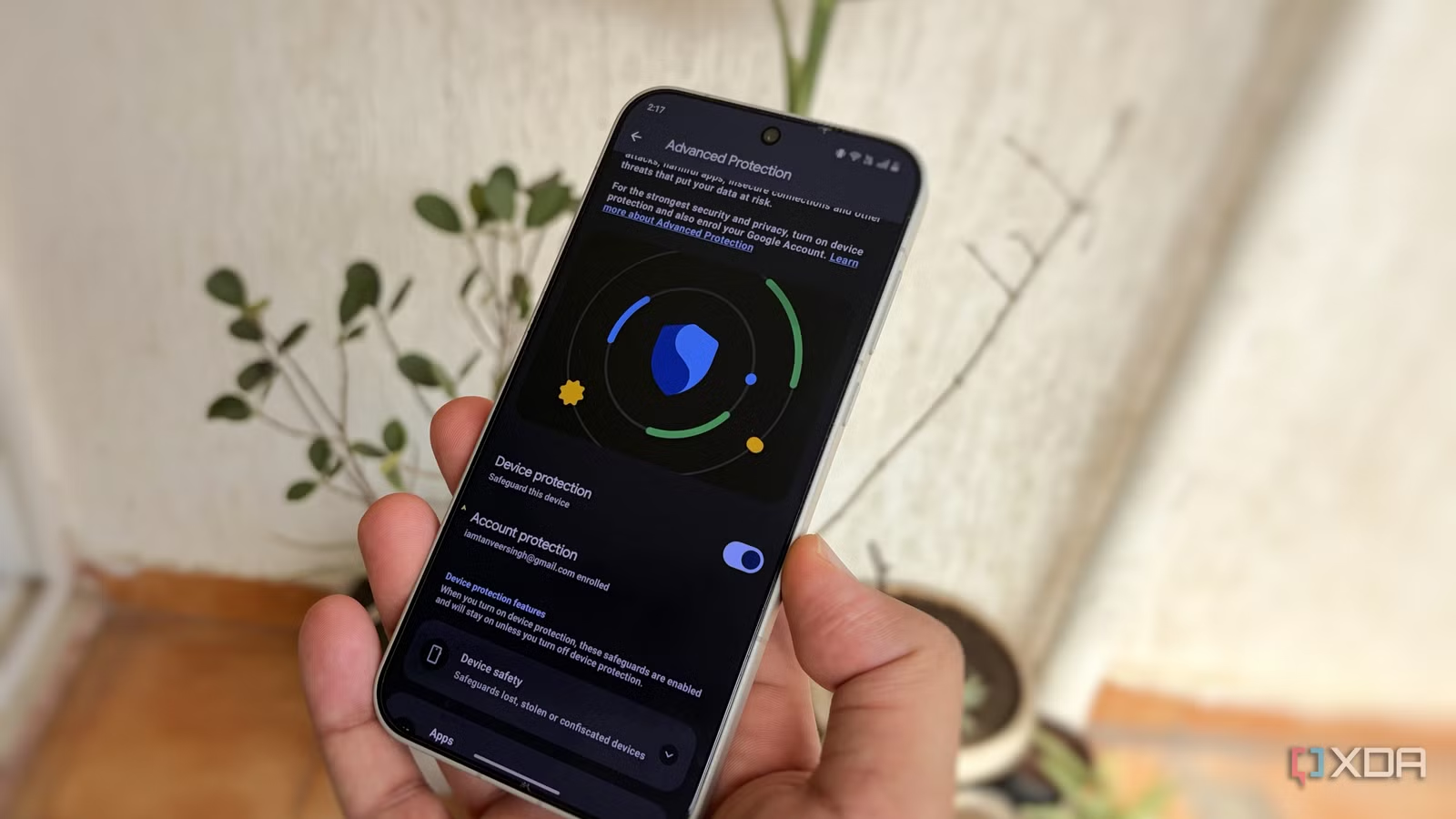
Advanced Protection should be enabled by default
Most people would want their phone protected
You’d think a setting called Advanced Protection would be automatically turned on your new phone, but there’s a reason it isn’t. It is a set of multiple security features for your phone that cover device theft, web browsing, calls, messages, apps, and networking. While it’s a single dashboard to enable comprehensive device security, it can also alter expected behavior on your phone. Some websites won’t load properly, and you may lose out on convenience.
However, I value my phone’s security above all else. After all, it’s home to all my sensitive data, and any setting that furthers its security is welcome. You can enable it in Settings > Security & privacy > Advanced Protection > Device Protection. This enables a set of features covering Theft Detection Lock, Android Safe Browsing, Spam filtering, and other app and cellular protections.
You can glance at each of these settings on the Advanced Protection page and decide if you want to enable this overarching setting. I’d suggest enabling it and using your phone normally for a week before taking a call. Even without Advanced Protection, your phone has basic malware protection, app sandboxing, and hardware-level encryption, but enabling it offers a higher grade of security.
Related
I moved every 2FA code out of Google and Microsoft Authenticator, and losing my phone isn’t a disaster anymore
Bitwarden and Vaultwarden changed my life for the better
Comfort View is a subtle implementation of light filtering
It’s Pixel-exclusive, but others have similar settings, too
Comfort View is Pixel’s name for a desaturated color palette that uses pastel hues to reduce eye strain. Other Android phones use a variety of different techniques to achieve largely the same result. For instance, OnePlus has Eye Comfort, Samsung has Eye Comfort Shield, and others might have Reading Mode or Blue Light Filter.
Pixel phones have this setting located under Display and touch > Comfort Filters, and other phones also place it under Display settings. Comfort View works by reducing blue light, but the effect isn’t as harsh as Night Light, so you can use it 24×7. Other brands may not work exactly the same way, but it’s recommended to use some form of reduced display intensity to protect your eyes.
Related
6 features I immediately disable on my Google Pixel
Even Google’s clean take on Android needs a bit of tweaking.
Animation Scale defaults can seem too slow
I prefer 0.5x animation speed on all Android phones
By default, Android devices operate at 1x animation scale. Whether it’s the window animation, transition animation, or animator duration scale, switching from 1x to 0.5x makes an instant difference to your navigation experience. Even if you have a flagship Android phone, the default animation duration can introduce an unnecessary delay when opening and switching between apps. It may look more sophisticated, but it can feel annoying once you know what you’re missing.
Open Developer options, scroll down to the Drawing card, and change the Window animation scale, Transition animation scale, and Animator duration scale settings to 0.5x. You’ll instantly feel that your phone is more fluid than ever, and it’ll be hard to go back to the default settings. You can select Animation off, but that leads to instant transitions, which feel jarring.
Related
I cut my phone’s animation speed in half, and now it feels twice as fast
It all comes down to perceived speed.
I love setting up my Android phone my way
If you have a recent Android device, the default settings aren’t bad at all. With enough processing power and memory, you won’t have a bad experience with almost any new Android phone. That said, I like to tweak some of the defaults to improve not just the performance but also the security of my device. That’s one of the perks of being on Android instead of iOS, so why not use it?