


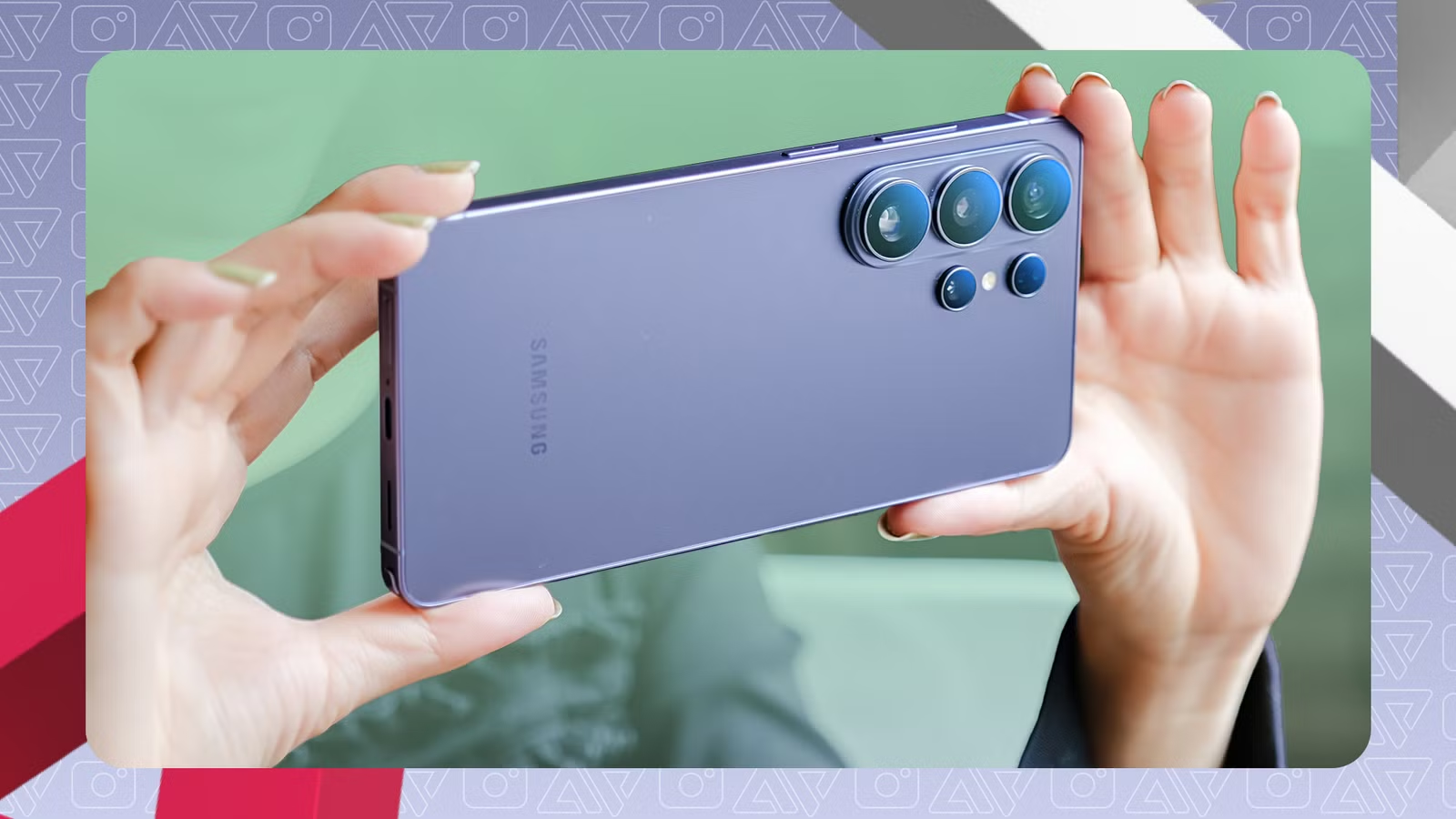
Samsung’s Galaxy Camera is arguably one of the most versatile camera apps on Android.
It features extended controls and enhancements that I cannot get out of a Google Pixel camera or other major mobile camera apps.
But for most users, leaving the app on default settings is standard practice.
The catch is that this approach fails to maximize your camera’s potential. Hidden toggles that improve photo and video quality remain switched off out of the box.
I admit I can relate to that on my Samsung devices, including my Galaxy Z Flip 7. I was hesitant to tweak the controls and preferred to leave everything as it was.
However, I started digging into the camera app, and to my surprise, a few adjustments made my camera dramatically better.
After several weeks of testing, I uncovered the hidden settings and toggles you should enable to get far better photos out of your hardware.
Related
After taking 1,000 photos, I uncovered the Pixel camera settings for flawless image quality
Some hidden tweaks gave my Pixel camera a serious boost
Every Galaxy user should enable Camera Assistant
It was a mistake not downloading this right from the start
One of the major regrets I made was not downloading the Camera Assistant module the moment I unboxed my Galaxy Z Flip 7.
Missing out on it for a few weeks meant losing key controls that are locked behind it and completely absent from the standard camera.
Camera Assistant supports most flagship Galaxy camera phones, including my Galaxy Z Flip 7 and the Galaxy S26 series.
It is also available for select Galaxy mid-range models, though the features are not quite as rich as those on their flagship counterparts.
Some tools depend directly on your camera hardware, as select features only support Ultra models with 200MP resolution.
Generally, though, anyone can make good use of Camera Assistant. It offers versatile tools for improving both photo and video modes.
Downloading it is straightforward, and you can access it from your camera settings or in Good Lock. Follow the steps below.
Open the camera app, tap the gear icon, scroll down, find Camera Assistant, and tap it to start downloading without stepping out of the menu.
Alternatively, install Good Lock and download the Camera Assistant module.
When installed, you can open it in the camera settings to explore its controls and tweaks.
Zoom without sacrificing resolution
But there’s a caveat to this mode
The main drawback of my Flip phone is that it limits me to two primary cameras: wide and ultra-wide snappers.
It lacks the dedicated telephoto sensor found in the standard slab flagship Galaxy devices.
For someone who takes a lot of zoomed photos, this is a frustrating limitation. I hoped Samsung would swap out the ultra-wide for a telephoto on the Galaxy Flip 8, but that never came to pass.
With this setup, I need to rely on sensor cropping every time I pull in close for a shot.
The level of detail with digital zooming does not compare to a dedicated optical zoom.
Amplifying the problem by using digital zoom causes the camera to automatically crop the overall resolution. This subsequently reduces the fine detail that can be captured.
For instance, if you shoot at 50MP and zoom in, the output drops to a much lower resolution — 20MP or less depending on the actual crop and zoom level.
Fortunately, there is a workaround in Camera Assistant that maintains resolution even when digital zoom is active: Upscale digital zoom.
This works when selecting 50MP on my Flip or 200MP on select Galaxy camera phones. So, if I zoom at 4x or 5x, the final resolution is still maintained, as you can see in the EXIF data of an image taken using 5x digital zoom from the Galaxy Z Flip 7.
This uses machine learning to preserve finer detail, so it’s not a perfect solution. But the most notable trade-off is heavy processing, with visual artifacts and artificial sharpening becoming noticeable in low-light shots.
It also omits a quick toggle for 2x digital zoom in my Flip, limiting preset buttons to 4x and 5x, though the zoom slider still offers granular control.
I recommend enabling this option strictly in scenes with abundant natural light, such as in daylight scenery, to minimize noise and reduce reliance on AI.
Setting the camera to high resolution will remove the usual image processing, such as oversharpening and color correction, that you get from a 12MP resolution.
Solving the oversharpening in photos
I set Photo softening to medium
One persistent issue I have had with Samsung’s imaging is the aggressive sharpening and artificial color boosts.
While saturation is less obnoxious on recent models, oversharpening remains noticeable.
I like this aggressive processing in select scenarios, but I dislike it in most of my shots because edges and textures look unnatural, especially in faces.
My usual trick to bypass this was to shoot in 50MP resolution, which defaults to natural sharpening and colorimetry.
However, relying on high-resolution modes for everyday snapshots is impractical due to efficiency and storage concerns.
Photo Softening is the proper fix if I still want to shoot in standard 12MP resolution without that digital harshness in my photos.
It is built into Camera Assistant. It smooths out photos with finer detail while reducing the intensity of the sharpening algorithm.
It is ideal for portrait and zoom shots, making textures and edges look natural while avoiding obvious overprocessing.
It is turned off by default on my Galaxy Z Flip 7, but you can enable it in settings via Settings > Camera Assistant > Photos > Photo softening.
There are three options available: Off, Medium, and High. I recommend sticking with Medium, as it offers the most balanced output. Selecting High can be useful for busy landscape shots, but it occasionally strays into soft-focus territory.
In newer Galaxy camera phones like the Galaxy S26, Samsung added a similar softening toggle for video, applying the same effect to clips.
I fixed my Galaxy camera’s inaccurate color
Turning off this mode might make photos more natural
One quirk I noticed on my Galaxy camera phones, which also pops up on my Pixel 9 Pro XL, is that they struggle to capture accurate color when a large portion of the scene is black.
I have a black cat and dog, and white balance on them is regularly a hit-or-miss affair. It is particularly obvious in zoomed shots, where black fur looks washed out and grainy.
After tweaking my settings, I found I got far more favorable shots with Scene Detection turned off.
Formerly called Scene Optimizer, this feature uses AI to adjust color and contrast based on the scene it analyzes.
On my Flip 7, it handles obvious setups like architecture and landscape scenes fine, but it overcompensates when my dark-furred pets are the subject.
Disabling it keeps most shots looking natural, with white balance that matches what I see in real life.
I keep white balance and exposure controls added to my quick-access toolbar so I can adjust the scene on the fly.
If blacks still look washed out, you can experiment with toggling off Auto HDR. Enabling Photo Softening alongside this can deliver a more natural overall color effect.
At the end of the day, I encourage you to experiment and find the specific setup that fits your shooting style.
To access the feature, go to the camera settings > Photo enhancer, then toggle Scene detection.
End blurry photos
This setting keeps photos in focus
My annoyance with my Galaxy Z Flip 7’s camera is how easily it misses focus compared to my Pixel, leaving active scenes looking hazy or outright blurry.
Most of the time, I manually tap the subject on screen to guarantee sharp focus, which adds a bit of friction to taking a quick photo. Still, it is a foolproof way to ensure the shot gets the subject in focus.
Camera Assistant includes an automated solution for this exact problem: Prioritize focus over speed.
When toggled on, the camera app ensures the subject and scene are fully locked in focus before allowing the shutter to trigger.
The obvious trade-off is shutter lag, as focusing takes a beat longer than default shooting.
In practice, I rarely notice that taking photos with it is any slower than with the feature turned off.
Even if there is a split-second delay, I will gladly sacrifice a fraction of a second for a crisp, in-focus shot.
Saved camera presets in Pro camera
I can quickly switch between default and advanced settings
You do not need to leave these settings on permanently if you still want the quick convenience of Auto mode for casual snaps.
However, if you plan to use these tools to improve image quality or want more granular control, saving custom setups as Pro mode presets is the way to go.
In my case, I created saved presets for Photo Softening and a custom portrait mode that I can switch between via Pro mode, leaving standard Auto untouched.
Setting this up is straightforward:
- Adjust your preferred camera parameters and toggles.
- Go to Camera Settings > Camera Assistant.
- Scroll down to Presets and enable Presets in Pro mode.
- Tap it, and then select Create from current settings.
This works for both photo and video modes, and you can manage or delete your saved options directly from this menu.
When you are ready to shoot, switch to Pro mode while using the camera and select your preset.
It is a fantastic alternative to the standard app’s basic Settings to keep menu, making Camera Assistant’s deeper tools usable on a daily basis.
Keep your memories alive
It is baffling that Samsung leaves Camera Assistant and many of these advanced camera features hidden or switched off by default.
It would be fantastic if it presented the options in the main camera view for quicker access or a dedicated area without the hoops of going deep into settings.