


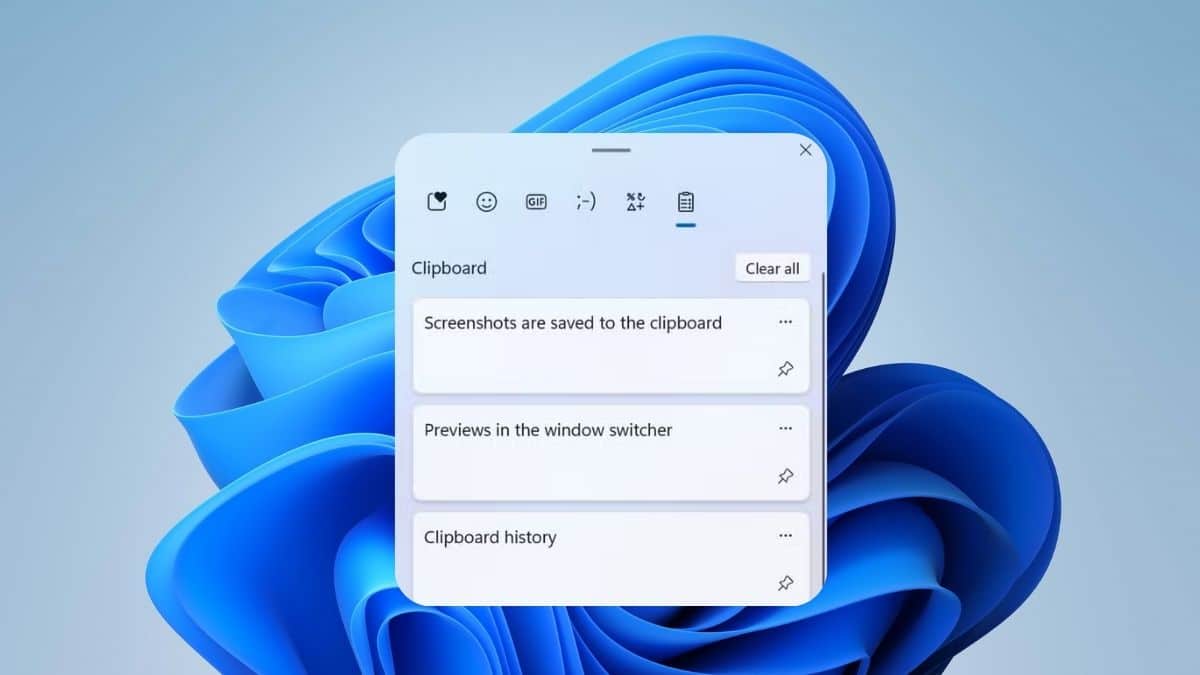
Copy something, switch windows, and paste, only to realize you copied the wrong thing three steps ago. Windows 11 fixed that years back with a proper clipboard history panel, but a lot of people still don’t know it exists or how to turn it on. If Ctrl+V is only pasting your last copy, you’re missing most of what the clipboard on this OS can actually do.
The feature you want is Clipboard History, and it lives one keyboard shortcut away. Here’s how to open it, turn it on if it’s not already running, and get the syncing and pinning right so you’re not retyping the same address or code snippet for the tenth time this week.
Open Clipboard History With Windows Key + V
Press Windows key + V on any screen, in any app. A small panel opens near your taskbar showing everything you’ve recently copied, not just the single item Ctrl+V would paste.
That’s the whole shortcut. No settings menu, no right-click required. If you’ve used Windows 11 with clipboard history already on, this panel shows text snippets, small images, and even GIFs you’ve copied, each as its own entry you can click to paste again. If the panel opens but shows nothing, or a prompt to turn the feature on, keep reading. That’s normal on a fresh install or after a Windows reset.
Turn On Clipboard History If Nothing Shows Up
Clipboard history ships off by default on a new Windows 11 setup. The first time you press Win+V, Windows shows a Turn on button right in that panel. Click it and you’re done, no restart needed.
Prefer doing it through Settings instead: go to Settings > System > Clipboard, then switch Clipboard history to on.
Both paths flip the same toggle. Once it’s on, every Ctrl+C and Ctrl+X you perform gets logged to the history panel automatically, on top of the regular single-item paste behavior that’s always been part of Windows.
Pin, Delete, and Clear Items From Your History
A clipboard history that fills up with junk is barely better than no history at all. Windows 11 gives you real control over what stays.
Open the panel with Win+V, then click the three-dot menu next to any entry. From there you can pin an item so it survives a restart and stays put no matter how much else you copy afterward, or delete it outright if you copied something sensitive by mistake, like a password or an account number. Pinned items are the fix for anything you paste often, a shipping address, a signature block, a piece of boilerplate code.
Want a clean slate? Select Clear all at the top of the panel to wipe every unpinned entry in one go. The same action is available at Settings > System > Clipboard > Clear clipboard data, useful if you’d rather do it without opening the panel first.
Either way, pinned items are untouched. Everything else resets automatically whenever you restart your PC, whether you clear it manually or not.
Sync Your Clipboard Across Devices
This is the part that turns clipboard history from a nice trick into an actual workflow change. Copy a link on your laptop, walk to your desktop, and paste it there without emailing it to yourself first.
Turn it on at Settings > System > Clipboard > Clipboard history across your devices. You get two options: automatic sync, which pushes everything you copy to your other Windows 11 PCs as soon as you copy it, or manual sync, which only sends an item over when you choose to share it from the history panel.
The catch, and it trips people up constantly, is that this only works between devices signed into the same Microsoft account or the same work account. Sign in with different accounts on your laptop and desktop and nothing will sync, no matter how many times you toggle the setting.
If you’ve been meaning to check what else changed in your settings recently, the Windows 11 August 2026 update touched several system-level controls worth a look while you’re already in there.
What the Clipboard Won’t Store, and Why That Matters
Clipboard history isn’t a bottomless archive. Windows keeps a maximum of 25 items at a time, and each entry is capped at 4 MB, which covers most text and small images but not a full-resolution photo or a large file. Copy something past that size and it simply won’t show up in the panel, even though the copy itself still works for an immediate paste.
That size cap is worth knowing before you rely on clipboard history for anything more than short-term convenience. It’s built for snippets and small images you’ll reuse in the next few minutes or days, not as a substitute for a notes app or a file-sharing tool. Anyone pasting long-term reference material should pin it or move it somewhere permanent instead of trusting the history to hold onto it indefinitely.
One mix-up worth clearing up: Windows key + period opens the emoji panel, a completely different tool for inserting emoji, GIFs, and symbols. It looks similar sitting in that same corner of the screen, but it has nothing to do with your copy history. If Win+V isn’t giving you what you expected, check you didn’t hit the wrong shortcut.
Fixing Win+V When It Won’t Open
A few things break this feature more often than Microsoft would like to admit. Start with the obvious: confirm clipboard history is actually toggled on in Settings, since a Windows Update or a system reset can quietly turn it back off.
On a managed work or school laptop, an IT department can disable clipboard history entirely through Group Policy or mobile device management, in which case no amount of toggling in Settings will bring it back. That’s worth ruling out before you assume something’s broken on your end. For everyone else, restarting Windows Explorer from Task Manager or simply rebooting the PC clears up most cases where the shortcut stops responding.
Running Windows Update to grab the latest cumulative update handles the rest, since a handful of past updates have shipped with this specific bug.
Final Thoughts
Opening the clipboard in Windows 11 takes one shortcut, but using it well means knowing the parts that don’t show up in a quick tutorial: the 25-item cap, the account requirement for syncing, and the policy settings that can silently turn it off on a work PC. Learn those once and Win+V stops being a party trick and starts saving you real time every day.
Disclosure: Tech Nerdiness is reader-supported. When you buy through links on our site, we may earn an affiliate commission at no extra cost to you.
Learn more.