


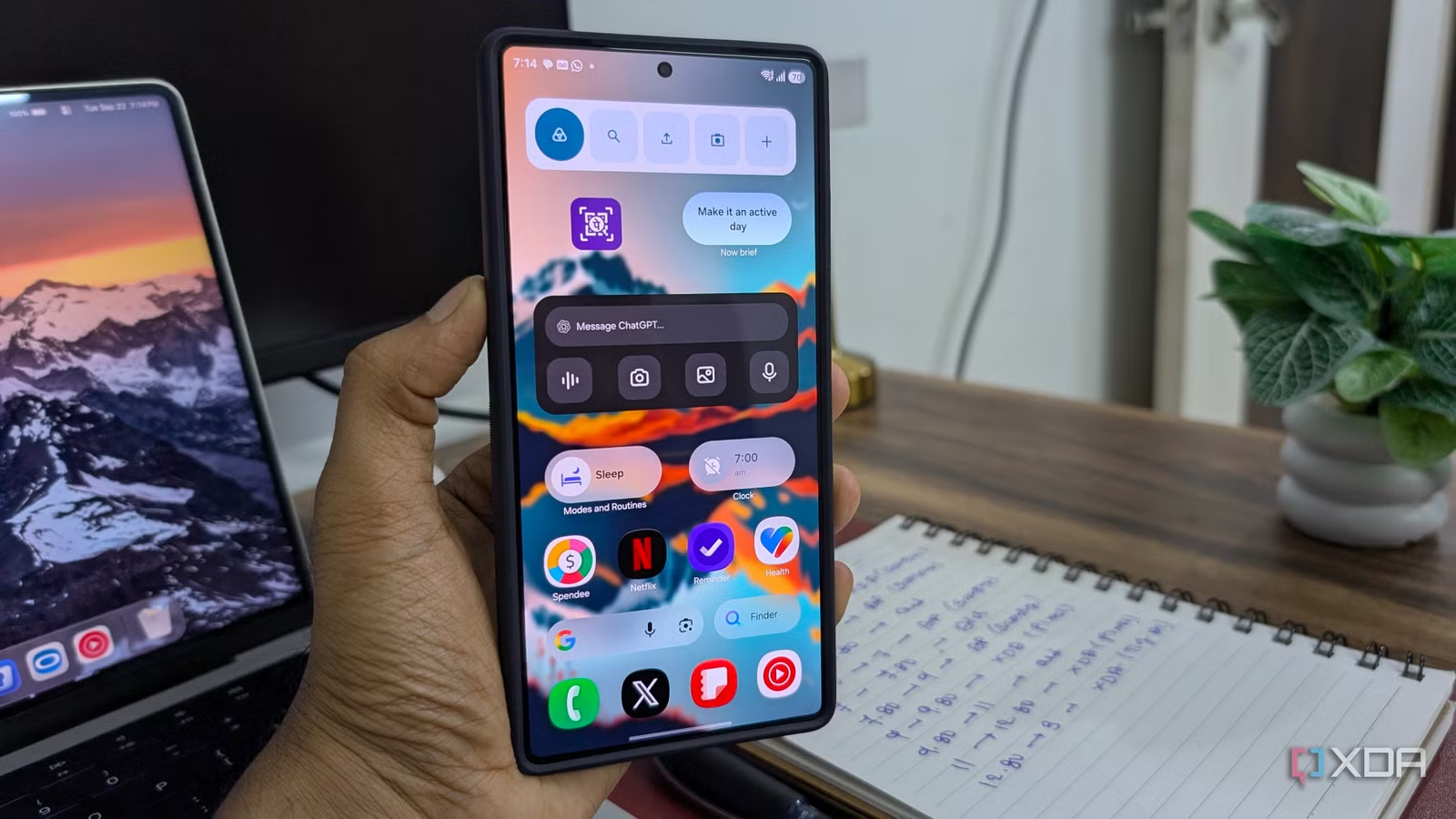
Losing a little battery overnight is normal, but waking up to find my Samsung phone down by nearly 10-12% every morning started to feel ridiculous. I wasn’t scrolling, streaming, gaming, or even touching the phone, yet plenty was still happening behind the scenes.
Instead of tweaking (and restoring them again in the morning), I automated how my Galaxy behaves while I sleep. I set up one Samsung Routine that automatically shuts down unnecessary activity at night and brings everything back to normal by morning.
Related
Android Auto kept disconnecting until I changed one hidden setting
The solution to my issue was more straightforward than I expected.
My phone was losing nearly 10-12% overnight
That’s a lot
My biggest frustration was seeing my Galaxy S25 Ultra battery drop by nearly 10% overnight, even though I wasn’t using the phone at all. I would go to bed with plenty of charge left, leave my Galaxy untouched for seven or eight hours, and still wake up to a noticeable chunk of battery missing.
That might not sound dramatic on paper, but it started affecting my mornings more than I expected. If I had forgotten to charge the night before, I would wake up already thinking about topping up the phone before heading out.
On busier days, that meant plugging it in while getting ready or carrying a charger just to be safe. The drain also felt wasteful because most of it was happening while the phone was sitting idle.
Background apps, notifications, syncing, and other overnight activity were still doing their thing when I needed almost none of it. That is when I decided to automate the entire nighttime setup instead.
I stopped hunting for individual battery hogs
Samsung Routines became the fix
At first, I approached the problem the obvious way: I started looking for individual apps that might be responsible for the overnight drain. I checked the battery usage, restricted a few apps, and kept wondering whether some rogue service was waking my phone in the background.
That is when I stopped chasing individual battery hogs and turned to Samsung Routines instead. Rather than micromanaging every app, I created one routine that tells my Galaxy to calm down while I am asleep.
Setting it up is straightforward. I opened Settings -> Modes and Routines -> Routines, created a new Routine, and used a specific time period as the trigger. Mine runs automatically from 2 AM to 9 AM, which covers the hours when I am normally asleep.
You don’t have to use a fixed schedule, either. You can pair the Routine with Samsung’s Sleep mode, or create a widget on the home screen and trigger it manually whenever you head to bed.
Then comes the fun part: choosing what actually happens during those hours. I have my routine turn off the always-on display, enable power saving, and close apps running in the background. These are all things I don’t need while I am sleeping, so keeping them active makes little sense to me.
You can take the setup much further, though. Depending on how aggressive you want to be. You can tweak the performance profile, turn off Wi-Fi, disable mobile data, and more. I personally prefer keeping these enabled.
The best part is that everything reverses automatically
The overnight drain finally became predictable
The best part about this setup is that I never have to undo anything in the morning. Once the Routine ends at 9 AM, my Galaxy automatically returns to its normal behavior. The always-on display comes back, power saving switches off, and the phone is ready for my usual daytime workload without me having to set or remember which toggles I changed the night before.
That automation is what made the whole thing stick for me. I have tried plenty of battery-saving tricks in the past, but most of them depended on me remembering to enable something before bed and reverse it the next morning.
Eventually, I would forget. With Routines, the entire process happens quietly in the background.
More importantly, my overnight battery drain has become far more predictable. Instead of waking up to a drop of around 10%, I now usually lose roughly 2% overnight. That is a much more manageable number, and no longer throws off my morning.
Related
I turned off one Samsung feature and gained hours of battery life
My Samsung suddenly lasted much longer.
My phone finally survives the night
This sleep Routine fixed one very specific problem for me, but that is exactly why I like Samsung Routines so much. I can build them around the small annoyances that show up in my own day. I can build automations for driving, charging, working, gaming, traveling, or practically any part of my day.
That is what makes Routines so useful: you decide the trigger, choose exactly what your Galaxy should do, and then forget about it. So don’t copy my setup and call it a day. Get creative, experiment with different combinations, and build Routines around your own habits.