


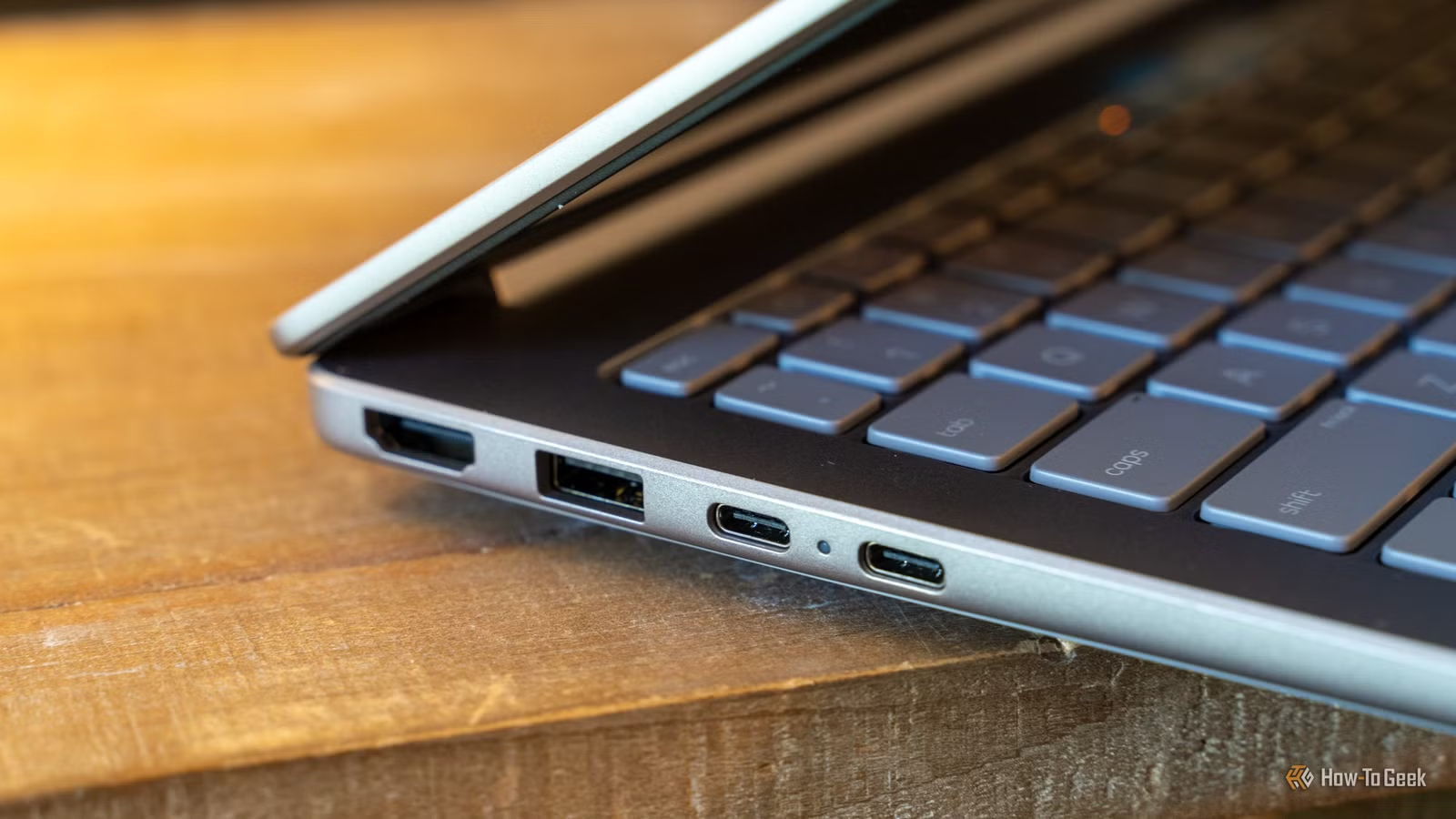
USB-C has been a game changer for electronics like phones, laptops, and other small devices, but the same isn’t true for desktop PCs. After going through the trouble of adding a USB-C port to my slightly-older PC, I’ve only used it a handful of times, and I frequently find myself wondering if it was worth the fuss.
The promise of USB-C: One port to rule them all
Sounds great, right?
USB-C promised one thing: one port and plug that can do everything you ever need. At least in theory, it holds up to that. The best USB-C standards today—USB4 and Thunderbolt 5—support video, audio, Ethernet, regular data transfer, and power delivery up to 240 watts. If you’re inclined to tinker, you can make USB-C do even more than that.
In theory, that should appeal to everyone. However, the benefits haven’t really materialized for desktop PCs at all.
USB-C changed laptop design
Everything’s a MacBook Air now
Prior to USB-C entering the mainstream, the sides of laptops were a miniature exhibit of the diversity of ports that we had at the time. You’d regularly see HDMI, DVI, DisplayPort, VGA, FireWire, USB type A, at least one 3.5mm port, RJ45 ports, and more varied charging ports than I care to remember.
USB-C has radically changed all of that. It isn’t uncommon to encounter laptops that literally only have USB-C ports and one lonely aux port thrown on for good measure for people that love wired headphones. One plug has replaced at least a dozen others.
If you have a peripheral that requires one of those specialized ports, all you need to do is pick up the appropriate adapter, and you’re set. There is also a healthy market for USB-C docks, which usually provide a smattering of different ports for different purposes. You can almost always find a dock that has the ports you need if you’re willing to do a little bit of shopping around.
That has allowed laptop manufacturers to dramatically cut down on the number of ports a laptop has and physically slim down the device in the process, all without sacrificing usability.
However, none of that really holds for desktop PCs.
Desktops usually don’t need USB-C
At least, not in theory
Credit: Bertel King / How-To Geek
Unlike laptops, desktops aren’t usually hurting for space. Even the smallest desktop form factors have as much space available as the thickest laptops. That means one of the biggest perks of USB-C—saving space—isn’t all that important for desktops.
You can easily fit a half dozen USB type A ports on the back of the average motherboard without crowding out the other essentials.
Unlike laptops, thicker ports like RJ45 (which is used for Ethernet) don’t make desktops noticeably thicker or use up too much space. In fact, many high-end motherboards will often come with two Ethernet ports. The same is true for video ports. Most GPUs have at least two ports, some will have four or even five.
Desktops also don’t really benefit from the other perk you get with USB-C either—the ability to do audio, video, Ethernet, power, and data over a single cable—since most things you’ll plug into a desktop still use a specialized plug themselves.
The overwhelming majority of all desktop peripherals, like your keyboard, mouse, and webcam, still come with a USB type A plug on one end. Monitors usually still use dedicated video cables, like HDMI or DisplayPort, rather than USB-C. Routers still connect to desktops using standard Ethernet cables.
The one area where USB-C shines is data transfer rates. The fastest standard that uses USB-C is Thunderbolt 5, which can (if all the devices support it) transmit up to 120 gigabits per second in one direction, or 80 gigabits per second bidirectionally. If you have a high-speed peripheral, like an extremely fast external SSD, that speed is pretty handy.
Related
I Finally Added USB-C Ports to My PC, and It Was Harder Than I Expected
Your PC isn’t limited to the ports that came on the motherboard.
USB-C standards are a huge mess
Inconsistant implementation, constant guesswork
Credit: Tim Brookes / How-To Geek
To make matters worse for USB-C on desktops, the mix of standards that can use USB-C is an opaque mess. Physically, any USB-C cable can be plugged in to any USB-C port, but the compatibility guarantees basically end there.
USB-C can be used for everything from the USB 2.0 standard, which can only transfer data at speeds up to 480 megabits per second and deliver 15 watts of power to Thunderbolt 5, which supports speeds up to 120 gigabits per second in one direction and can deliver up to 240 watts.
How do you know what you’re getting when you’re plugging in a cable? Very often times you don’t—you just have to plug it in and hope for the best.
USB-C attempted to solve a real problem: too many ports. However, instead of unifying the tech world behind one easy-to-use port and plug, it shifted the problem, and in some ways made it worse. Before, we had more ports than we could shake a digital stick at. Now, we have more standards that use USB-C than we can shake a stick at, but they all use the same port and plug!
Sure, you could replace every port on the back of a motherboard with USB-C, but why would you ever want that? You can know with relative certainty what you’re going to get when you plug an Ethernet cable into an Ethernet port. You’re not going to plug a DisplayPort cable into a DisplayPort port on your GPU only to discover that one component only supports the standard from the year 2000. There are few, if any, surprises when each port corresponds to a specific use.
Should you add USB-C to your desktop?
Unfortunately for USB-C, the fragmentation of the standard means there isn’t much reason for desktop users to want more USB-C ports—one port and plug for each standard is just simpler to deal with when space isn’t a pressing issue.
Power supply included
Yes, from the PCIe slot
Weight
0.23 lb
The Allegro USB3C-1M20G-E features a single USB-C port capable of delivering speeds of up to 20 gigabits per second (USB 3.2 Gen 2×2) and can provide up to 15 watts of power to any connected device. It connects to any free PCIe x4, x8, or x16 slot on motherboards.