

Close Menu
Techy101 –

    Subscribe to Updates

    Get the latest creative news from FooBar about art, design and business.

    What's Hot

    Beyond The Dark – Nightwatch Looks Like A Wii U Game In The Best Way

    September 8, 2026

    Amiga Banger Kaboomania Now Available On Multiple Platforms

    September 8, 2026

    Will GTA 6 Have First-Person Mode at Launch?

    September 8, 2026
    Facebook X (Twitter) Instagram
    Trending
    • Beyond The Dark – Nightwatch Looks Like A Wii U Game In The Best Way
    • Amiga Banger Kaboomania Now Available On Multiple Platforms
    • Will GTA 6 Have First-Person Mode at Launch?
    • Cute Leftover Dorm Gifts — Cable Kit, Notebook, Roommate-Safe Audio
    • Google is undoing this annoying Now Playing downgrade on Pixels
    • Think Twice Before Being Mean to Your AI – Unite.AI
    • “Rockstar has tried to get away with Grand Theft Employment Rights” – Final hearing in Rockstar vs. GTA 6 fired employees begins this week
    • 10 Trial of Chaos Changes That Finally Fix the Mode
    Facebook X (Twitter) Instagram Pinterest YouTube LinkedIn TikTok
    Techy101 –Techy101 –
    • Home
    • Laptops
    • Mobiles
    • Gaming
    • Gadgets
    • Apps
    • AI
    • How To
    • Reviews
    Techy101 –
    Home»Gadgets»How To Check Your PC’s Hard-Drive Health
    Gadgets

    How To Check Your PC’s Hard-Drive Health

    By RepublisherSeptember 6, 2026No Comments4 Mins Read
    Share Facebook Twitter Pinterest LinkedIn Tumblr Reddit Telegram Email
    How To Check Your PC's Hard-Drive Health
    Share
    Facebook Twitter LinkedIn Pinterest Email


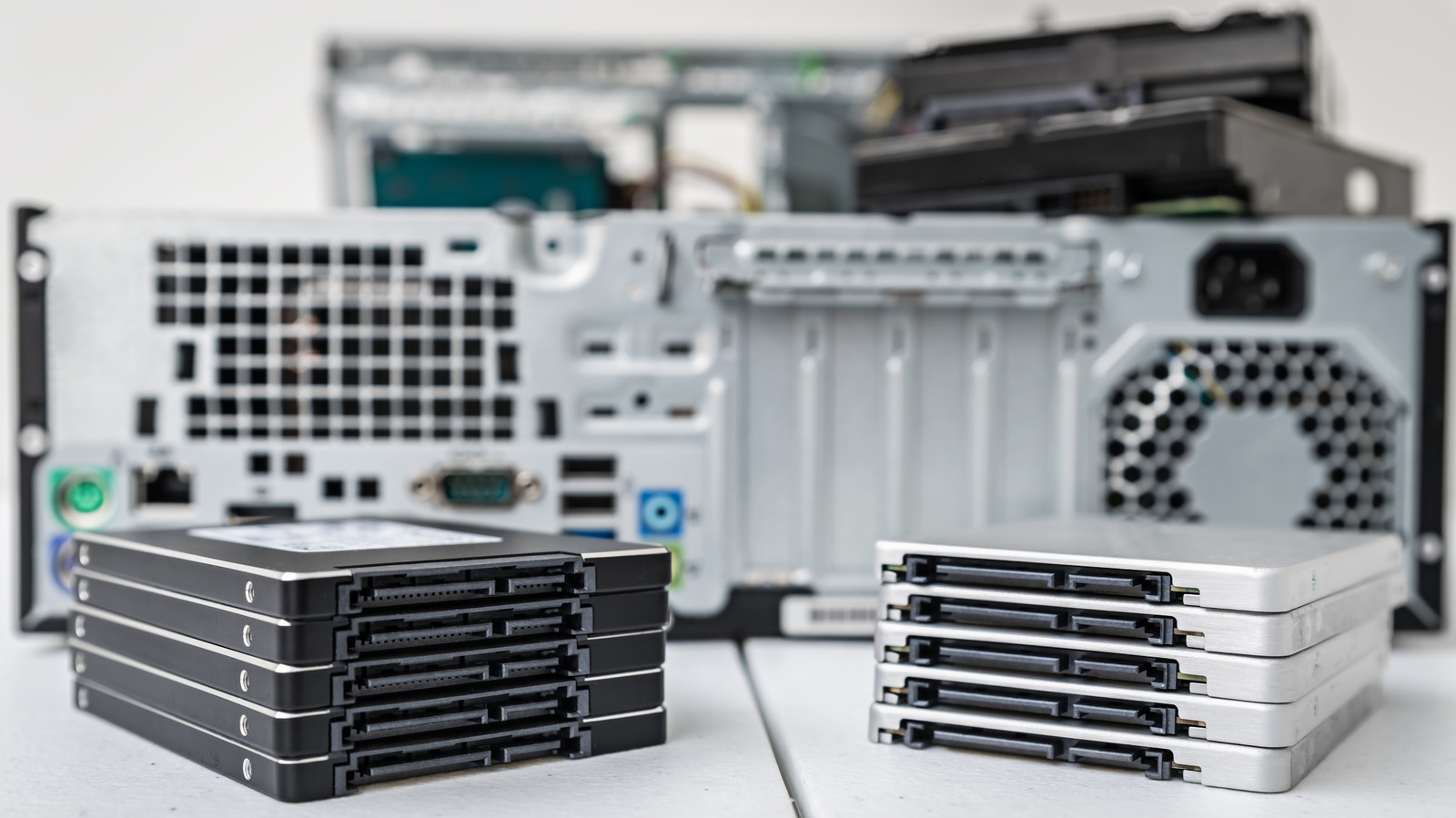
    A few built-in checks can tell you whether your HDD or SSD is showing signs of trouble.


    myphotobank.com.au/Shutterstock

    Storage drives have a tendency to fail when you least expect it. A traditional hard drive may give you a warning with clicking or grinding sounds, but an SSD has no moving parts to make a fuss. Problems with either type can manifest as corrupted files, abnormally slow access, frequent read or write errors, crashes, or a drive that periodically disappears from Windows.

    If any of that is already occurring, back up your important files before doing much else. Diagnostics are good, but it’s not as much fun to recover the only copy of something when a drive dies.

    Windows has several built-in methods for checking the health of drives, but the information it can provide will vary based on the hardware in the computer. Free utilities can go further and read the drive’s Self-Monitoring, Analysis and Reporting Technology (SMART) data.

    There is one limitation, though. A healthy status can be reassuring, but it’s certainly not a lifetime guarantee.

    See what Windows knows about your drive


    Screenshot by Husain Parvez (Microsoft)

    The simplest way to get started in Windows 11 doesn’t involve opening a terminal or feigning a love for command lines.

    1. Open Settings and choose System.
    2. Go to Storage > Advanced storage settings > Disks & volumes.
    3. Select your drive and choose Properties.

    Windows can display estimated remaining life, available spare capacity and temperature for supported NVMe SSDs. It can also alert you if spare capacity is low, reliability has decreased or if the drive has gone into read-only mode.

    There is one thing to look out for here. Microsoft says this health monitoring doesn’t cover SATA SSDs or traditional hard drives. If Windows provides little or no health information, don’t assume that it’s a clean bill of health.

    Another quick check can be done via PowerShell. Open a PowerShell tab in Windows Terminal, type Get-PhysicalDisk and check the HealthStatus column. The status can be Healthy, Warning, Unhealthy or Unknown.

    Older guides might instruct you to use wmic diskdrive get status instead, but that’s old advice. WMIC has been removed from currently supported versions of Windows 11, and Microsoft recommends supported alternatives like PowerShell.

    How to act on Healthy, Warning or Bad results


    Screenshot by Husain Parvez (CrystalDiskInfo)

    If the result is Healthy and the PC is acting normally, that’s a good sign. Keep backing up your data, as drive-health systems can detect some potential issues, but not all failures.

    For a second opinion, CrystalDiskInfo is a free tool that can read SMART data from many HDDs and SSDs, including NVMe drives. More importantly for those who don’t really want to spend an afternoon trying to understand what the raw storage counters mean, it gives the drive a health status of Good, Caution, Bad or Unknown.

    If you get a Caution or Bad result, backing up becomes the priority. You can then verify the issue using the drive manufacturer’s own diagnostic software, like Seagate’s SeaTools or Samsung Magician (for supported Samsung SSDs). Persistent warnings, an Unhealthy result or obvious mechanical symptoms are all good reasons to stop trusting that drive with the only copy of important data and start considering a replacement.

    CHKDSK is also helpful, but for a different task. It checks a volume’s file system and metadata for errors. The /f option fixes file-system errors, and the /r option locates bad sectors and attempts to recover readable data.

    However, if a file-system problem is corrected with CHKDSK, the questionable hardware is not magically made healthy. For HDDs, CrystalDiskInfo can trigger a Caution status based on three SMART attributes: reallocated sectors, pending sectors and uncorrectable sectors.


    Source link

    Check HardDrive Health PCs
    Share. Facebook Twitter Pinterest LinkedIn Tumblr Email
    Previous ArticleDieses 20-Euro-Produkt sollte man unterwegs dabei haben
    Next Article Granblue Fantasy Relink Company Announces New Publishing Label Aimed At Releasing Smaller Games Faster
    Republisher
    • Website

    Related Posts

    Gadgets

    Cute Leftover Dorm Gifts — Cable Kit, Notebook, Roommate-Safe Audio

    September 8, 2026
    Gadgets

    I Actually Really Like Xiaomi’s Folding iPhone Ultra Rival

    September 8, 2026
    Gadgets

    Carimatec Uses 3D Printing to Speed Dental Aligners

    September 8, 2026
    Add A Comment
    Leave A Reply Cancel Reply

    Top Posts

    Beyond The Dark – Nightwatch Looks Like A Wii U Game In The Best Way

    September 8, 2026

    AMD is apparently gearing up to raise GPU prices right after Nvidia’s steep hike

    August 1, 2026

    LanceDB Vector Database Guide: Features anndPython Demo

    August 1, 2026
    Stay In Touch
    • Facebook
    • YouTube
    • TikTok
    • WhatsApp
    • Twitter
    • Instagram
    Latest Reviews

    Subscribe to Updates

    Get the latest tech news from FooBar about tech, design and biz.

    Latest Post

    Beyond The Dark – Nightwatch Looks Like A Wii U Game In The Best Way

    September 8, 2026

    AMD is apparently gearing up to raise GPU prices right after Nvidia’s steep hike

    August 1, 2026

    LanceDB Vector Database Guide: Features anndPython Demo

    August 1, 2026
    Recent Posts
    • Beyond The Dark – Nightwatch Looks Like A Wii U Game In The Best Way
    • Amiga Banger Kaboomania Now Available On Multiple Platforms
    • Will GTA 6 Have First-Person Mode at Launch?
    • Cute Leftover Dorm Gifts — Cable Kit, Notebook, Roommate-Safe Audio
    • Google is undoing this annoying Now Playing downgrade on Pixels

    Subscribe to Updates

    Get the latest creative news from FooBar about art, design and business.

    Facebook X (Twitter) Instagram Pinterest YouTube LinkedIn TikTok
    • About Us
    • Contact Us
    • Privacy Policy
    • Terms & Conditions
    • Disclaimer
    © 2026 techy101. Designed by Pro.

    Type above and press Enter to search. Press Esc to cancel.