


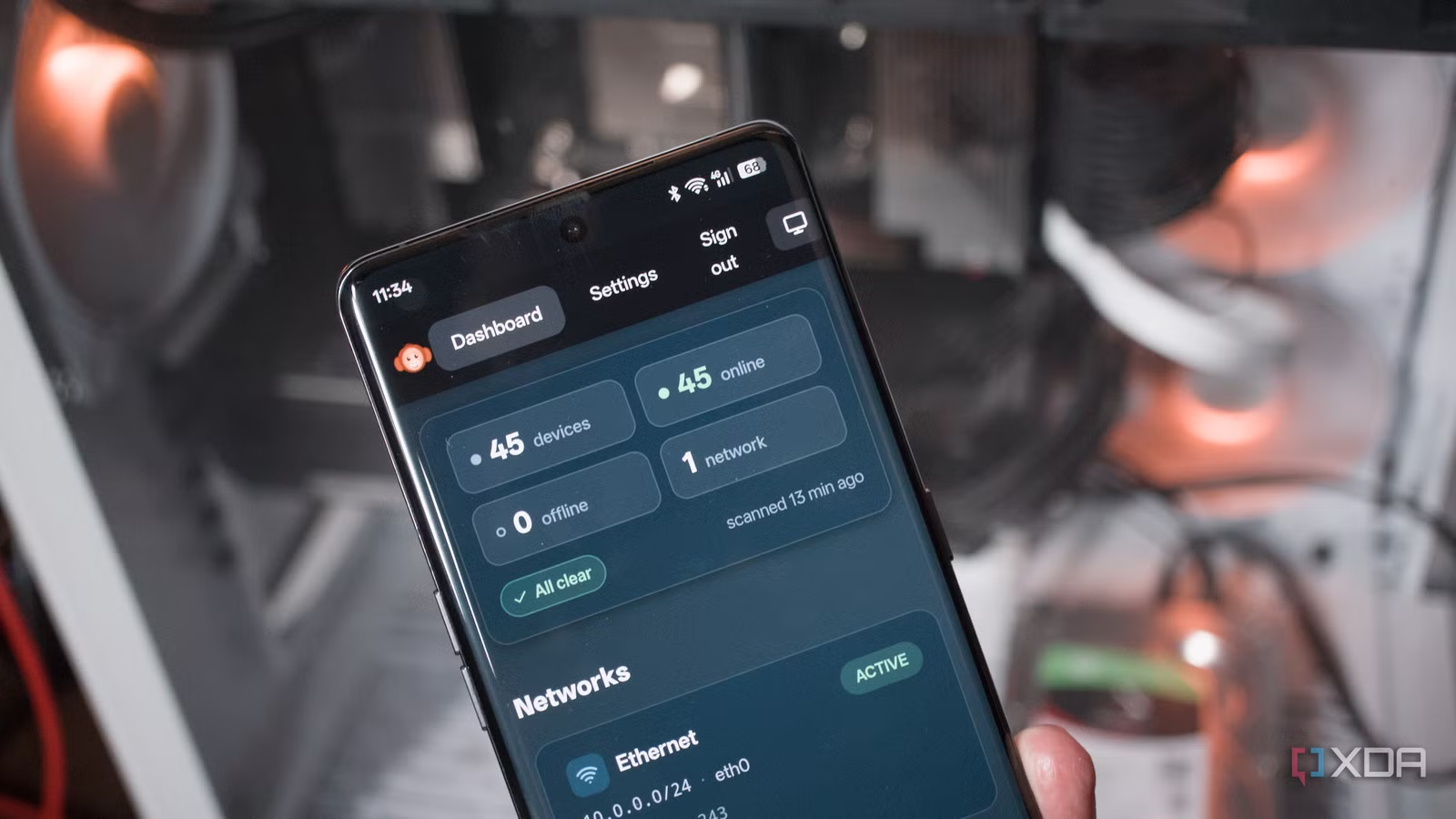
There’s certainly no shortage of network mapping and monitoring tools. There is one lightweight package I recently discovered and finally got around to testing. LAN Orangutan (what a name) quickly became one of my favorite snappy Docker containers to have running within the home lab. It has bags of potential with an early release that already gets almost everything right. It’s quick to deploy, keeps things simple, and provides an effective way to map out and monitor networks.
When network scanners are useful at home
It’s not just a tool for enthusiasts
Network scanning isn’t something reserved for those who enjoy looking at numbers, discovered entities, and who enjoy having live views of what’s happening on the LAN. It’s also valuable for everyone else who may be interacting with clients and destinations on the network. Most devices on a typical home LAN receive an IP address from the router’s DHCP server. A few IP addresses to remember is no big deal.
But once you start self-hosting services and appliacations, get more hardware online, and even venture into smart home territory, the LAN can quickly grow to three digits. That’s when things become overbearing to recall every address on the network. Spinning up a new Linux container (LXC) or virtual machine (VM)? That’ll be another IP address to remember. Want to use a VLAN for dedicated traffic segmentation and management? More IP addresses, please.
It does exactly what it says on GitHub.
This is where a network discovery tool such as LAN Orangutan comes into play. I’ve used a few over the years, including NetBox, Fing, Nmap, and Angry IP Scanner. They’re all brilliant, but LAN Orangutan caught my eye as it’s self-hosted, simple, and lightweight. In fact, it doesn’t really do much aside from probe the network and list all clients. Sure, this data is likely available within the router software I use, but it looks much better and is more convenient to access.
Plus, it allows me to provide access to others, as I wouldn’t want just about anyone accessing the router backend, right?
Related
I used this self-hosted tool to scan my network, and it’s surprisingly powerful
Reconya gives you real-time visibility into every device on your network.
Setting up LAN Orangutan is easy
Up and running in less than a couple of minutes
Credit:
The LAN scanner is available via Docker, which makes the entire process of launching and maintaining LAN Orangutan a painless process, even if this just so happens to be your first time running a Docker container. If you’re using a GUI solution such as Portainer to manage self-hosted apps, you can simply install LAN Orangutan via the interface and you’re good to go. If, like me, you prefer to run an LXC per app, here’s how it’s done:
- Create a Debian LXC.
- Enter the LXC shell.
- Update the system. apt update && apt upgrade -y
- Install Docker, certificate backend, and cURL. apt install docker ca-certificates curl
- Create the APT keyring directory. install -m 0755 -d /etc/apt/keyrings
- Add Docker’s GPG key. curl -fsSL https://download.docker.com/linux/debian/gpg -o /etc/apt/keyrings/docker.asc
- Adjust permissions on the Docker keyring file. chmod a+r /etc/apt/keyrings/docker.asc
-
Add the Docker repository. tee /etc/apt/sources.list.d/docker.sources Types: deb
URIs: https://download.docker.com/linux/debian
Suites: $(. /etc/os-release && echo “$VERSION_CODENAME”)
Components: stable
Architectures: $(dpkg –print-architecture)
Signed-By: /etc/apt/keyrings/docker.asc
EOF - Refresh the package index. apt update
- Install Docker Engine. apt install docker-ce docker-ce-cli containerd.io docker-buildx-plugin docker-compose-plugin
- Make sure it’s running. systemctl status docker
-
Run LAN Orangutan. docker run -d \
–name lan-orangutan \
–network host \
–restart unless-stopped \
–cap-add NET_RAW \
–cap-add NET_ADMIN \
–cap-add NET_BIND_SERVICE \
-v lan_orangutan_data:/var/lib/lan-orangutan \
291group/lan-orangutan
LAN Orangutan listens on port 291, so enter the LXC-assigned IP address followed by 291 in your browser. For me, it was 192.168.1.242:291. Ironically, we need to find the IP address of the network scanner to use the tool to scan IP addresses. This can be achieved by checking the network configuration within Proxmox for the LXC, within the LXC itself, or through a router DHCP interface.
Once running, the LXC uses just 150 MB of RAM and a small fraction of the two assigned vCPU cores. Just north of 1 GB of storage is utilized, so this tool could easily be installed on low-powered hardware like a single-board computer (SBC).
Related
I monitor my home network by self-hosting ntopng – here’s how
From analyzing your traffic to snooping on malicious devices connected to your network, ntopng can do it all!
It’s simple, easy to deploy and effective
See what’s running on the LAN
Firing up the web interface will ask for an administrative password to keep everything secured. After that, simply login using the password and you’ll be greeted by the single web page. All LAN Orangutan offers is the primary dashboard listing all networks and detected clients. There’s a settings area and a small pop-up when editing devices and that’s about it. The app will provide MAC and IP Addresses, as well as hostnames and vendors if possible.
I quickly grouped all the detected clients together, using network for all the infrastructure hardware and server for self-hosted stuff and home lab equipment. Instead of simply scanning the network and calling it a day (which is possible via a toggle on the dashboard), LAN Orangutan will by default attempt to keep a lightweight inventory of all detected networks. Interestingly, underneath the hood is Nmap, which handles all the discovery workloads.
And if you’re someone who manages and uses Tailscale, there’s full support available, which is a nice touch.
It’s not as “bloated” as other tools
The goal with LAN Orangutan is to make network discovery simple, effective, and pleasant to glance at. I believe the team achieve all three and it’s yet another fine networking tool available for the home lab arsenal. Is it as functional or feature rich as say ntopng? Absolutely not, but that’s entirely the point. If I simply want to know something on the LAN that isn’t documented yet (QR codes and a label maker is perfect for this, by the way), I can fire up this handy tool to check it out.