


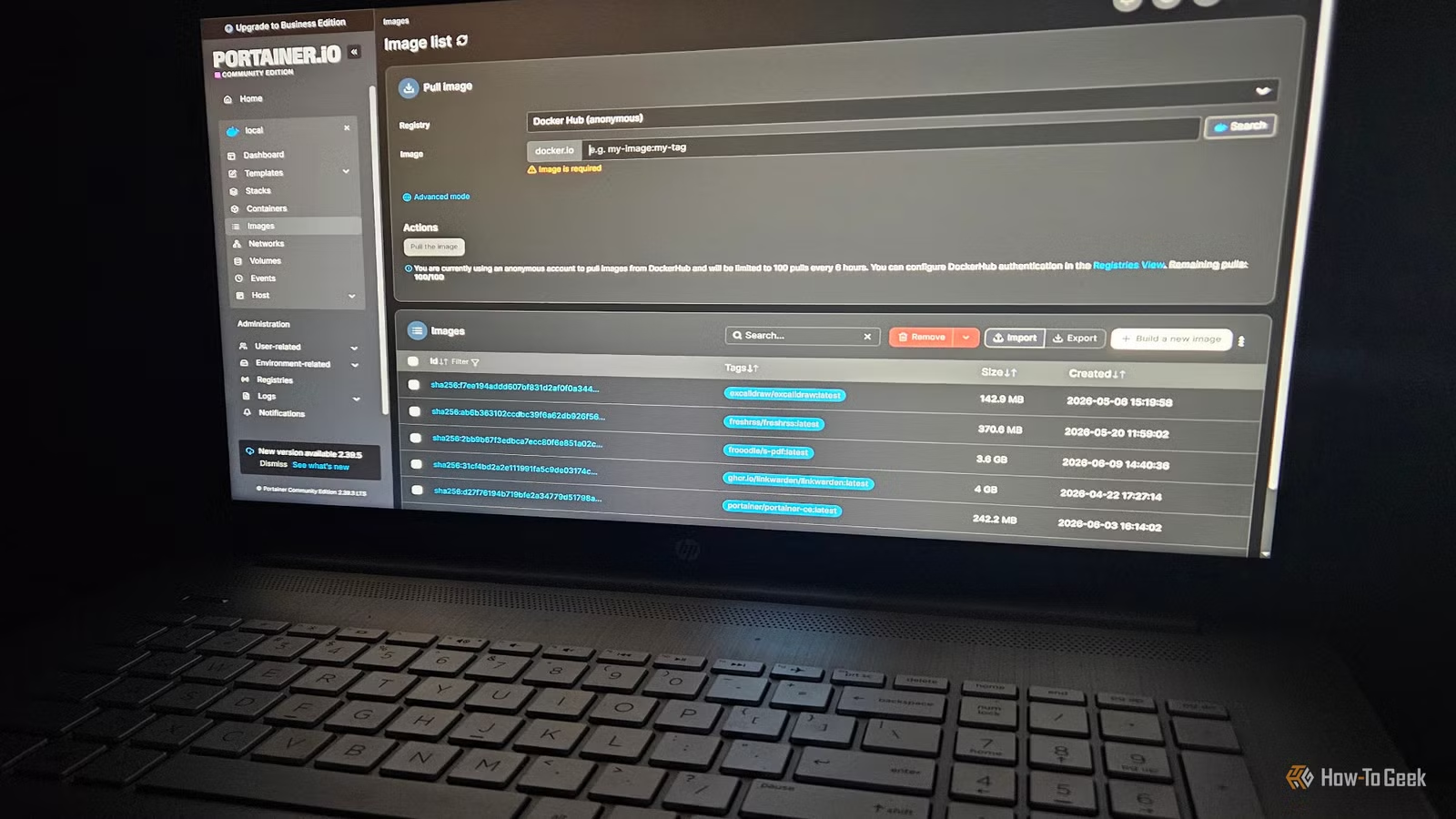
I love Docker, but I didn’t always have such an easy time with it. In retrospect, not using a Docker manager was one of my biggest mistakes when first starting to use the software. While I run Portainer on a daily basis nowadays, my first time using Docker was spent without a manager. It was rough, to say the least.
I spent a solid week without a Docker manager
The first few containers I used were managed individually
Credit: Patrick Campanale / How-To Geek
When I first got started with Docker, everything it did seemed amazing. Working with containers (which contain the image and all the dependencies of a particular application) seemed easy and intuitive. They existed in a sandbox. I could add, update, or delete them with a simple command. I could use them for almost anything.
But then I started diving deeper into using different containers. That’s when the trouble started.
I began to notice my hard drive space filling up quickly. I also started having trouble with certain containers working properly. Some containers ran sluggishly or simply wouldn’t launch. After an upgrade of one container, it started having issues.
Docker mismanagement led to data difficulty
Forgetting about orphaned containers led to some wild issues
During the time I worked without a container manager, I had some misadventures with managing Docker through the Terminal.
I work with Docker every day and run anywhere from 3-6 containers (applications) on any given day. Deleting a container doesn’t remove the image or all its data. Sometimes I forget to purge old data when I update or remove an image. This caused some trouble a little while ago for my data management.
Mismanaging data in Docker can not only chew up a bunch of space on your hard drive, it can be a pain to manage. Hidden build cache, persistent volumes, and extra data all clutter things up. I used a script to clean up dangling volumes.
Then, I checked my Docker system (using command docker system df) to see what I had going, what was reclaimable, and to see if there were any hanging images taking up space. There were quite a few floating images and unused containers. So I pruned them with docker system prune –all.
Warning – docker system prune –all removes all stopped containers, networks that aren’t being used by at least one container, and any unused images you have on your system. Don’t blindly run this command (I learned this the hard way!).
Next, I would usually hit my system with docker builder prune to remove the build cache. From there, I reassessed which containers (apps) I’m using regularly and manually removed the ones I’m no longer using daily. I could always reinstall them later.
But this ended up being a longer, more tedious process. Portainer made my data management simpler and much better.
Related
Docker vs. Virtual Machines What’s Best for Your Homelab?
Sometimes you need a bulldozer, and sometimes a shovel.
A container manager is like a virtual assistant for Docker
It notifies you of issues without being a pest
Credit: David J. Buck / How-To Geek
In Portainer, I can look at my Container list and immediately do a few things: checking the published port, monitoring its health, or seeing which Stack it’s in. I can also do a few quick actions, like checking the logs. But the most useful feature is telling me exactly which port I’m using. If I try to run more than 6 containers at a time, that becomes very helpful.
Up/Down status is one of the most useful tools in my experience. Running some of the purge commands above can accidentally delete containers if they’re not up. I’ve had it happen more times than I care to admit. A glance at their status helps me make informed decisions in that regard.
Docker stacks are part of an orchestration tool in Docker called Docker Swarm. Its purpose is to manage Docker containers across multiple machines. But keep in mind that in Portainer, the Stacks view is basically a GUI for Docker Compose files, unrelated to Swarm. A quick peek at my Stacks dashboard tells me if the compose files are running, healthy, or having any issues.
With Volume Management, you can add or remove them with a simple click of a button and see what volumes you have in a list. This makes it much easier to avoid deleting an important one, especially when you’re not sure which volumes you still need to keep or can safely purge.
But the best part is the quick health check a GUI manager provides and the convenience of using a web terminal. There are so many things that make it worthwhile, I’m glad I decided to start using one.
Portainer isn’t the only game in town
There are other container managers available
Credit: David J. Buck / How-To Geek
Although I’ve spent considerable time with Portainer, it isn’t the only Docker Manager out there. Another popular alternative is a manager called Lazydocker. I haven’t used it yet, but it seems to offer a cleaner user interface and a safer/less risky way to manage containers.
I like the fact that it’s open-source, as is the community edition of Portainer. But, the idea of using fewer resources appeals to me (Lazydocker is a TUI tool, not web-based, so it’s more lightweight).
So, whether you use Portainer or give Lazydocker a try, I believe Docker Managers are essential to any workflow using containerized applications.
Related
3 more Docker containers I can’t work without
After finding several valuable Docker containers for my daily workload, I expanded my search to find three more I can’t live without.
If you use Docker, it’s probably best to use a container manager
That first week without using Docker was a rough one. Using one is now a critical part of my workflow. I wouldn’t recommend anyone start using Docker without one. It’s just a bad idea all around.
OS
Windows, macOS, Linux
Brand
Docker